
Browse documentation
Agent Workbench
How to read the Agent Workbench, its level ladder and org chart, and each agent's own page, where its instructions, tools, guardrails, budget and status are set.
Every agent in your workspace, on one screen
The Agent Workbench lists every agent your workspace can see: the agents your teams seated, the agents you built, and the agents Nagent maintains for every workspace. Open any of them to read and change how it works.
Find it in Build AI Team, or go straight to nagent.ai/admin/ai-team/agent-workbench.
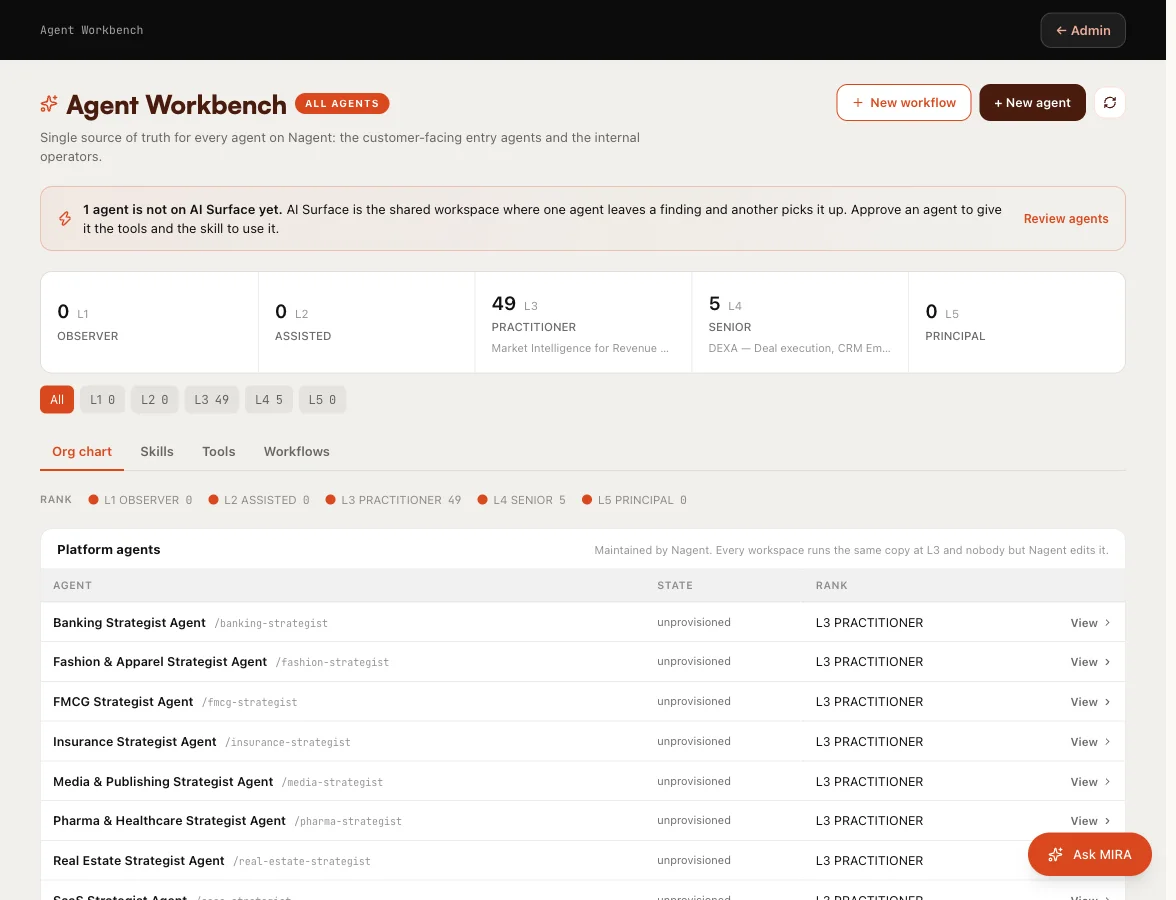
Reading the top of the screen
+ New agent opens the agent builder, and New workflow starts a workflow. See creating an agent.
A notice may say that some agents are not on AI Surface yet. AI Surface is the shared space where one agent leaves a finding and another picks it up. Press Review agents, then Approve beside an agent to give it the tools and the skill to use it.
The ladder counts your agents at each level, from L1 Observer to L5 Principal. Press a level in the row of chips under it to pick out the agents at that level. The other rows stay in place, dimmed, so every lead is still visible. Press All to clear it. For what each level means, see autonomy and governance.
Under the ladder are four tabs.
| Tab | What it holds |
|---|---|
| Org chart | Every agent, in the department and under the lead it works for |
| Skills | Your skill library, and which agents use each skill. See skills |
| Tools | Your tool library. See tools and integrations |
| Workflows | Multi-step runs that hand work from one agent to the next |
Reading the org chart
The chart is grouped the way your company is: Platform agents, Marketing, Sales, Content, Custom agents, and Other for an agent on the roster that is not yet seated in a department. Inside a department, the chief of staff comes first and each lead follows, with the agents that work for that lead under it. A lead with agents under it has a chevron to show or hide them.
Each row shows:
| Column | What it shows |
|---|---|
| Agent | Its name and its key, for example /nora |
| State | Its operational state, such as active, paused or unprovisioned |
| Rank | Its level, such as L4 Senior |
| Manage or View | Opens the agent's own page |
Manage means you can change the agent. View means you can read it but not change it, which is the case for platform agents and for a custom agent someone else built.
A seat marked Coming soon is one Nagent has not built yet, and a seat marked Beta is new. A seat reading not on this roster belongs to the department but is not installed in your workspace.
The kinds of agent you will see
- Your teams' agents. The agents a prebuilt team seated when you installed it, such as NORA, DEXA and RIVA on Sales. See the Sales team.
- Platform agents. Agents Nagent maintains, such as the builders and the industry strategists. The chart says it plainly: every workspace runs the same copy at L3 and nobody but Nagent edits it. You can still pause one.
- Custom agents. Agents built in your workspace. With permission to manage agents, you can remove one with the bin icon, Delete custom agent.
Below the chart, Available to install lists teams published by Nagent that your workspace does not have yet, each with its agents and an Install button.
An agent's own page
Press Manage or View on any row. The top of the page shows the agent's name and description, and these controls:
- Pause switches the agent off at once, and Activate switches it back on. A paused agent takes no action with a side effect.
- Sandbox opens a test where you give it a sample input and read what it would do.
- The tiles: Status, Autonomy, Trust, Runs · 24h, Risk and Cost per run.
- Stop agent, under the header, is a recorded stop: you give a reason, which goes on the agent's permanent history, and new runs are refused. The agent keeps its level, skills and memory. If your role does not carry the permission it needs, the dialog says so; Pause still works.
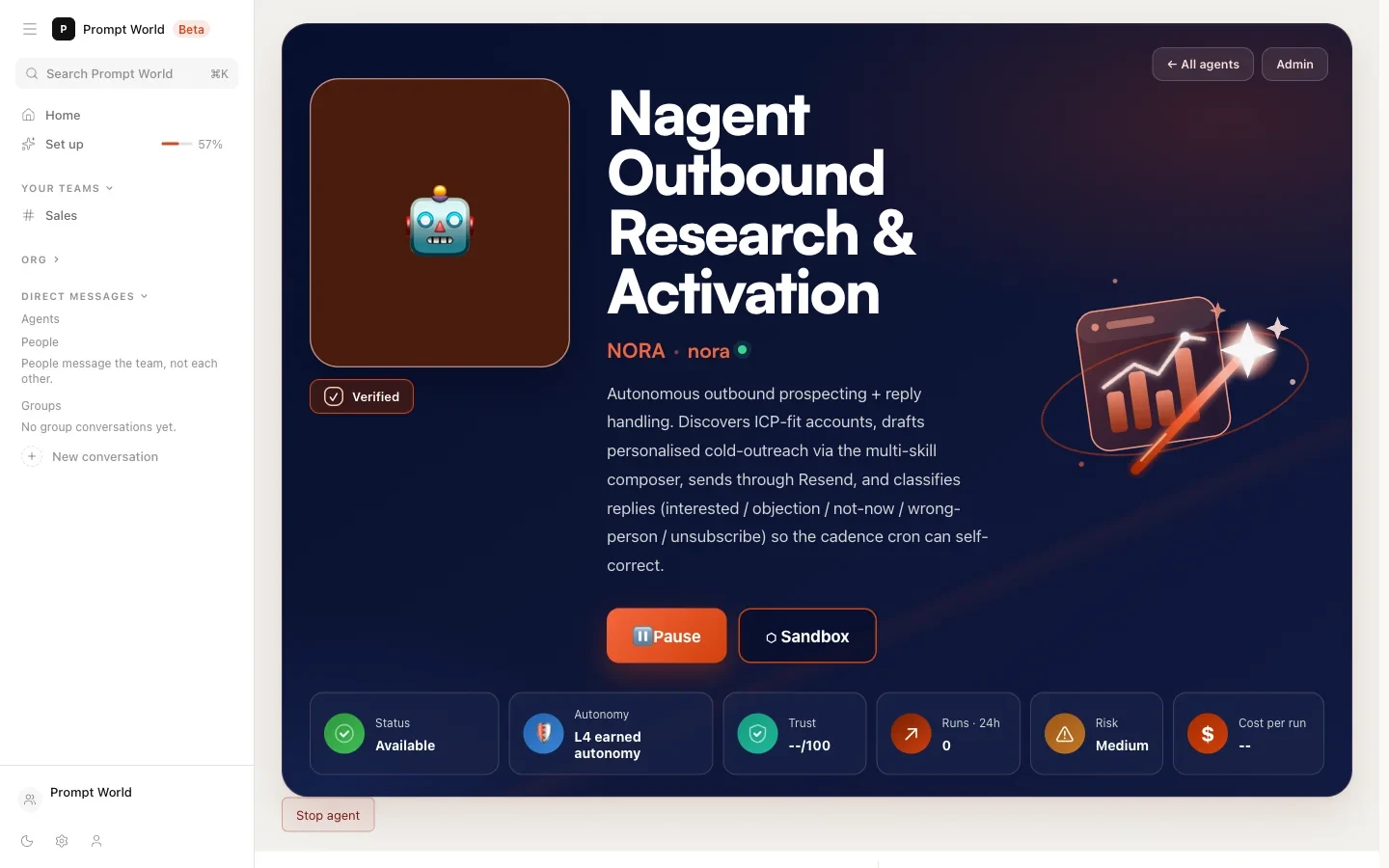
A platform agent's page carries the line Maintained by the platform, and its set-up cannot be changed there.
The tabs on an agent's page
| Tab | What it holds |
|---|---|
| Profile | What the agent is for, its capabilities, the surfaces it works on and its parts |
| Configuration | Its instructions and how it is governed (see below) |
| Sandbox | A one-off test with a sample input |
| Live feed | Its recent activity, with links to past outputs |
| Advanced | Further pages for this agent, including Autonomy & state and Trust detail |
| Settings | Switch it on or pause it, and its display name |
| Skills | The skills it may use |
| Tools & Integration | The tools it may use |
| Guardrails | The rules it checks before acting |
| Policies | Which of its actions need approval, and its hard limits |
| Budget | Its daily and monthly caps |
Configuration is where most of an agent is set. It is grouped into cards:
- System prompt and Identity: its instructions, tagline and description, and Published, which lets other people in your workspace run the agent without being able to edit it.
- Governance: its model, autonomy level, risk level and allowed tools.
- Hierarchy & Handoff: who it reports to, who it hands work to, and the rules for handing off.
- When this agent starts working: its schedule, the events that start it, and any start condition.
- Approval authority: the people who can overrule its verdicts.
- Learning mode: whether it learns continuously, or only inside a training window in which a person decides every case.
Changes are held in a save bar at the bottom of the screen until you save them.
Budget shows spend today and this month against the caps, and Edit caps sets them and what happens when one is reached. See credits and budgets.
Workflows
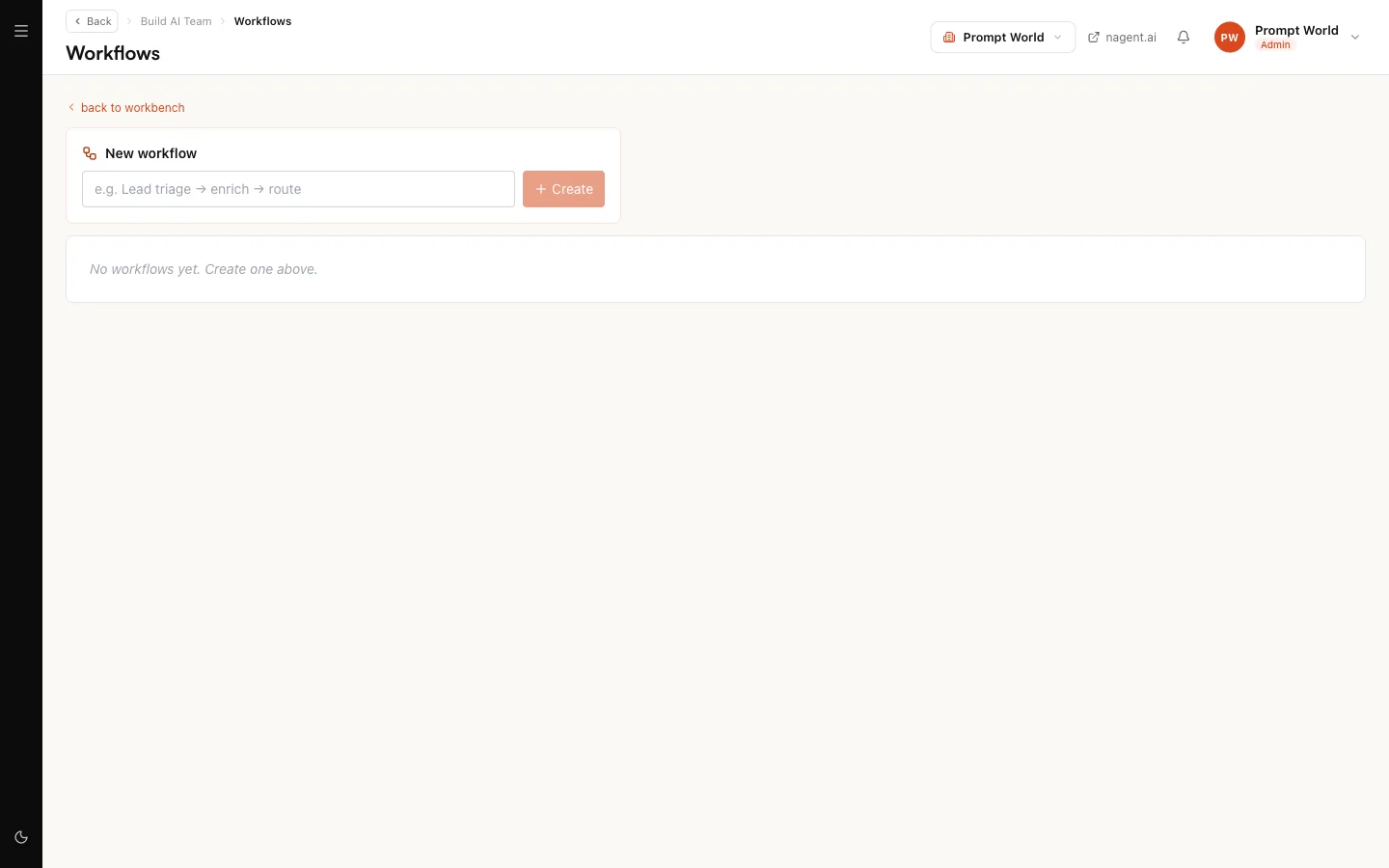
A workflow is a run of several steps that hands work from one agent to the next. The Workflows tab lists yours, and New workflow at the top of the Workbench opens that tab ready to name one. The same list is on Workflows in Build AI Team. Name a workflow under New workflow and press Create to open it in the editor.
Our logic
Trust belongs to the agent, not to the workspace. Agents at different levels sit side by side, and a new custom agent can work at a lower level than the lead beside it. So the Workbench puts every agent's level and state on one chart, and every agent's limits on its own page, where a person can read them before handing it work.
Where to go next
- Creating an agent: build a custom agent.
- Autonomy and governance: levels, the Autonomy pane and what always asks first.
- Credits and budgets: caps per agent.