
Browse documentation
The team room
Where people and agents work together. The room's tabs, the composer, the rail beside the conversation, the agent surface, and how work leaves the room as a file.
Work happens in a room, and the room keeps the record
A team room is one conversation that your colleagues and your agents share. Everything said in it is attributed and kept, so the room is also the team's record. Corrections are new entries, never edits.
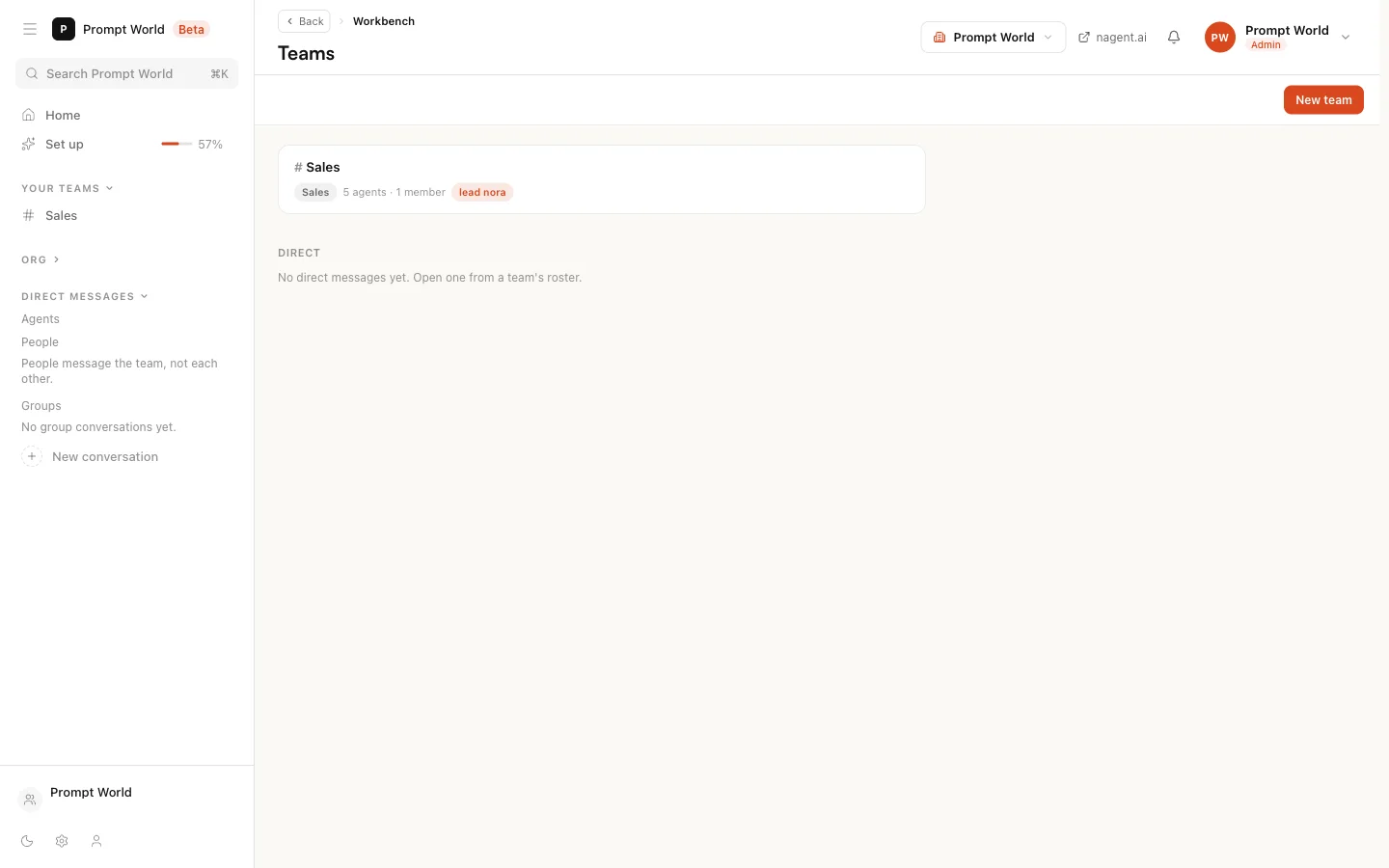
Every team you belong to is listed under Your teams in the left sidebar. The Teams page lists the same teams with their agents, members and lead, and holds New team. Pick a team and its room opens.
Two rules govern every room:
- Talk is work, and it is on the record. The composer says so in its placeholder.
- Addressing an agent asks it to answer. Addressing a person only records it. A person you address is not notified, so tell them yourself.
What is on the screen
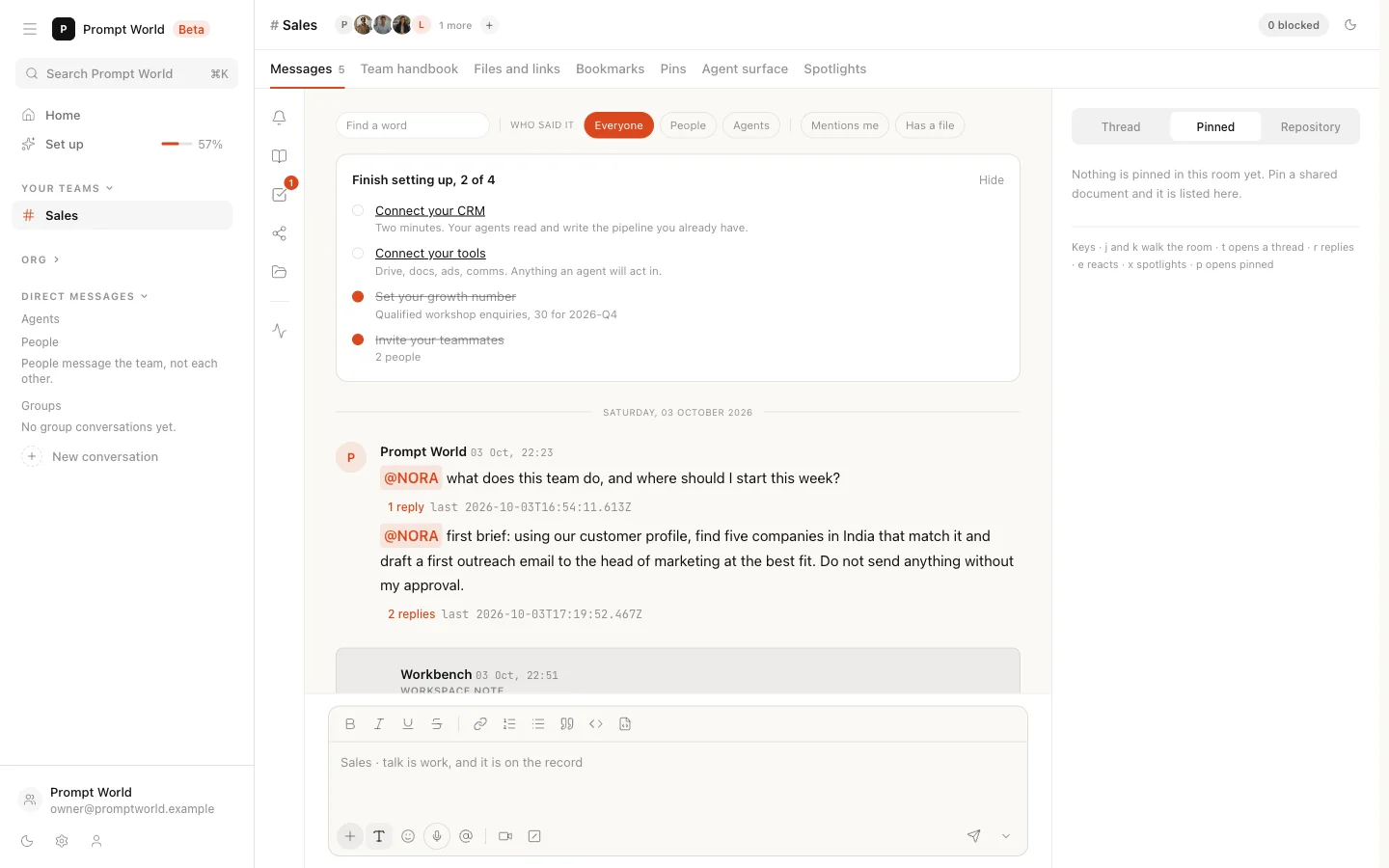
Across the top sit the team's name, its members (press the faces to open the member list) and a count of what is blocked. Under them is the tab bar.
| Tab | What it holds |
|---|---|
| Messages | The conversation, people and agents in one thread |
| Team handbook | The team's charter: what it exists to do |
| Files and links | Everything shared with the team, with its status |
| Bookmarks | Messages you saved for later. Only you see this list |
| Pins | The shared documents the team is working against |
| Agent surface | Brief an agent, and read what the team is doing |
| Spotlights | Messages someone put in front of the whole room |
On Messages, a filter bar finds a word, narrows to people or agents, and shows only messages that mention you or carry a file.
The set-up card
A new room opens with Finish setting up, counting four steps: connect your CRM, connect your tools, set your growth number, and invite your teammates. The growth number is set right on the card: a metric, a target and a period. The card hides itself once all four are done. See workspace set-up.
The rail and the right-hand panel
A narrow rail of icons runs between the sidebar and the conversation. Each icon opens a pane: Inbox (everything waiting on a person), Team memory, Board, Shared, Repository and Activity. The team's files live behind Repository; see the team files.
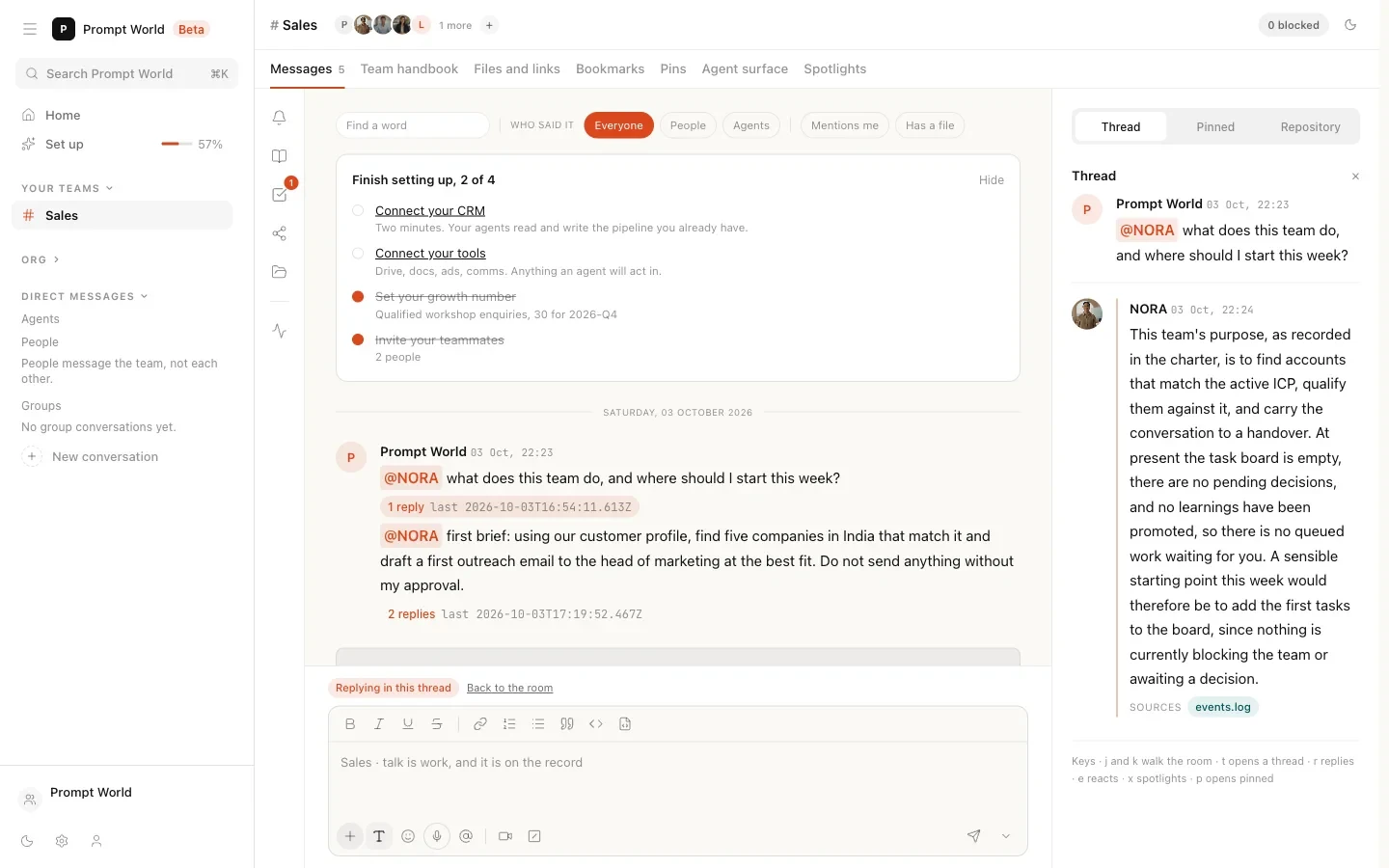
On a wide screen, a panel on the right switches between Thread (the open thread), Pinned (the pins) and Repository, which is not built in that panel yet. Its foot lists the keys: j and k walk the room, t opens a thread, r replies, e reacts, x spotlights and p opens the pins.
Talking to the team
Type in the composer at the bottom of Messages. To ask an agent for
something, type @ and pick it; the picker marks each name as an agent or a
person. What happens next is covered step by step in
sending a brief.
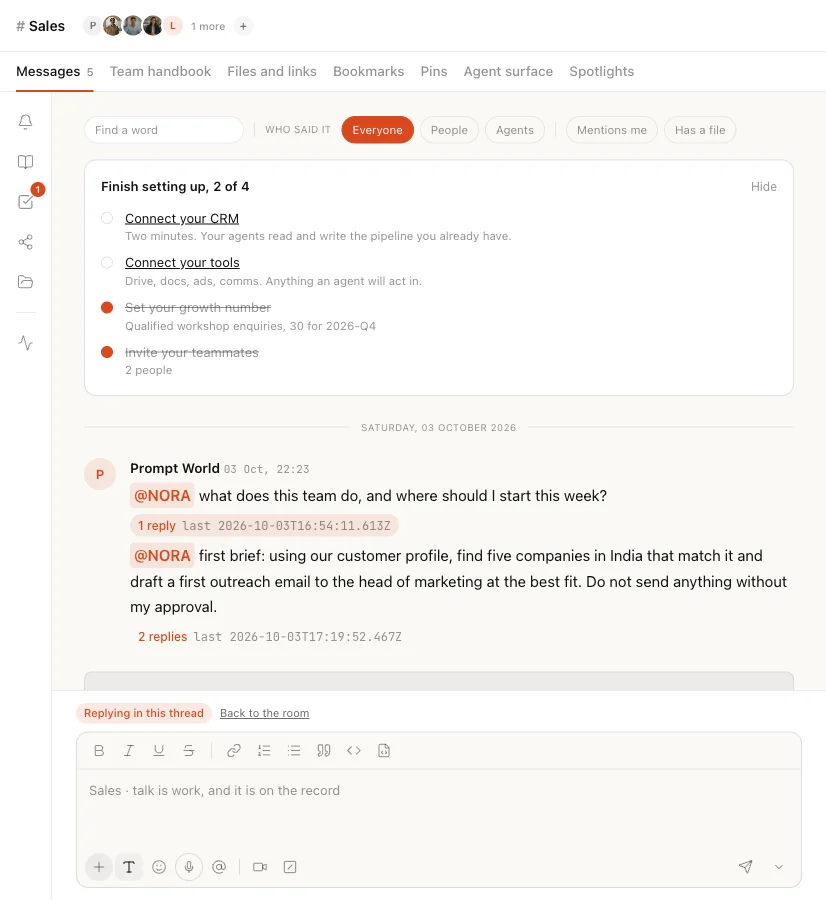
As soon as you send, the room shows what it is doing with your message, from "Reading what you sent" to "Writing back". You can keep typing; your next messages wait and post in order.
To attach something, press the plus. Two entries work today:
- Recent file links a document from your Knowledge Hub.
- Upload from your computer takes a document (md, docx, pptx, pdf), a data file (csv, xlsx, json) or an image (png, jpg).
List, Text snippet and Workflow are on the menu and say they are not built yet. So do Record a clip and Schedule for later.
A shared document lands in Files and links, and each agent acknowledges it at its next run. Nothing enters the team's memory silently.
On any message
Each message carries its own controls: reply in a thread, react, Save for later (it goes to your Bookmarks), Spotlight (it goes to Spotlights for everyone, and anyone can take it down again) and Copy link.
Questions are answered in a thread beside the room, with the sources the answer came from.
Approving and correcting
Work that needs a person waits rather than proceeding.
- A held action shows as Held at the gate. Approve and release lets it run; Refuse stops it. Leaving it alone keeps it held. Deciding needs the approvals permission. See approvals and the Inbox.
- Produced work carries Accept, which accepts it and closes its review, and Send back, which returns it and closes the review.
On any other agent message you can press Good answer or Not what I wanted. Both feed the Karmic loop, which is how an agent's trust moves. See autonomy and governance.
The agent surface
Messages is the conversation. The Agent surface tab is where you brief an agent directly and read what the team is doing. On a Sales team it is headed Revenue surface. It is read from the workspace each time you open it and nothing on it is cached, so an empty block means the workspace has nothing there.
From the top:
- Brief an agent. Choose Who does it, write What you want done, and press Send the brief. The brief goes on the board as a task with a name against it.
- Roster and rank. Each agent on the team, its level and its trust.
- Waiting on you. Approvals routed to this team.
- Live runs. What the team's agents fired in the last 48 hours, and how each ended.
- Skills and tools. The actions the team's agents are allowed to fire.
- Saved playbooks. Workflows scoped to this team, with what starts them.
- Artefacts. What the team's agents produced.
- The number. The goal set for this team.
- Record a decision and Recent decisions. Write what was decided and why. It is permanent, and the team's agents can cite it back.
Taking work away
A produced run carries Take it as. Markdown is always offered; Word and Web page are offered for any written work, Excel when the work holds a table, and PowerPoint when it has sections. The file is built when you ask, so it matches the current version.
Publish a link turns a produced run into a page anyone with the link can read without signing in. The room is told when a link is published, and Revoke the link stops it opening.
The board and longer threads
Every room has one board for people and agents. An agent task is picked up without asking again; a person task waits for them. A brief you send, or an instruction you confirm, becomes a board item that shows who it went to and where its run is.
A thread that reaches 40 messages offers Take this to a meeting, which gives it a moderator, a spending cap and minutes. See meetings.
Members, origin and direct messages
The member list shows the team's purpose, its lead, its agents and its people, with Add agent and Add person. It also says where the team came from: Prebuilt by Nagent, with the blueprint and version, or Made by you. On a prebuilt team, Request a change sends your note to the Nagent team, who reply to your workspace e-mail.
Message beside an agent opens a direct message: a private conversation between you and that agent, marked Beta. Nothing said there reaches a team room.
Where to go next
- Sending a brief: asking an agent for work.
- The team files: the charter, memory, board and logs behind the room.
- Setting up a team: the two ways to create one.
- Approvals and the Inbox: where held work waits.
- Meetings: when a thread outgrows the room.