
Browse documentation
ALPHA, the video studio
How to describe a video to ALPHA, read its plan and quote in credits before anything renders, approve the storyboard, and follow the job through its eight stages.
Nothing renders until a person has seen the plan and the price
ALPHA is the video studio in your workspace, at Video Studio. You describe the video you want, ALPHA plans it shot by shot, quotes it in credits, and waits. Only when someone approves the storyboard and its quote does any paid work start.
The studio carries a Beta badge. Its own note says what that means: planning, quotes and approvals work, and render lanes are still arriving. Read "What the Beta does today" below before you plan a campaign around a delivered video.
ALPHA has three views, linked across the top: Studio, where you make requests; Jobs, where every request is tracked; and Assets, where finished videos live. Making a video needs the content write permission. Anyone who can read content can follow jobs.
Step 1. Describe the video
The studio opens on "Describe the video you want." Type a prompt into the composer and press Enter. Say who is on screen, what the product does and what the last frame should say.
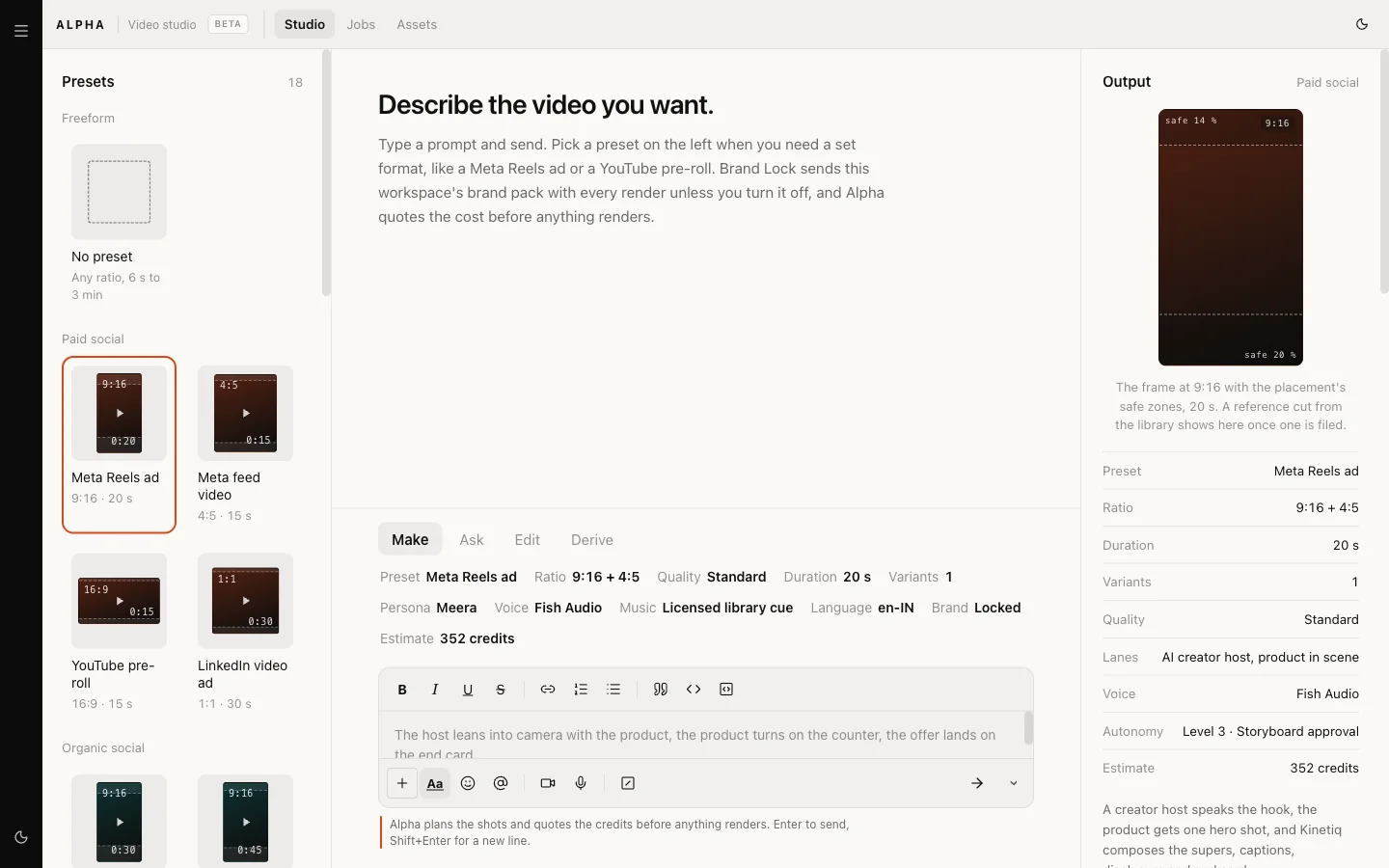
The composer has four modes:
| Mode | What it does |
|---|---|
| Make | Plans the shots and quotes the credits. The default |
| Ask | Answers a question about a lane, a quote or a persona. Nothing is spent |
| Edit | Changes the latest delivered cut, such as a new call to action |
| Derive | Resizes, cuts down, localises or captions a delivered cut |
Edit and Derive work only from a video already delivered in your workspace.
ALPHA never writes the words that appear on screen. Voice-over lines, supers and the call to action come from copy you supply or from a HOOK brief. If a talking format has no script, the plan waits and says so.
Step 2. Pick a preset, or none
The Presets panel on the left holds 18 formats in seven groups: Freeform, Paid social, Organic social, Product and demo, Presenter, Long form and Interactive. A preset sets the ratio, the length, the safe zones for its placement and the kind of shots it plans. No preset plans the shots from your description alone.
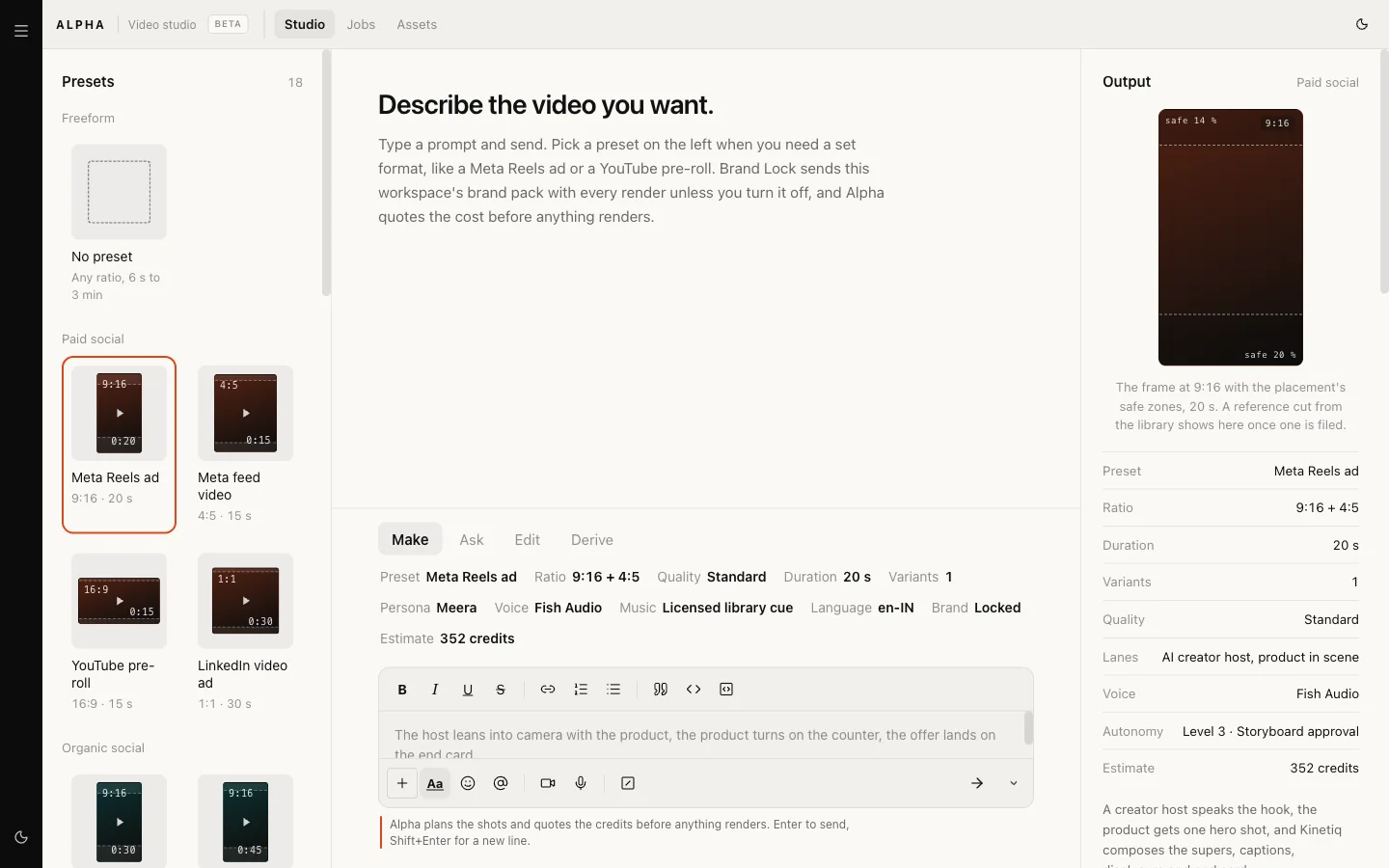
For Prompt World, a 20-second Meta Reels ad announcing next month's workshop dates is one click; a 90-second product explainer for the website is another.
Step 3. Set the details
The chips above the composer are the job's settings. Click one to change it.
| Setting | What it controls |
|---|---|
| Ratio | The ratio set, for example 9:16 alone or 9:16 and 4:5 |
| Quality | Test (720p, animatic only), Standard (1080p) or Hero (4K masters) |
| Duration | The lengths the preset allows |
| Variants | One rendition per ratio for now |
| Persona | The presenter, when the preset has one |
| Voice and Music | The voice engine and the music source |
| Language | en-IN, hi-IN, ta-IN or en-US |
| Brand | Brand Lock, on by default |
| Estimate | The live credit figure |
The Output rail on the right shows the frame with its safe zones, a style note, the product keyframe, the persona, the audio and your brand kit. Brand Lock sends your brand pack with every render. A synthetic presenter always carries a disclosure layer, and a digital twin of a real person renders only with a written release on file.
Step 4. Read the plan and the quote
Send the request and ALPHA replies with a storyboard: each shot with its timing, purpose and lane, the layers that will sit on top (supers, captions, voice, music, end card, logo), and the quote.
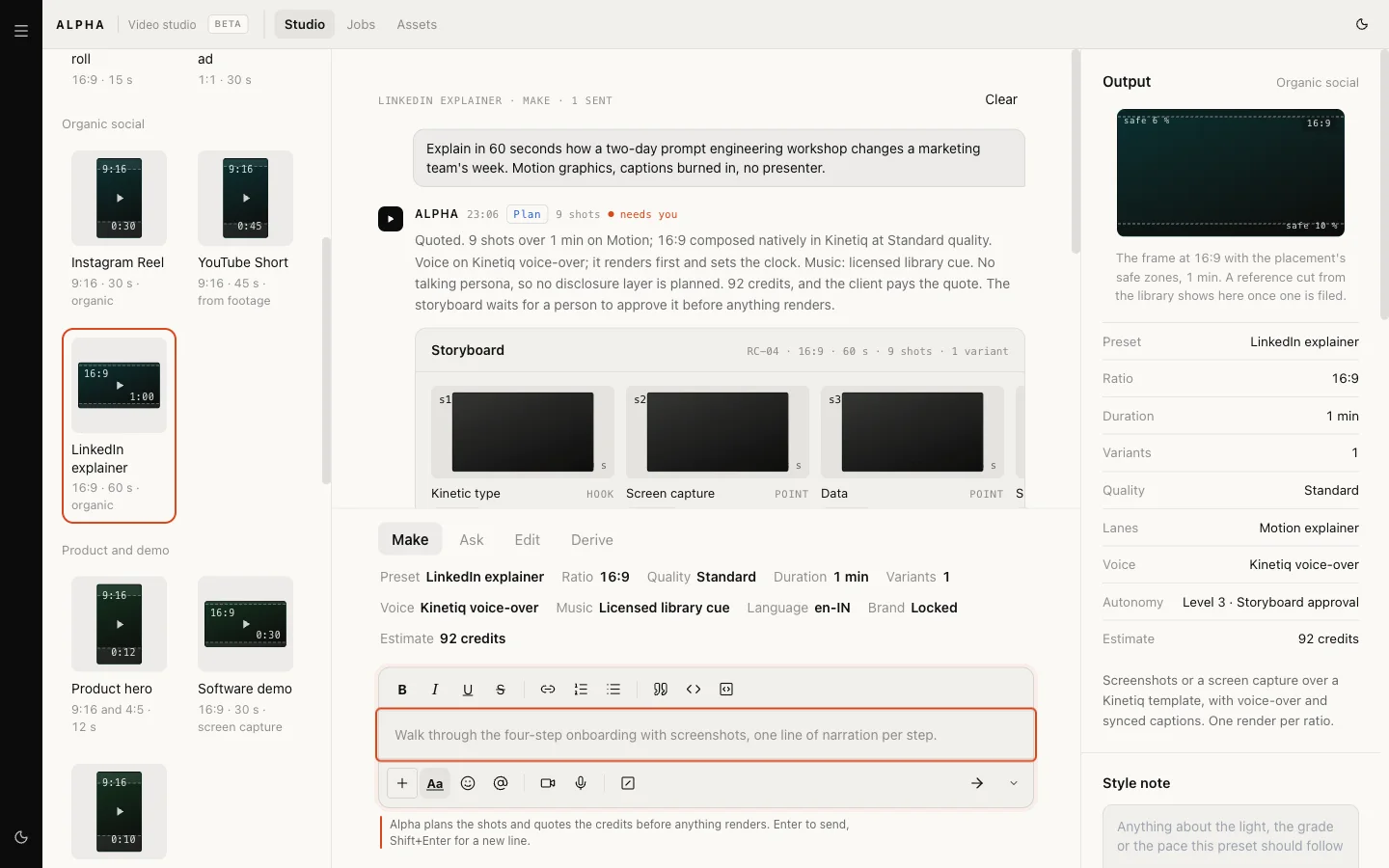
The quote is in credits, broken into planning, shots, finishing, composition and scale. Anything over 60 seconds moves to the complex band: more shots, a higher planning figure and two review slots.
The preview ladder shows the three rungs the job is planned to climb:
- P0, Animatic. Keyframes, the real voice and every layer. A person approves this rung. In the Beta that approval is given on the storyboard and its quote, before any animatic is made.
- P1, Draft. Hero shots at 720p on fast tiers. It runs when the quote is above 400 credits or the quality is Hero, and is skipped otherwise.
- P2, Final. The chosen quality at delivery resolution, within caps, after P0.
The product keyframe
Any shot of your product starts from an image of the real product, so the pack, label and colour match. The rail's Product keyframe section is where that image is chosen from your RUPA image library. A storyboard with a product shot waits for a keyframe before it can go for approval.
Step 5. Approve the storyboard
Under the plan you see Approve storyboard if you may approve, or Send for approval if you may not. Request changes puts the plan back in the composer for you to adjust.
A sent request waits in Actions for someone who can approve it, and appears under Jobs meanwhile. Approving needs the settings write permission, which workspace admins hold.
Our logic: video is the most expensive thing an agent in your workspace can make. The quote is fixed at approval, and a delivered job bills at most the quote, less anything that was not made.
Step 6. Follow the job
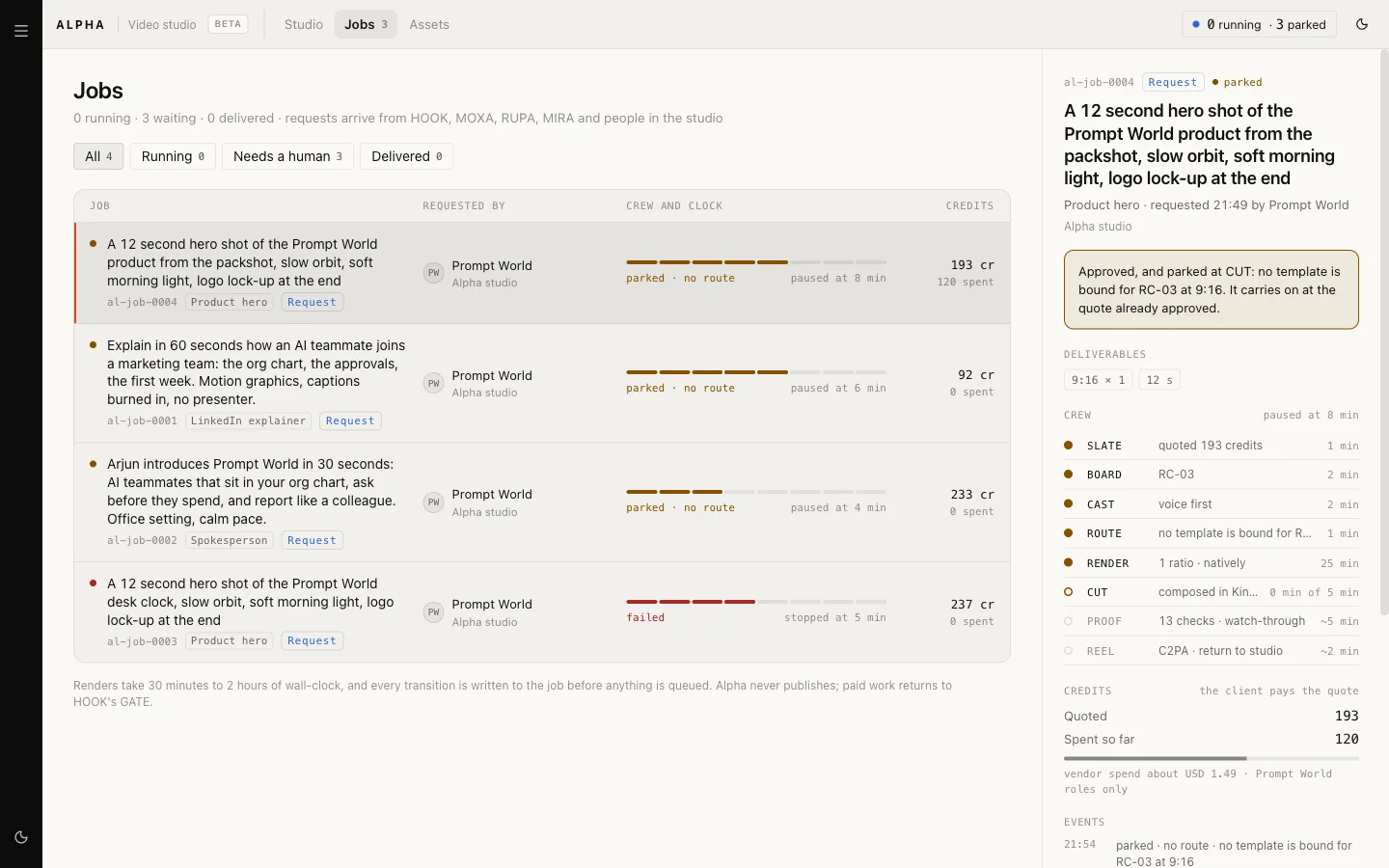
Every request becomes a job with a reference such as al-job-0004. Open it
from Jobs to see its page.
The Crew list shows the eight stages, each with a note and its share of the clock:
| Stage | What happens |
|---|---|
| SLATE | The request is read and quoted |
| BOARD | The storyboard is planned |
| CAST | The persona is locked and the voice renders first, setting the clock |
| ROUTE | A render lane is chosen for each shot, with the reason kept |
| RENDER | Shots render, natively in each ratio |
| CUT | Layers, captions and the end card are composed |
| PROOF | The finished cut is checked |
| REEL | The video is stored and returned to whoever asked |
The page also shows the deliverables, the credits quoted and spent so far, and every event in order. Renders take 30 minutes to 2 hours, so the clock estimates when the job will be ready, and pauses while a job waits.
Jobs filters by All, Running, Needs a human and Delivered, and lists HOOK briefs waiting for ALPHA with Take the brief. Assets holds every delivered video, stored in your workspace's own media storage.
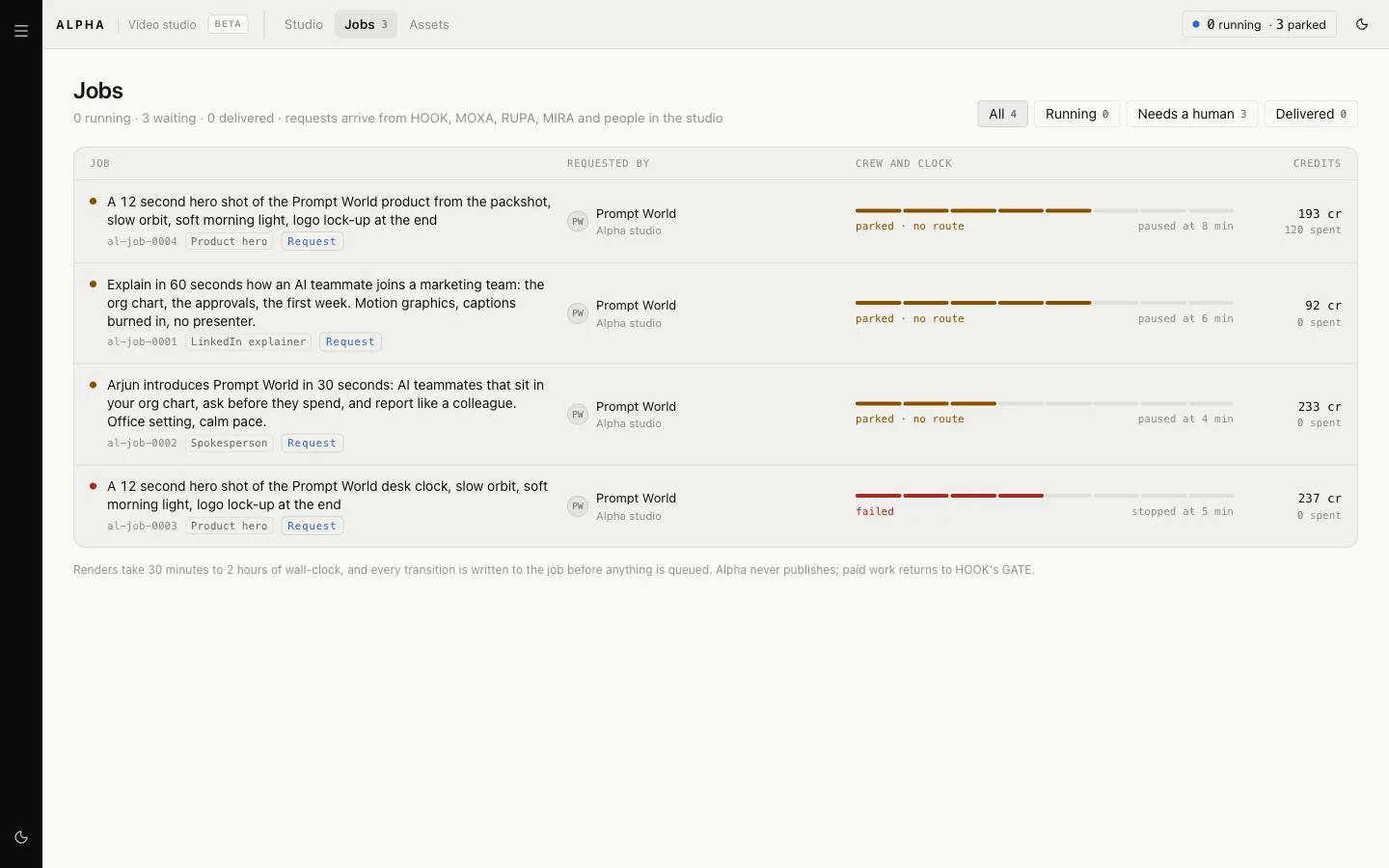
Select a job to see its crew and its credits:
When a job waits
A job that cannot move says why, in one of two ways.
Needs you means a person must decide:
| Reason | What it means |
|---|---|
| P0 storyboard | The storyboard and quote wait for an approver |
| Missing input | The brief lacks something, such as a script or a keyframe |
| Consent | A release or rights record is needed before anything renders |
| Over the cap | The quote is above the brief's cap and waits for a named approver |
Parked means the platform is not ready, and nothing is spent while it waits:
| Reason | What it means |
|---|---|
| Queues off | Rendering is switched off in this environment |
| No route | No render lane can make one of the shots yet. The page names which |
| Spend cap | ALPHA's spend cap is reached. It carries on when the cap allows |
A parked job keeps its stage and its approved quote, and resumes where it stopped. See credits and budgets for how the spend cap works.
What the Beta does today
Describing, planning, quoting and approving work in every workspace, and so does following a job through its stages. Between approval and a finished video, three things are still being connected:
- Product keyframes. The keyframe picker does not yet show your library images, so presets with a product shot cannot leave the studio.
- Presenter shots. Presets with a presenter, a digital twin or a creator host plan and quote, but no lane renders those shots yet, so they park at ROUTE after approval.
- Composing the finished cut. Rendered shots are stored, then the job parks at CUT until composing is set up for its preset and ratio.
PROOF does not run its checks yet, and a job shows "PROOF not run yet". A parked job spends nothing more while it waits. If a delivered video matters to a date, talk to the Nagent team before you rely on ALPHA for it.
Where to go next
- RUPA, the image studio: where product keyframes come from.
- HOOK: the briefs that send paid video work to ALPHA.
- Approvals and the inbox: where waiting work is decided.