
Browse documentation
Your first hour
What Home shows a new workspace, how to read its counts, people, set-up ledger and agent list, and the order to do things in during the first hour.
Home tells you what is true about your workspace right now
After sign-up you land on Home. For a new workspace it is a short report, not a dashboard: what you have, what is set up, who is in, and what to do next. Every figure on it is read from the workspace as it is now. Where nothing measures something yet, Home says "Not measured yet" rather than printing a zero.
Home changes with the age of the workspace. For the first 24 hours the kicker at the top reads Hour 1, Hour 2 and so on, and the page is built around getting set up. From the second day it shifts to what ran and what is waiting on you, and after a month to numbers, spend and promotions.
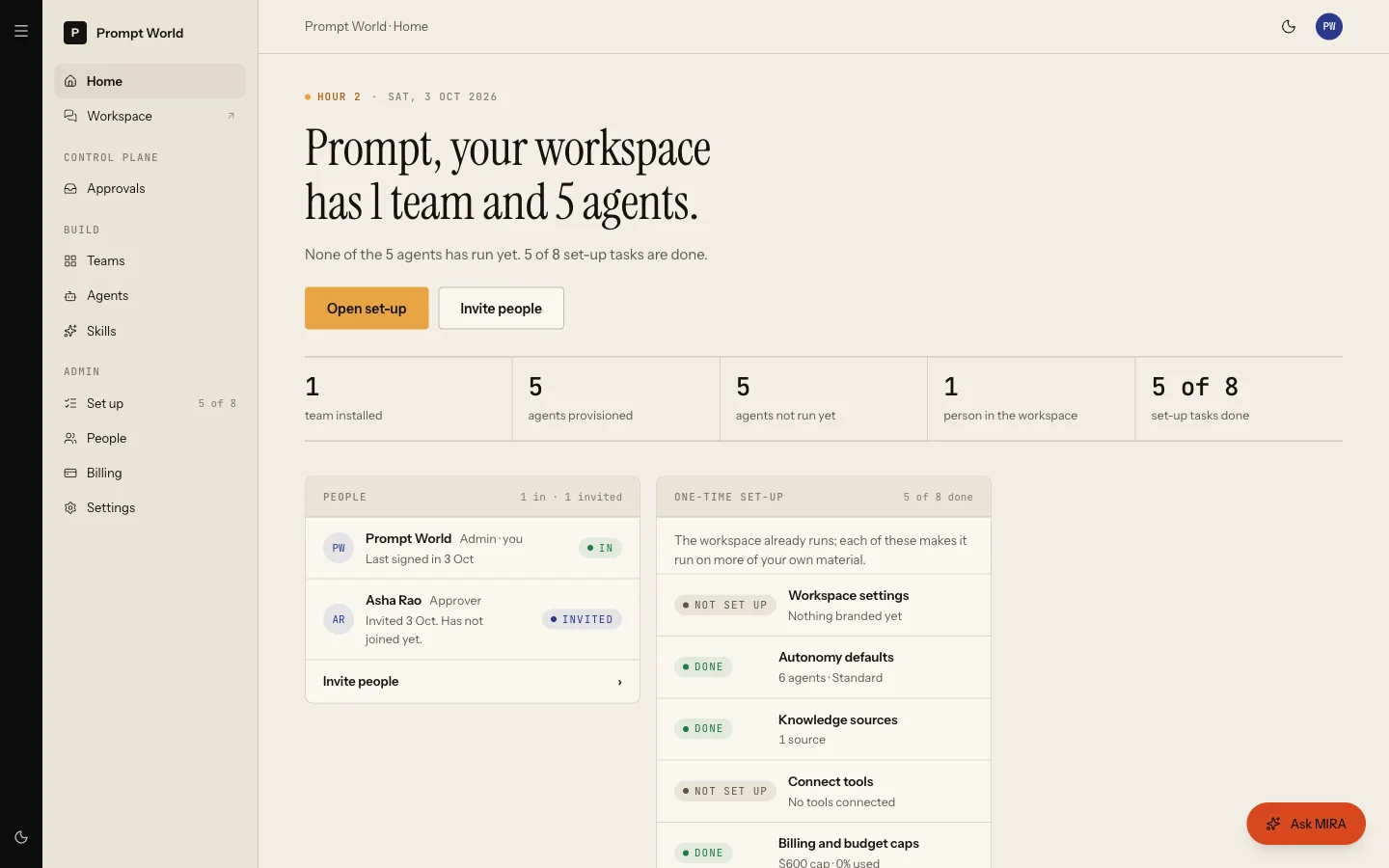
The greeting and the counts
The headline names what you have, for example "Priya, your workspace has 1 team and 5 agents." The line under it says how many agents have not run yet and how many set-up tasks are done.
Two buttons follow: Open set-up and Invite people. Below them is a row of counts.
| Count | What it is |
|---|---|
| Teams installed | Teams seated in this workspace |
| Agents provisioned | Agents installed for your teams |
| Agents not run yet | Agents with no recorded run |
| People in the workspace | Active members, you included |
| Set-up tasks done | Items in the set-up ledger marked done, out of 8 |
| Spent this month | Spend so far against the sum of your agents' monthly caps |
A note on the last one. Until you set budgets yourself, each agent carries the default cap of $100 a month, so a five-agent workspace shows a $500 figure. That number is the sum of the caps that would stop each agent, not a plan allowance and not a bill. See autonomy and governance.
Ask MIRA
Beside the counts sits MIRA, the chief of staff, with three questions you can ask, such as "What should I set up first". Pressing one puts it in the ask box; nothing is sent until you send it.
Today MIRA answers from the set-up guidance for your workspace: what a card means, what is still open and what would close it. She is the right place for "what do I do next". She does not yet know what each team's agents can do, so ask the team's lead in its room for that.
People
The People block lists who is in the workspace, with In for members who have joined and Invited for those who have not signed in yet.
While you are the only person, it suggests three roles that usually finish set-up on their own clock:
| Role | Why invite them |
|---|---|
| Growth lead | Names the number each team owns and approves the first briefs |
| IT or security | Connects and authenticates the tools agents may act in |
| Finance | Sets the monthly caps that stop an agent spending past its limit |
These are suggestions, not roles in the product. Each of those jobs needs the Workspace Admin role today, so invite them as admins if you want them to do it. See people and roles.
One-time set-up
The ledger lists eight items, each Set up, Needs you or Not set up. The intro says it plainly: the workspace already runs, and each item makes it run on more of your own material.
| Item | Done when |
|---|---|
| Workspace settings | Your brand name, mark or colour is set |
| Autonomy defaults | A governance profile has been chosen |
| Knowledge sources | At least one source is indexed and none failed |
| Connect tools | At least one tool is connected and none needs re-authorising |
| Billing and budget caps | Agents have monthly caps and are under 90 % of them |
| Webhooks | At least one event subscription exists and none is failing |
| Invite the team | Someone else has joined and no invitation is still open |
| The growth number | A growth number is named |
Every item links to Workspace set-up, which explains each one in detail. Set-up counts seven cards and Home counts eight, because Home adds the growth number. See workspace set-up.
Billing and budget caps usually reads as done on a new workspace, because the default per-agent caps count as caps. Review them anyway.
The first hour, in order
This block is the plan for the next sixty minutes.
| When | What | About |
|---|---|---|
| now | Ask MIRA what each team does and where to start | 12 min |
| +15 | Connect the CRM and the brand book as read only sources | 10 min |
| +30 | Invite the people who approve work, connect tools and set the caps | 5 min |
| +40 | Send the first brief to a team lead from the team room | 5 min |
| +60 | Nothing else. Agents run inside their caps, and this page shows what ran |
How to do each step today:
-
Ask MIRA. Use the ask box beside the counts. As above, she answers set-up questions; ask the team lead in its room about the team's work.
-
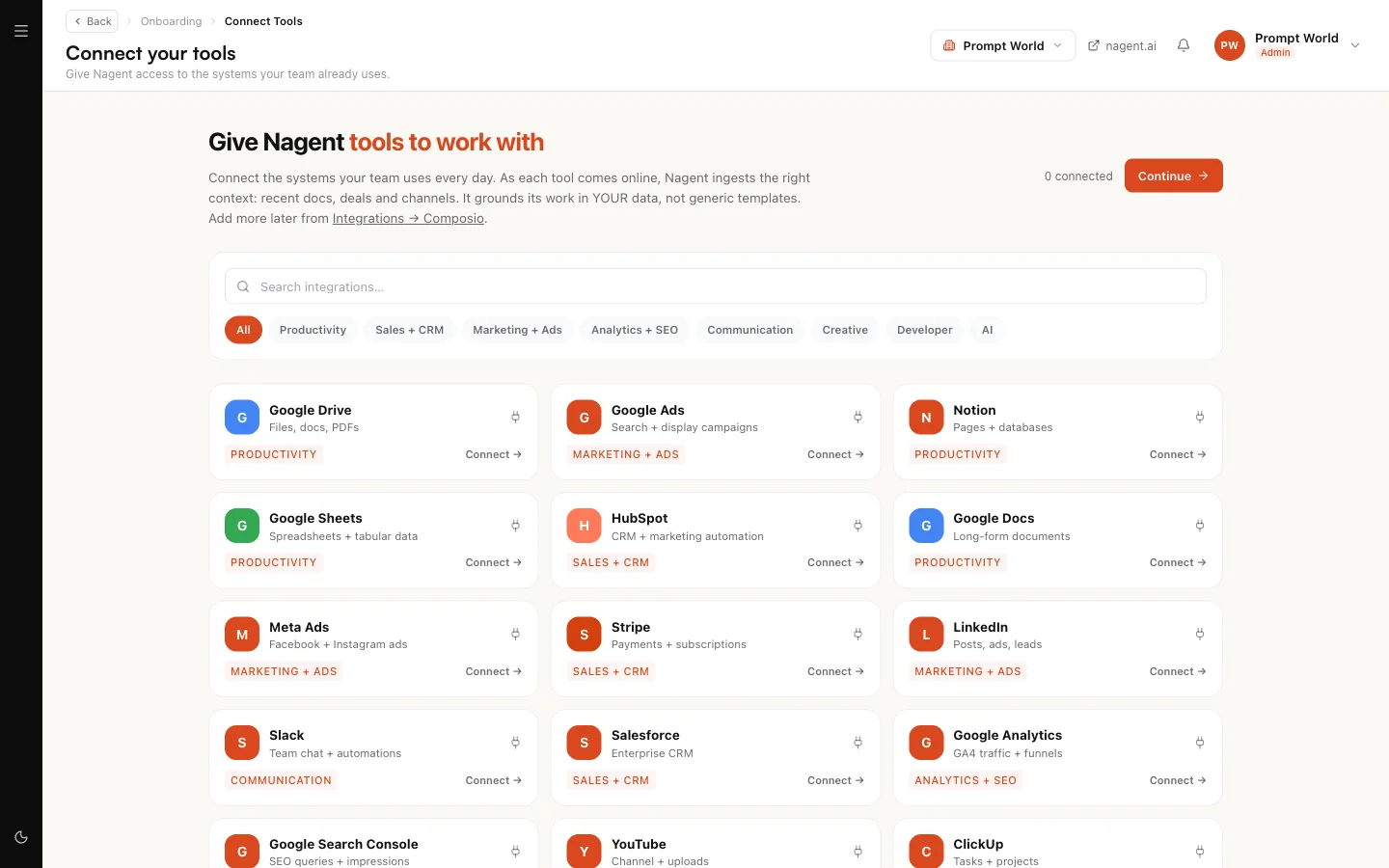
Connect tools. The row opens Connect your tools. Add your brand book and other material in the Knowledge Hub. See connecting tools and the Knowledge Hub.
-
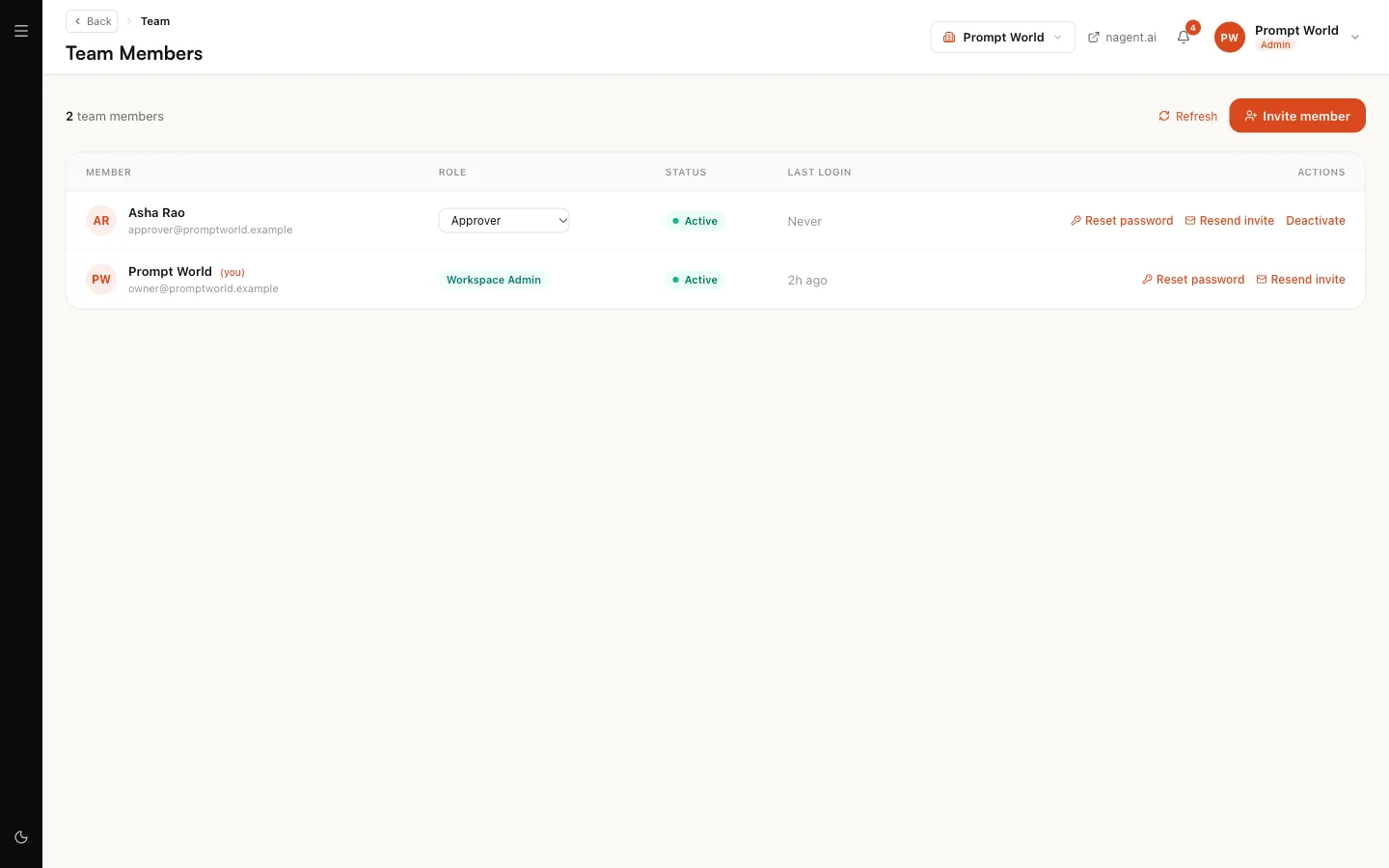
Invite people. The row opens Team Members.
-
Send the first brief. The row opens Welcome, which lists your teams. Open a team's room and brief its lead from the agent surface. See the team room.
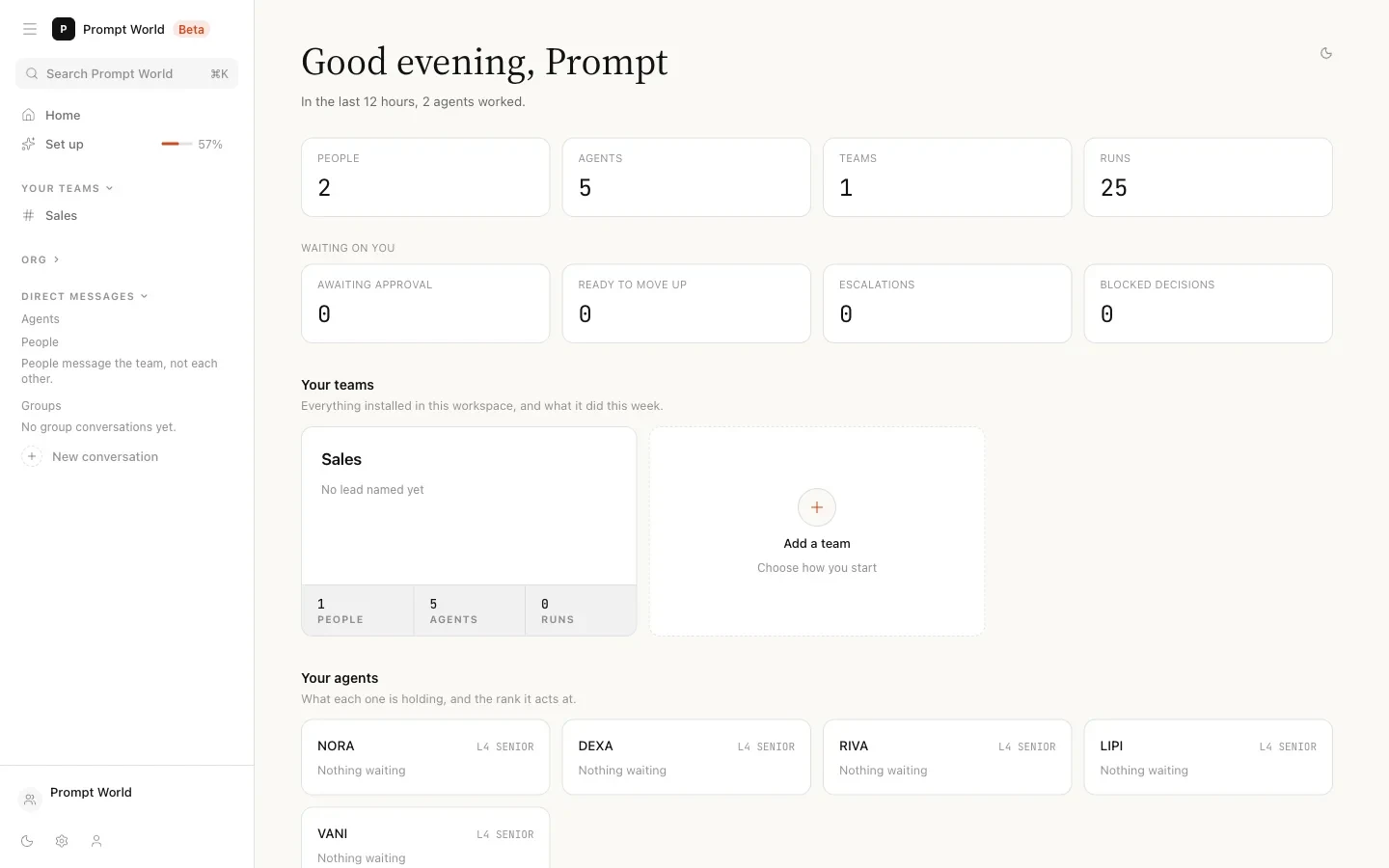
A first brief goes better after steps 2 and 3. An agent with no tools connected and nothing in the Knowledge Hub has little to work from, and a lead asked to find and contact companies needs a connected source of leads and a sending account before it can do either.
Provisioned agents
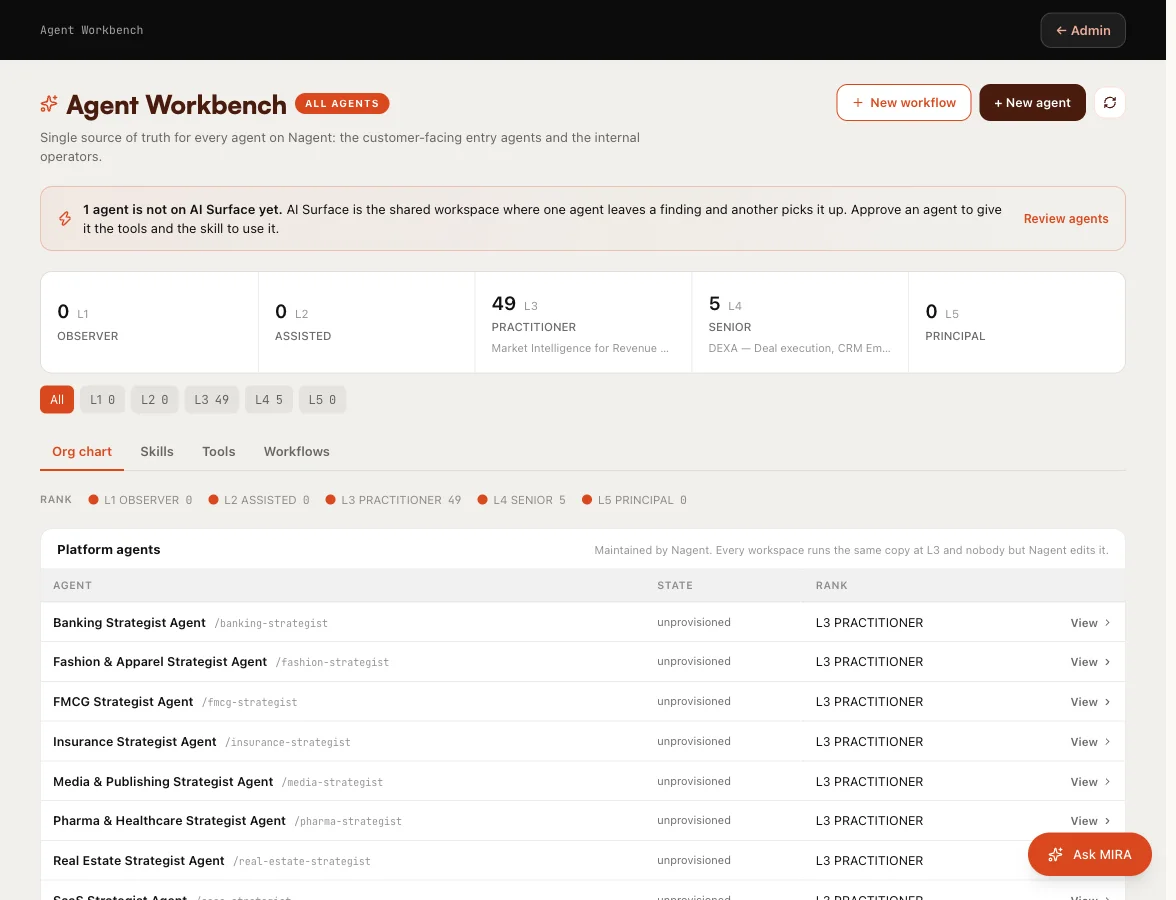
The last block lists every agent installed for your teams, with its level (L1 to L5), when it last ran, and Live or Idle. A new agent reads "Has not run yet". The note above the list explains the empty trust column: trust scores are earned run by run, so an agent that has not run has none yet.
See every agent opens the Agent Workbench, where you can open an agent, set its level and its budget.
Our logic
Home never counts a page visit as progress. A ledger item is done when the thing exists and works: a tool token that expires turns its item back to Needs you, even if someone finished the connection wizard yesterday. That is also why the counts can go down as well as up.
If you are not a Workspace Admin
Teammates without admin rights see a simpler Home: a link into the workspace and anything a Workspace Admin has nominated them for, such as a Nagent event or a guide.
Where to go next
- Workspace set-up: the seven cards in full.
- People and roles: who to invite, as what.
- Approvals and the Inbox: when an agent asks first.