
Browse documentation
Signing up
The self-serve sign-up from the first screen to an open workspace, including what each step asks for, the sign-in link, and which teams install.
Two steps, one link, and your workspace is open
Signing up takes two screens and one e-mail. You choose the teams you want, you tell us who you are, and a sign-in link opens the workspace and installs the teams. Nothing is charged at sign-up and no password is needed.
Start at nagent.ai/onboarding, or from Hire your AI team on the sign-in page.
Step 01: choose your teams
The first screen is headed Hire your AI team. Each card is a department, led by a chief of staff and owning one outcome.
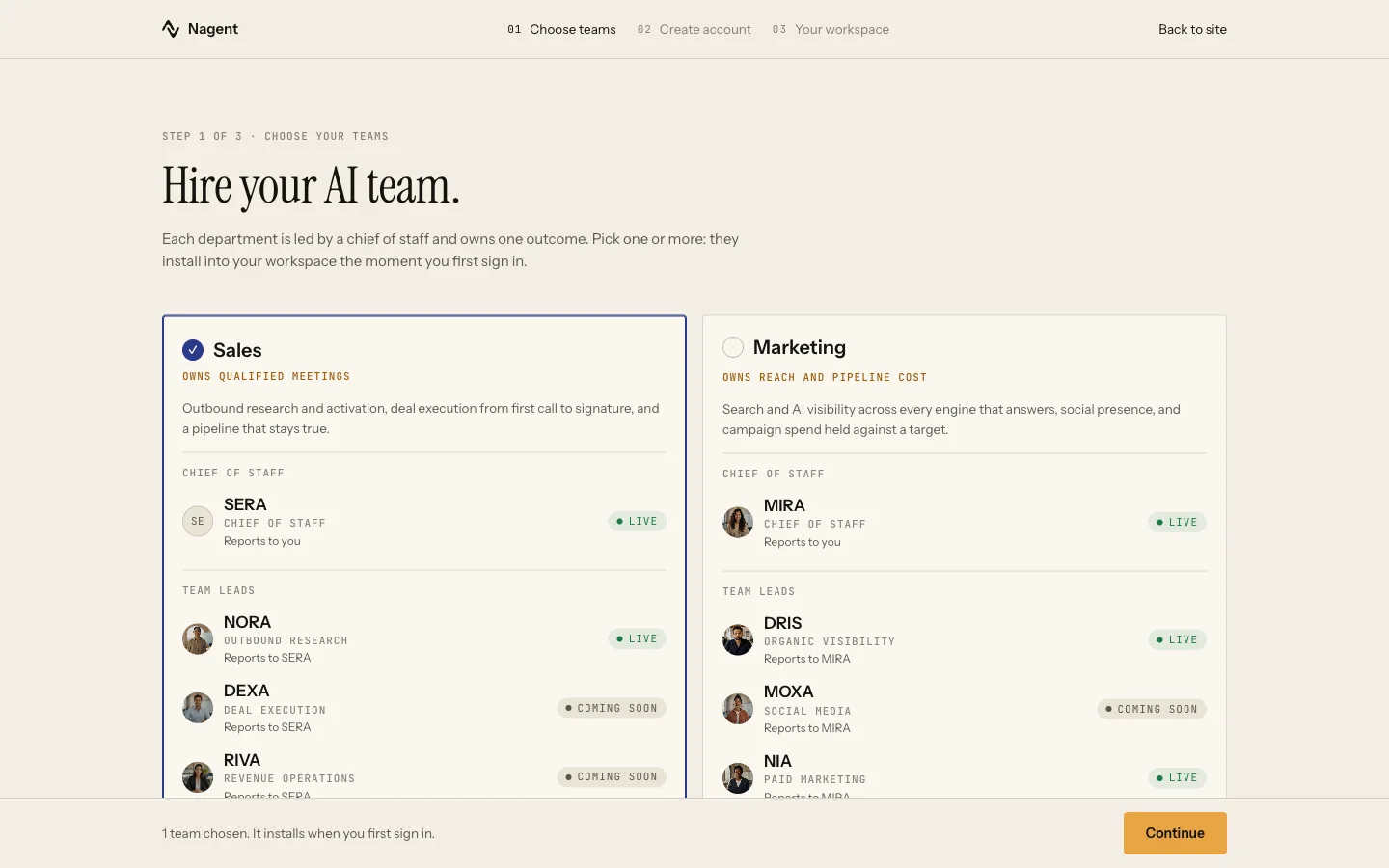
| Card | Owns | What the card shows |
|---|---|---|
| Sales | Qualified meetings | SERA as chief of staff; NORA (Live); DEXA and RIVA (Coming soon); LIPI and VANI as shared writers (Beta) |
| Marketing | Reach and pipeline cost | MIRA as chief of staff; DRIS and NIA (Live); MOXA (Coming soon); HOOK (Beta) |
| Content | Output and the brand line | CREA as chief of staff; RUPA and FOLIO (Live); a video studio and several makers (Coming soon or Beta) |
| Customer Experience | Resolution and conversion | A link out to Convexa, a separate product with its own sign-up |
Sales is ticked for you. Click a card to add or remove it; you can choose more than one. The tags describe each agent, so read them: an agent tagged Coming soon is shown so you can see the whole department, not because it will work on day one.
If none of the departments fits, tick Build your own team and say in a sentence what it should own. That ask goes to a Nagent operator, who scopes it and writes back to you. It does not install anything by itself.
Below the cards sit three capabilities your teams work inside: the Agentic CRM, e-mail sending, and observability (memory and the record of what ran). They are shown, not chosen. Which ones you get depends on your plan, and an operator scopes them with you after sign-up.
The bar at the bottom counts what you chose, for example "1 team chosen. It installs when you first sign in." Press Continue.
Step 02: create your account
The second screen is headed Your workspace is one form away. It asks for three things.
- Full name.
- Work email. This is where the sign-in link goes, and clicking it is how we confirm the address is yours.
- Company. The company name becomes your workspace's name and its address in Nagent. If the name is already taken you will see "That company name is already taken. Add a word to it, for example your city."
The panel on the right, Installs when you first sign in, lists each team you chose and who it is led by. Press Create workspace and install teams.
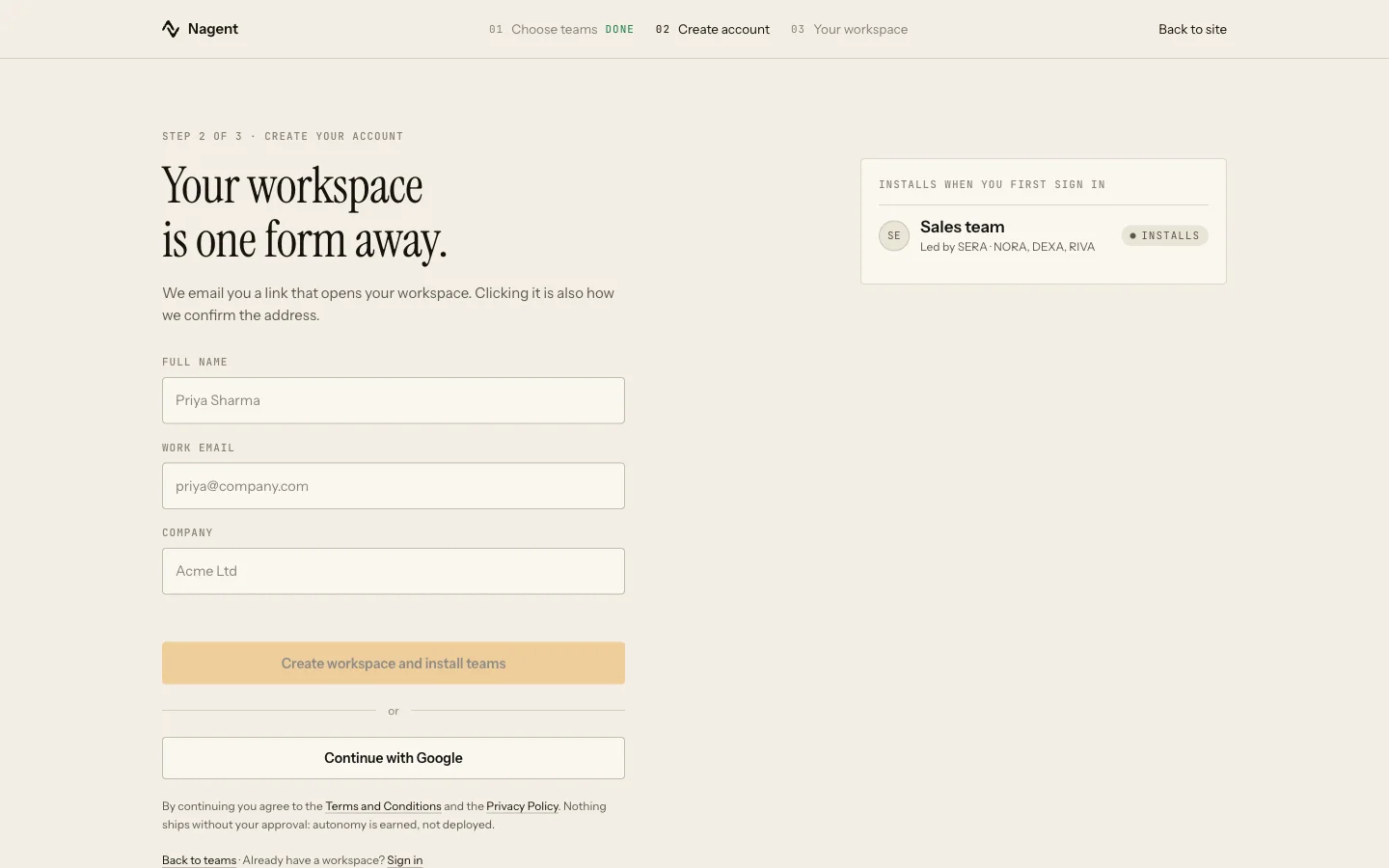
Or continue with Google
Continue with Google skips the e-mail. Google confirms your address and sends you back to this screen with your name and e-mail filled in and locked. Add your company and press Create workspace and install teams; you are signed in straight away and go to the install screen.
Google is trusted only for an address it says it has verified, and only for an address that has no Nagent account yet. If you already have an account, you get the sign-in link by e-mail like everyone else.
Check your inbox
Without Google, the next screen says Check your inbox. We have sent a sign-in link to the address you gave. The e-mail's subject is "Open your (company) workspace on Nagent", and its button is Open my workspace.
The link has three rules.
- It works for 30 minutes.
- It works once.
- Only the newest one works. Asking for another link cancels the one before it.
If nothing arrives, check spam, then use Send the link again. It unlocks 60 seconds after the last send. Change it takes you back to the form if you typed the wrong address.
Until the link is clicked, the workspace stays closed: nobody can sign in to it and no agent runs in it.
Our logic
The link is both your sign-in and our proof that the address is yours. That is why there is no password at this point, and why a workspace signed up with a stranger's address never opens at all.
Opening the link
The link lands on a page with one button, Open my workspace. You press it yourself. That is deliberate: e-mail security scanners open links automatically, and a link that signed you in on opening would be used up by the scanner before you saw it.
If the page says the link has expired or was already used, ask for a fresh one from the same page.
The teams install
You then see Creating your workspace, with one row per team.
| Row | What it means |
|---|---|
| Workspace created: Done | Your workspace exists and is open |
| Installing Sales team | The team's agents are being seated |
| Installed Sales team | Done |
| Sales team did not install | That team failed; the others are unaffected |
| Custom team: an operator will write back to you | Your custom ask is with an operator |
When every row is done the heading changes to Your workspace is ready and you are taken to Home. See your first hour.
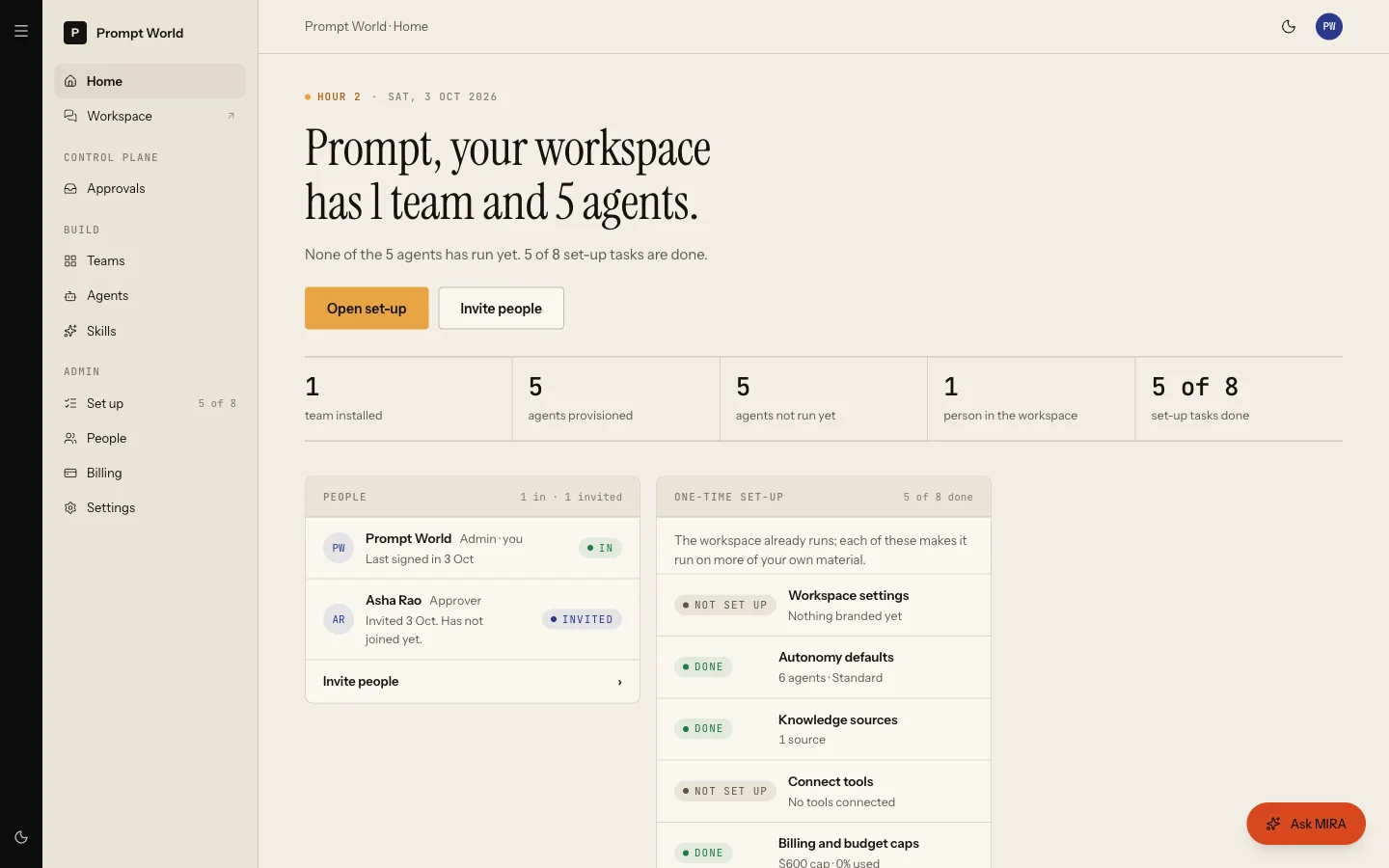
If the install fails, the screen says "We could not install your teams. Your workspace is open and the teams are still waiting, so nothing is lost." Press Retry, or choose Go to your workspace without them and come back later.
Who is seated when a team installs
What installs is decided by the team's blueprint, not by the cards on step 01. Today the three teams seat these agents:
| Team | Led by | Agents seated |
|---|---|---|
| Sales | NORA | NORA, DEXA, RIVA, LIPI, VANI |
| Marketing | MIRA | MIRA, CREA, DRIS, NIA, RUPA |
| Content | CREA | CREA, RUPA, FOLIO |
Two differences from the cards are worth knowing. SERA, shown as the Sales chief of staff, is not seated yet, so your Sales team is led by NORA. DEXA and RIVA are seated even though their cards say Coming soon. MOXA and HOOK are not part of the Marketing team install.
You are the human member of every team room that installs, because the install runs as you, from your own first session.
What you have after sign-up
- A workspace in your company's name, with you as its Workspace Admin.
- The teams you chose, seated in their rooms.
- No password. Sign in next time with an e-mailed link or Google, or set a password later. See signing in.
- No plan purchased. See billing and plans.
If something goes wrong
| What you see | What to do |
|---|---|
| "Your Google sign-in has expired" | Press Continue with Google again |
| A wait message after several tries | Sign-up allows a few attempts an hour per address; wait and try again |
| The link has expired or was used | Ask for a fresh link from the page the link opened |
| "Your workspace is not open" when signing in | Open the link we e-mailed you first |
| "Your role in this workspace cannot install teams" | Ask a Workspace Admin to add the teams |