
Browse documentation
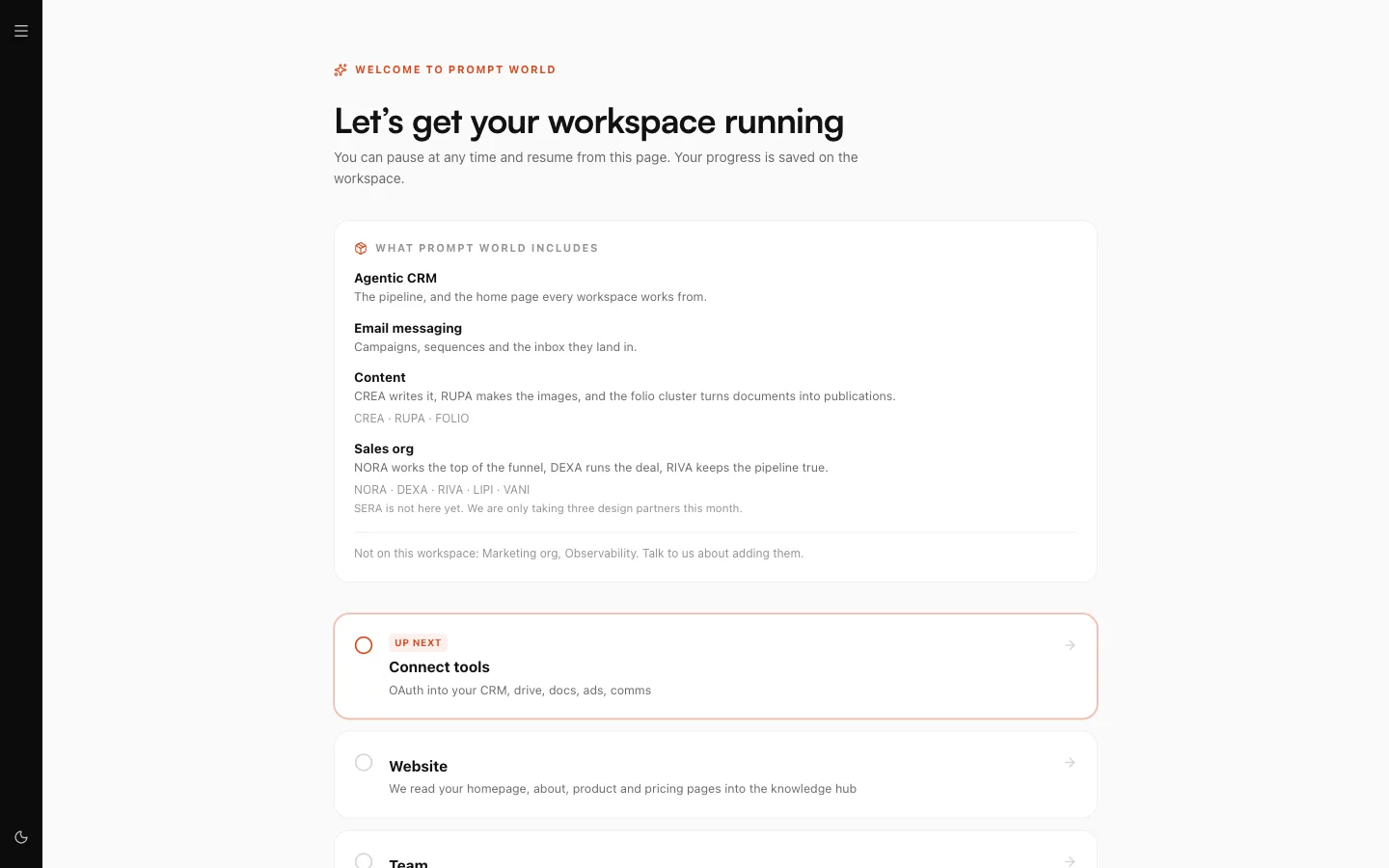
Bootstrapping from your website
How to point Nagent at your marketing site so your agents start with your own pages, which pages it reads first, what lands in the Knowledge Hub, and how to manage the sites you crawl.
Day-one agents should already know what you do
An agent that has never read your website writes like an outsider. The quickest fix is to let Nagent read the site for you. Give it your marketing address and it reads your pages, stores their text in your Knowledge Hub, and from then on your agents ground what they write and answer on what your own site says.
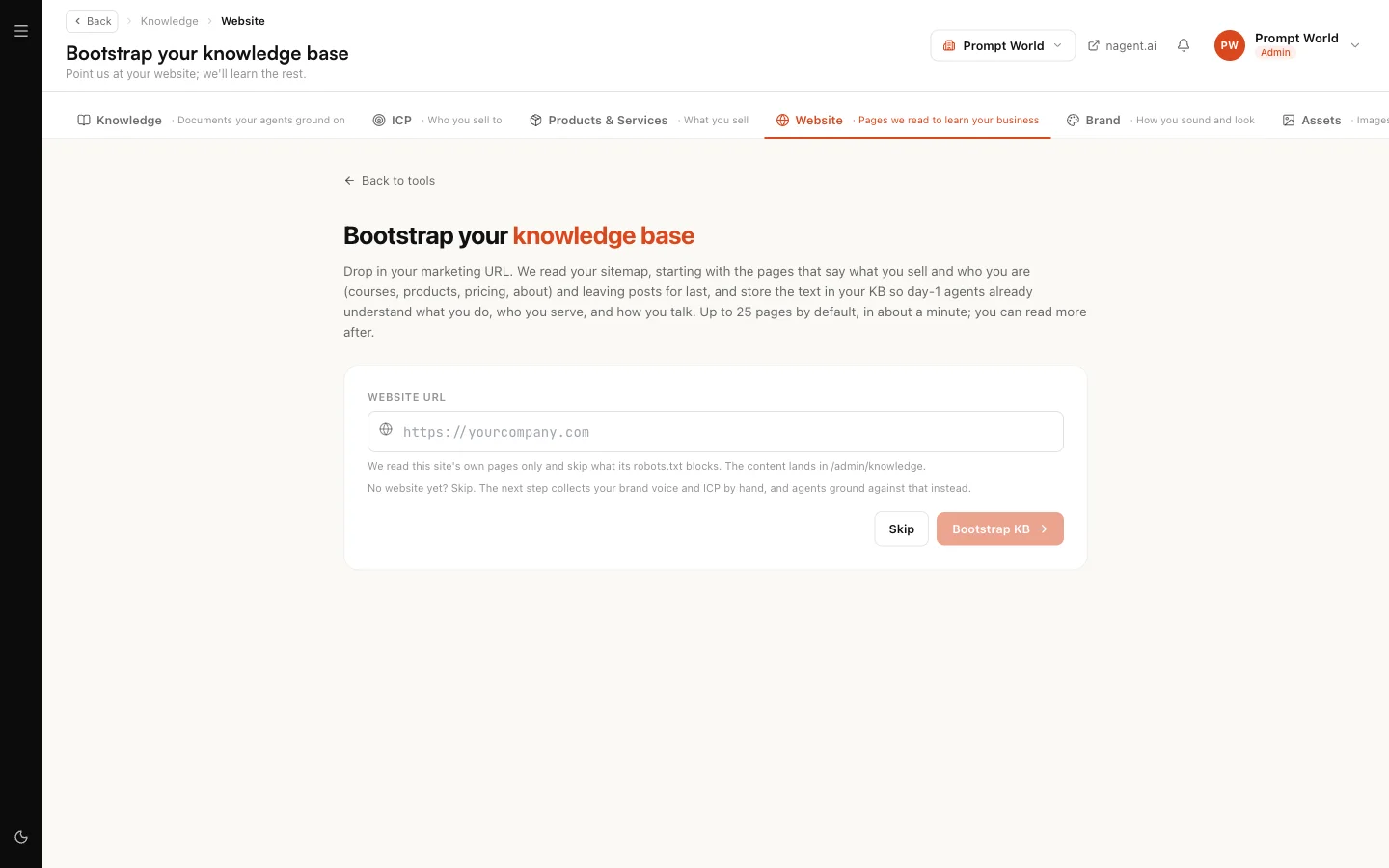
Open the Knowledge Hub's Website tab, or go to nagent.ai/admin/knowledge/website. The screen is titled Bootstrap your knowledge base. It is also a step of the set-up wizard, which is why it offers Back to tools and Continue to team.
Step 1. Give it your address
- Type your marketing site into Website URL, for example
https://promptworld.example. Only the site's own address is used, so a deep link is read as its home. - Select Bootstrap KB. The button reads "Crawling" while it works.
It usually takes about a minute. A slow site can take longer, and the crawl stops itself at a time limit rather than failing: whatever it read by then is kept.
No website yet, or one Nagent cannot reach? Select Skip. The next step of the set-up collects your brand voice and customer by hand, and your agents ground on that instead. You can come back and crawl later.
Which pages it reads, and in what order
Nagent asks your site for its sitemap first, including any sitemaps your robots.txt declares. If there is no sitemap, it follows the links on your home page.
It then reads pages in priority order:
- Your home page, always first.
- Pages that say what you sell and who you are: courses, programmes, products, platform, shop, services, solutions, pricing, plans, fees, about, team, leadership, how it works, mission, FAQ, customers, case studies and contact.
- Everything else.
- Posts and archives last: blog, news, articles, tags, categories and author pages.
It reads up to 25 pages by default. It reads only your own site, never pages a sitemap points to elsewhere, and it skips anything your robots.txt blocks.
Our logic
A sitemap is often mostly blog posts. Spending the page limit on posts would leave the pages that describe your business unread, so the pages that say what you sell go first. The limit keeps the first crawl fast and cheap.
Step 2. Read the report
When the crawl finishes you see a report:
| Figure | What it means |
|---|---|
| Attempted | Pages Nagent tried to read |
| Ingested | Pages whose text was stored. The number that matters |
| Text size | How much text was stored |
| Duration | How long it took |
Under the figures, plain sentences say what the crawl did not read: how many pages your sitemap lists, how many were left unread by the page limit, how many your robots.txt blocked, and whether it stopped at its time limit. If some pages failed, Skipped N pages, see why lists each one with the reason.
Reading more than 25 pages
If the limit left pages unread, the report offers Read up to 150 pages. It asks before it runs. Most pages cost nothing to read, but a page that only shows its text after its scripts run costs one render credit, so the confirmation states the most it can cost from today's budget. A larger site reads its best pages first and can be crawled again.
If nothing was ingested
The report says "Couldn't ingest any pages". Check the address, or select Continue without a website and describe your business by hand on the next step.
What lands in the Knowledge Hub
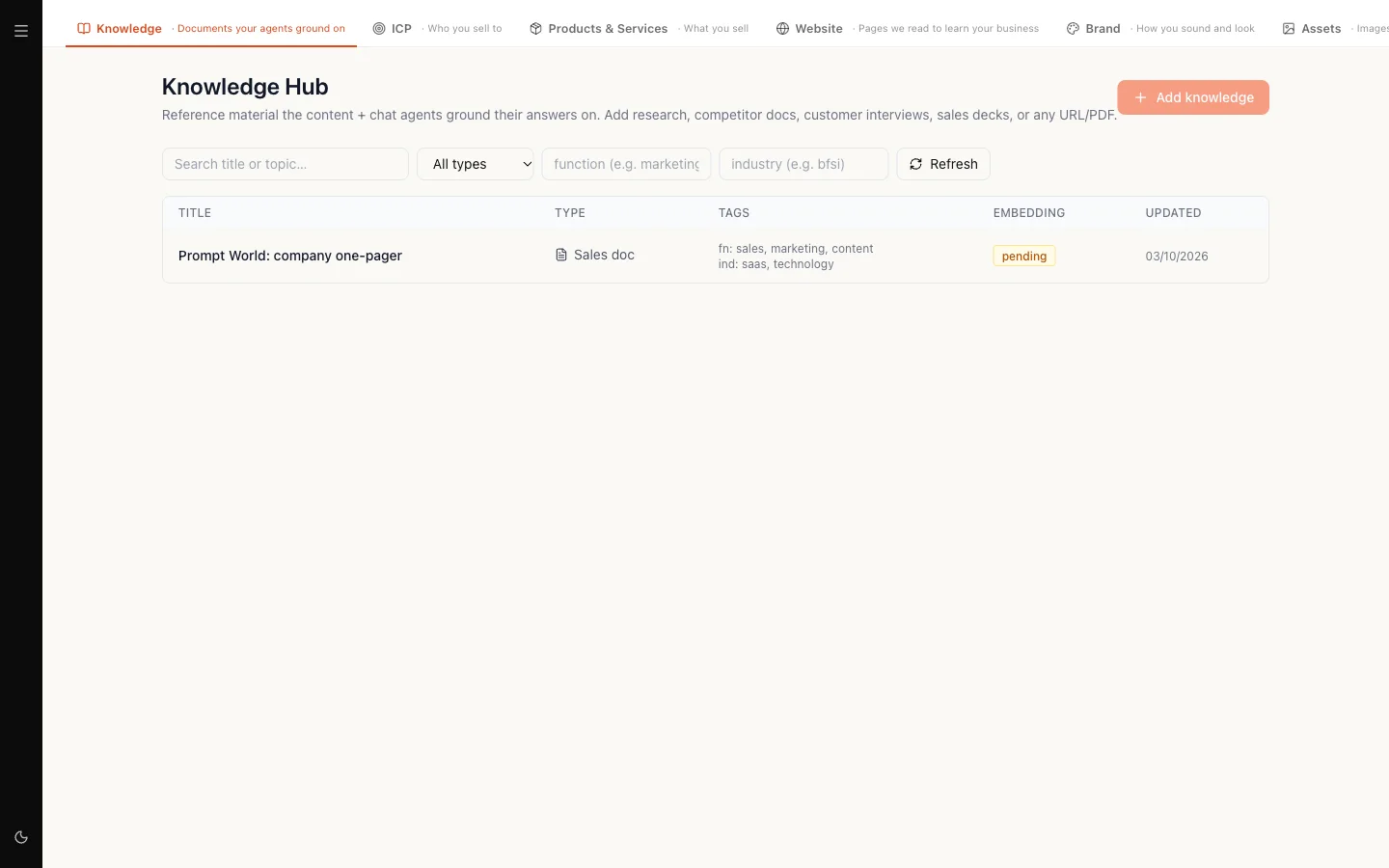
Each page Nagent read becomes one document in your Knowledge Hub, titled with the page's title and linked to its address. Only the main text is kept: navigation, footers and scripts are stripped. Pages with almost no text are skipped.
Each document is then indexed in the background so agents can retrieve it. Its status in the list starts as pending and moves to embedded, or to failed if indexing did not work. See Adding knowledge for what each status means.
Crawling the same site again updates those documents in place rather than adding duplicates.
The crawled pages are also what other parts of Nagent read:
- Extract from website on Products and services proposes offerings from them.
- Work out the targeting on Who you sell to reads them alongside your description.
- Extract from website in the brand voice panel on Brand Lock AI drafts your voice from them.
The two extractions say so plainly when there are no crawled pages, and spend nothing. The targeting run still works without them, from your description and products alone, but it has less to go on.
Managing your sites
Once a site has been crawled, the screen shows Your site with each address and its page count. A workspace can hold up to 10 sites.
- Re-crawl reads the site again and refreshes its pages.
- Edit corrects the address, for example a typo or a new domain. The old site's pages are archived and the new address is crawled in one step, so you are never left with neither.
- Remove asks first, and tells you how many crawled pages will be archived. Archived pages stop grounding your agents. Select Remove and archive to confirm, or Keep it.
- Add another site adds a second address, for example a separate site for one product line, and crawls it.
Who can do this
Crawling, editing and removing sites need workspace settings permission, which a workspace admin has. The Website tab is hidden from roles without it.
Where to go next
- Adding knowledge: add documents the website does not cover.
- Products and services: turn your crawled pages into confirmed offerings.
- Brand Lock AI: draft your brand voice from the same pages.