
Browse documentation
Autonomy and governance
The five autonomy levels, the governance profile, what always asks a person first, and the per-agent budget caps that stop an agent when it reaches them.
Autonomy is earned, not deployed
Every agent in your workspace works at a level. The level decides which of its actions run on their own and which wait for a person. An agent does not get a wider level because it was installed, or because time passed. It gets one because someone looked at its record and raised it.
Three things govern what an agent may do, and they stack:
- Its level, set per agent.
- The governance profile, set once for the workspace.
- Its budget, a daily and monthly cap on what it may spend.
Whichever is strictest wins.
The five levels
Nagent shows levels as L1 to L5, on Home, on Welcome and in the team rooms.
| Level | Name | What it means |
|---|---|---|
| L1 | Observer | Read only. Makes suggestions, never changes anything |
| L2 | Assisted | Every action queues for human approval |
| L3 | Practitioner | Actions with side effects queue; reads run |
| L4 | Senior | Acts on routine work on its own; escalates the rare or risky case |
| L5 | Principal | Works broadly with strategic supervision only |
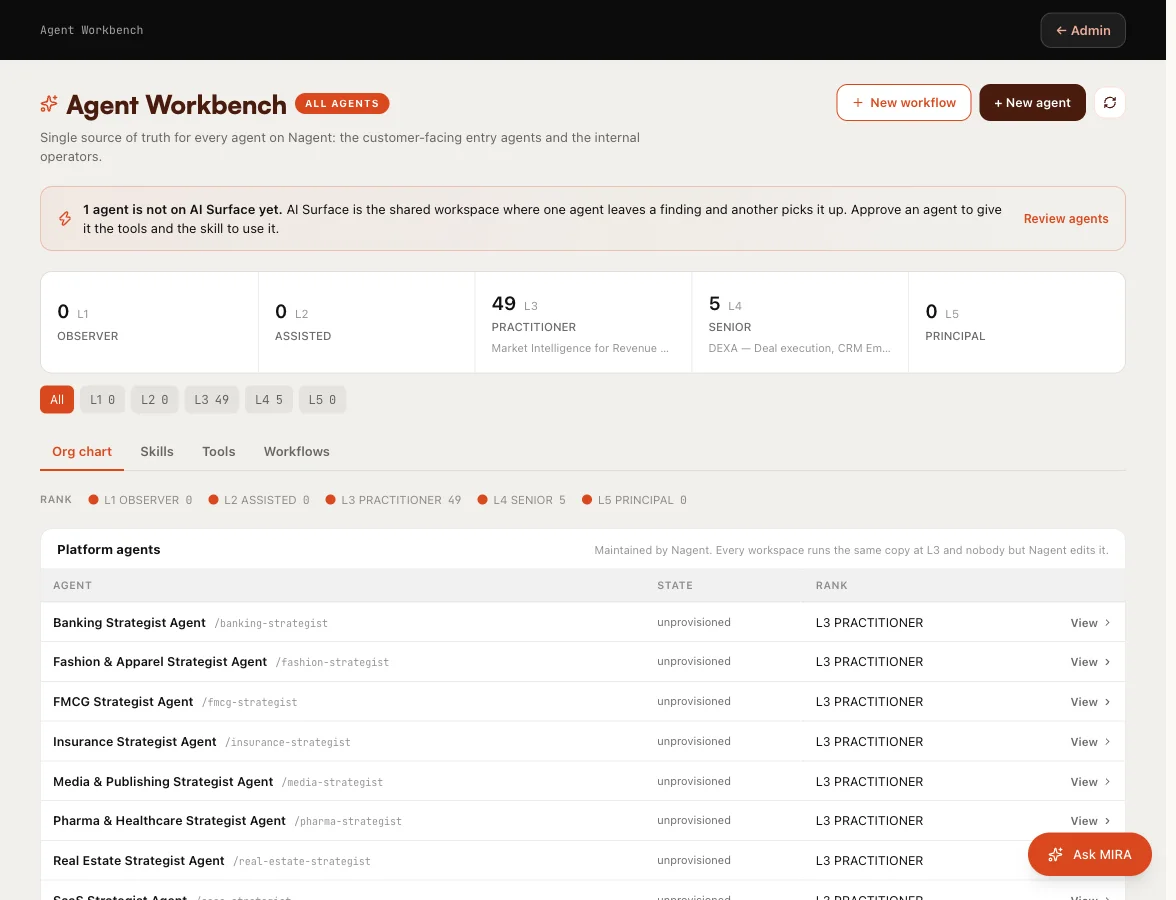
Each action an agent can take declares the level it needs to run unattended. When the agent's level meets it, the action fires. When it does not, the action is held for approval. Pure reads always run. See approvals and the Inbox.
The level your teams start at
A team you install starts its agents at L4 Senior, so it can work from its first message rather than asking about everything. Know what that does not mean for the Sales team: sending e-mail is gated separately from the level on NORA's seat. On a new workspace every outbound send waits for a person's approval, whatever level her seat shows.
Changing an agent's level
- Open the Agent Workbench and choose the agent.
- Open the Configuration tab and find the Governance card.
- Under Autonomy level, choose a level and click Save governance.
The same control is under Advanced, Autonomy & state, where pressing a level applies at once.
Both screens show the same five levels, lowest first, and name them differently from the badge. The Governance card lists them from Locked to Fully autonomous. Autonomy & state numbers them L0 to L4, because it shows the value it stores: L0 there is L1 everywhere else, and L4 there is L5. Count from the bottom and the three agree.

A Workspace Admin can raise or lower any of the workspace's own agents, to any level, and every change is recorded with who made it. Agents the platform maintains for every workspace, such as the builders, can be switched on or off and paused, but their level and set-up are fixed.
How a level rises
A promotion is offered and approved, never automatic. When a kind of action has a clean record, at least 20 approved actions and no reversals, Nagent offers to let it run with less sign-off. The offer arrives in the Inbox under Ready to move up. A person who may decide approvals chooses Raise autonomy or Leave as it is.

A reversal resets the record. Lowering a level never needs a clean record first; it needs only the permission to change levels.
The governance profile
The profile sets the workspace's floor for whole classes of action, on top of each agent's level. There are two.
| Profile | What it says |
|---|---|
| Standard | Agents act within their autonomy level and ask first on anything destructive |
| BFSI | Stricter defaults for regulated work; more actions wait for a person |
Until you choose, Standard applies, and Workspace set-up shows the Autonomy and governance card as Needs you, because nobody has said so.
To choose, open Governance. The Governance profile control sits at the top of the page. Press the profile you want.
How the profiles treat each class of action:
| Class | Standard | BFSI |
|---|---|---|
| Reads | Run | Run |
| Metadata fixes, internal links | Run once the agent is at L2 | Run once the agent is at L3 |
| Creating or editing content | Always asks, below the Enterprise tier | Always asks |
| Changes to priority settings | Always asks | Always asks |
| Destructive changes | Always asks | Always asks |
What always asks first
Some actions ask a person every time, at every level, under either profile, and no promotion can change that.
- Destructive changes: adding a canonical tag or a noindex directive, the changes that can take a page out of search or point it elsewhere.
- Changes to how work is prioritised in the workspace.
An agent with no governance record at all also queues every action with a side effect, rather than acting unchecked.
And at any level, an agent that is paused or switched off takes no action with a side effect. Pausing is the control to reach for when something looks wrong: it takes effect on the next action, and nothing the agent was approved for earlier overrides it.
Our logic
Some mistakes can be undone and some cannot. A meta description written badly can be rewritten tomorrow. A page removed from search may not come back. The first kind is where an agent can earn its way to working alone. The second kind always has a person on it.
Budget caps
Every agent has a spending cap, a daily one and a monthly one. Until you set your own, each agent carries the default: $5 a day and $100 a month.
Before an agent makes a paid call, Nagent checks what it has left under both caps, counting money already committed to calls still running. If the call would go over, it is refused.
Setting a cap
- Open the agent in the Agent Workbench and go to its Budget pane.
- Read Today and This month: spend against each cap.
- Under Edit caps, set Daily cap (USD) and Monthly cap (USD).
- Choose When exceeded, then press Save.
If the agent has no budget of its own yet, the pane says so and pre-fills the form. Check When exceeded before you save: the form pre-fills Pause the agent, while an agent with no saved budget behaves as Queue actions for approval.
What happens when a cap is reached
| When exceeded | What happens |
|---|---|
| Queue actions for approval | Further paid calls are refused and the attempt is recorded as held. The agent starts again when the day or month rolls over |
| Pause the agent | The agent is switched off and stays off until a person turns it back on |
| Notify only (continue) | The agent keeps running and the breach is announced |
The pane's status reads Healthy, Approaching cap, Exceeded or Paused. Daily caps reset each day and monthly caps each month.
The workspace total on Home and on the set-up Budget and spend card is the sum of these per-agent monthly caps. It is what the workspace can spend before its agents stop, not a plan allowance.
Replies agents give in a team room conversation are counted today under a shared system entry rather than against the replying agent's own cap. They are still recorded and still priced.
Our logic
A budget is a stop, not a report. A figure you read at the end of the month cannot prevent anything, so the check happens before the call, and the default behaviour is to hold the work rather than to keep spending.
Where to go next
- Approvals and the Inbox: deciding what queued.
- Billing and plans: plans, and how they relate to caps.