
Browse documentation
Credits and budgets
How Nagent keeps agent spending inside limits you can see, what happens when an agent reaches its cap, and where to read what your workspace has spent.
A budget is checked before the money is spent
Every AI teammate in your workspace costs money when it works: model calls, paid lookups, image and video renders. Nagent's rule is that a limit is checked before a call is made, not reported after the bill arrives. An agent that has reached its cap stops; it does not finish the job and tell you later.
Three controls work together today:
| Control | What it limits | Who sets it |
|---|---|---|
| Per-agent caps | What one agent may spend in a day and in a month | You, on the agent's Budget pane |
| The workspace daily limit | What the whole workspace may spend in a rolling 24 hours | Nagent, per workspace |
| Quotes and approvals | What a single expensive job may cost, such as a video | You, when you approve the quote |
Behind all three sits the credit ledger, which records every billable call against your workspace.
Per-agent caps
Each agent has two caps in US dollars: a daily cap and a monthly cap. Until someone sets them, an agent runs on the platform default caps, so there is never an agent with no limit at all.
The daily counter resets at midnight UTC and the monthly counter at the start of each UTC month.
What happens at the cap
Work an agent does with its tools, and every render it asks for, is checked against both caps before it starts. Money already committed to calls that are still running counts as spent, so two calls cannot both slip under the same last dollar.
When an agent reaches a cap, the When exceeded setting decides what happens next:
| Setting | What happens |
|---|---|
| Queue actions for approval | The agent's paid calls are refused and the refusal is recorded. The default |
| Pause the agent | The same, and the agent is switched off until a person turns it back on |
| Notify only (continue) | The calls go ahead and the breach is recorded as an event |
Under the default, work starts again when the daily window rolls over or when you raise the cap. Pausing is stricter than it looks: a paused agent stays off past midnight, so one busy day would leave it off the next morning. That is why it is not the default.
Changing an agent's caps
-
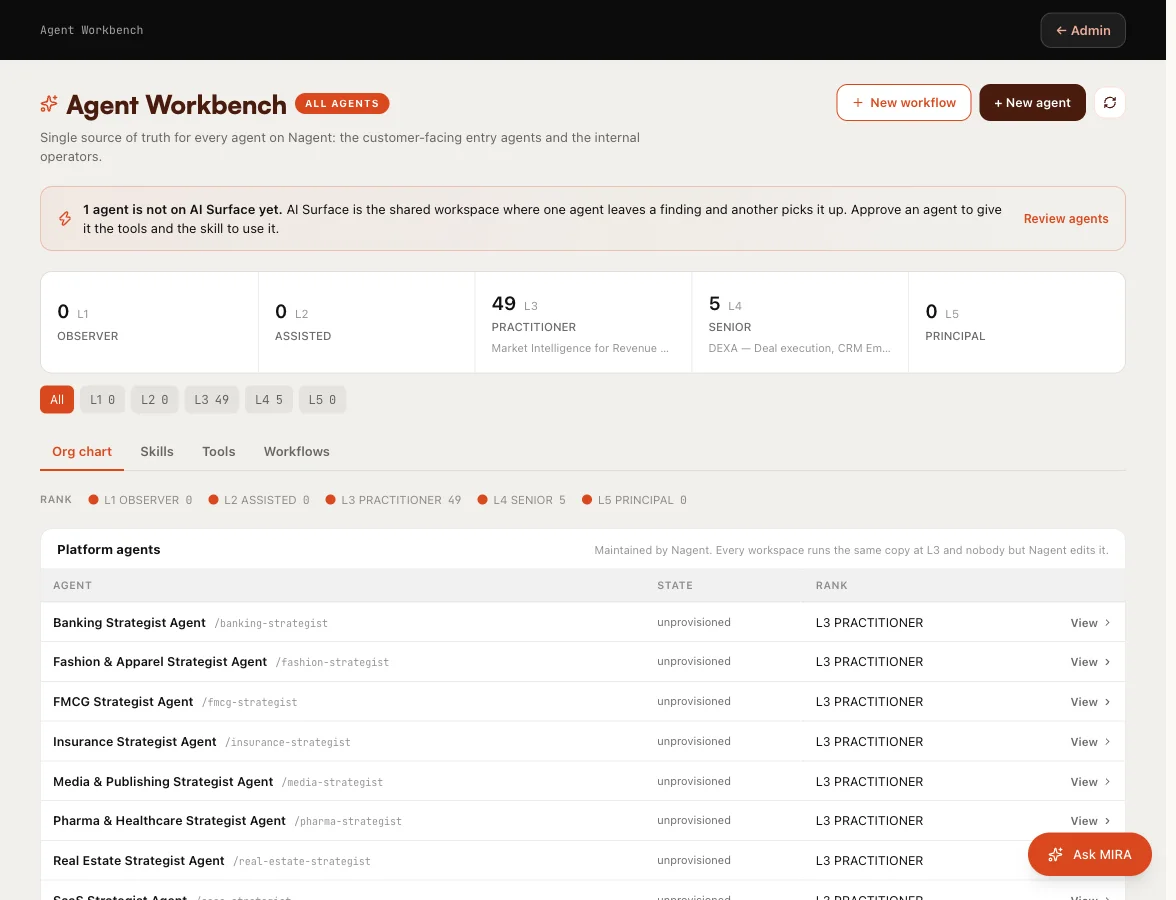
Open the Agent Workbench and choose the agent.
-
Open the Governance tab, then Budget.
-
Read Today and This month: what the agent has spent against each cap, with a 14-day trend underneath.
-
Under Edit caps, set the Daily cap (USD), the Monthly cap (USD) and When exceeded, then press Save.
The pane's status reads Healthy, Approaching cap at 80 per cent of either cap, Exceeded, or Paused. Reset counters sets both counters back to zero. Changing caps needs the AI team write permission, which workspace admins hold.
Our logic: one cap per agent means one runaway agent cannot spend the whole workspace's money, and a cap you can read on the agent's own page is a cap you can trust.
The workspace daily limit
Above the agents sits one limit for the whole workspace, counted over the last 24 hours. It is checked when a request that costs money starts: running an agent or a workflow, starting paid HOOK and MOXA work, and changing agent governance.
When the workspace is over it, those requests are refused with a message that names the amount spent and the limit. Everything else keeps working: you can still read, review and approve. As the 24-hour window moves on, the earliest spend drops out and work can start again.
If your workspace needs a different daily limit, ask the Nagent team.
Paid tools count
Some tools charge per use: deep web research, contact enrichment, page scrapes, renders. When an agent uses one, the tool's price is recorded against that agent's budget and on your workspace's credit ledger, exactly as a model call is. A paid tool is not a way around a cap.
Quotes for expensive work
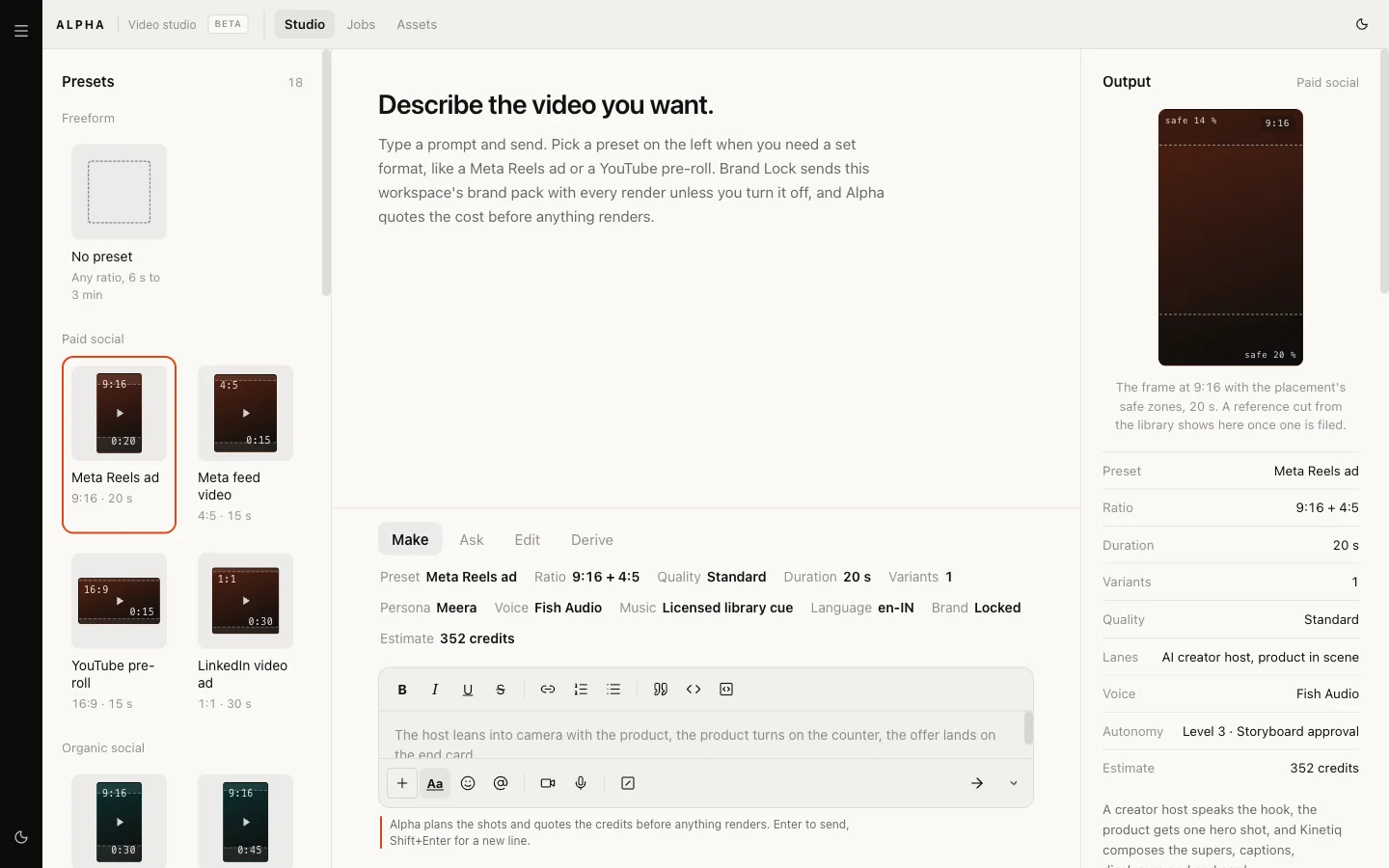
Work that costs more than a conversation is quoted before it runs. ALPHA, the video studio, prices a video in credits and waits for a person to approve the storyboard and its quote. A delivered job bills at most what was approved. If a quote is above a brief's cap, it waits for a named approver, and no agent may lift that cap on its own. See ALPHA, the video studio.
Agent meetings work the same way, with a cap per meeting and a daily ceiling per team. See Meetings.
Credits
Your plan comes with a monthly credit allowance, and every billable call in your workspace is drawn against it on the credit ledger: model calls, paid tools and renders, at what the provider charged.
Today the ledger measures; it does not yet refuse work when the allowance is used up. The controls that stop spending are the per-agent caps, the workspace daily limit and the approvals above. See billing and plans for what your plan includes.
Where you see spend
Home
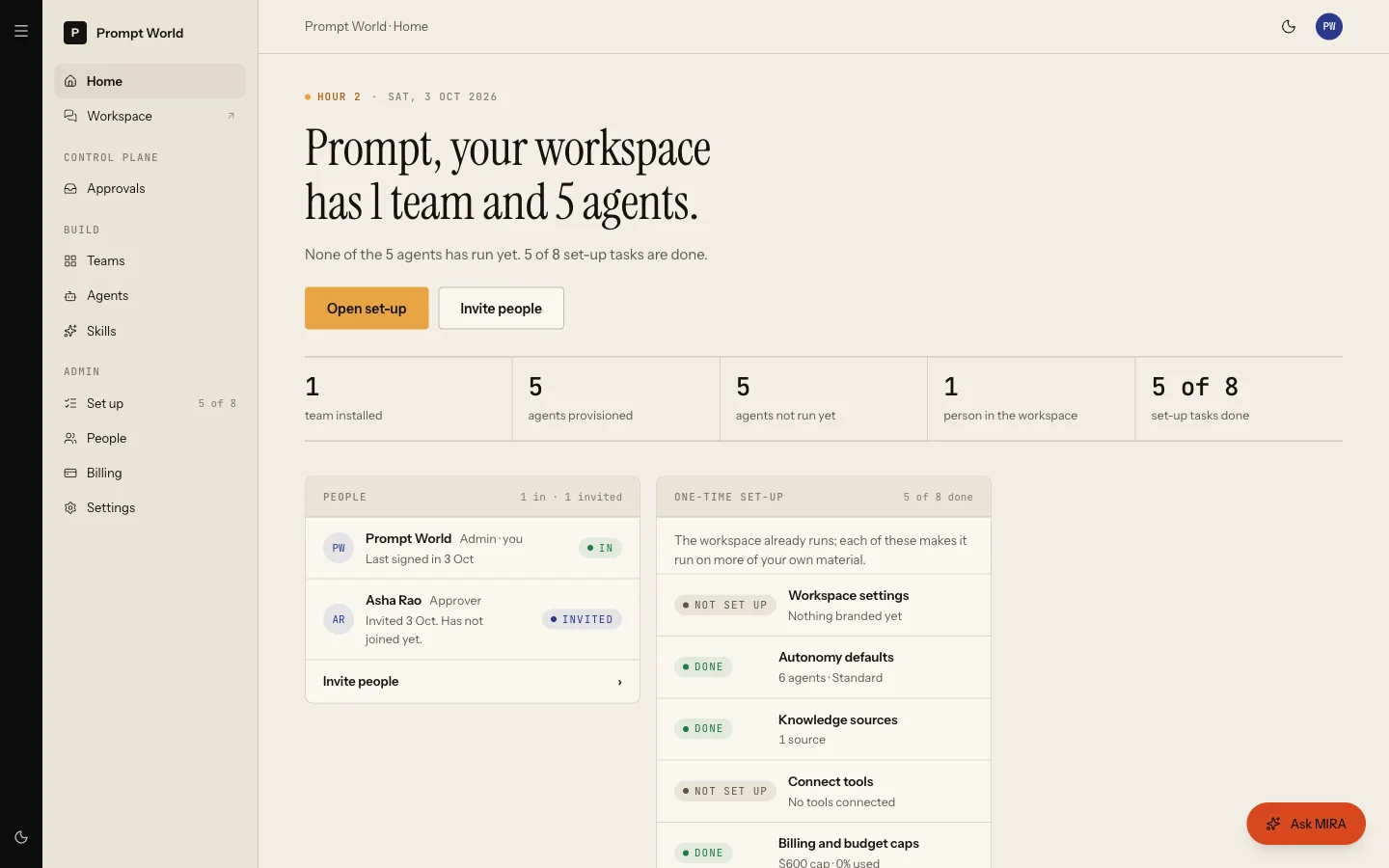
On a new workspace, Home lists Billing and budget caps in its set-up ledger. From the workspace's 31st day it shows Spend this month against caps: each agent's spend against its monthly cap, marked when it passes 80 per cent and when it reaches the cap. After 90 days it adds Spend by month.
Workspace set-up
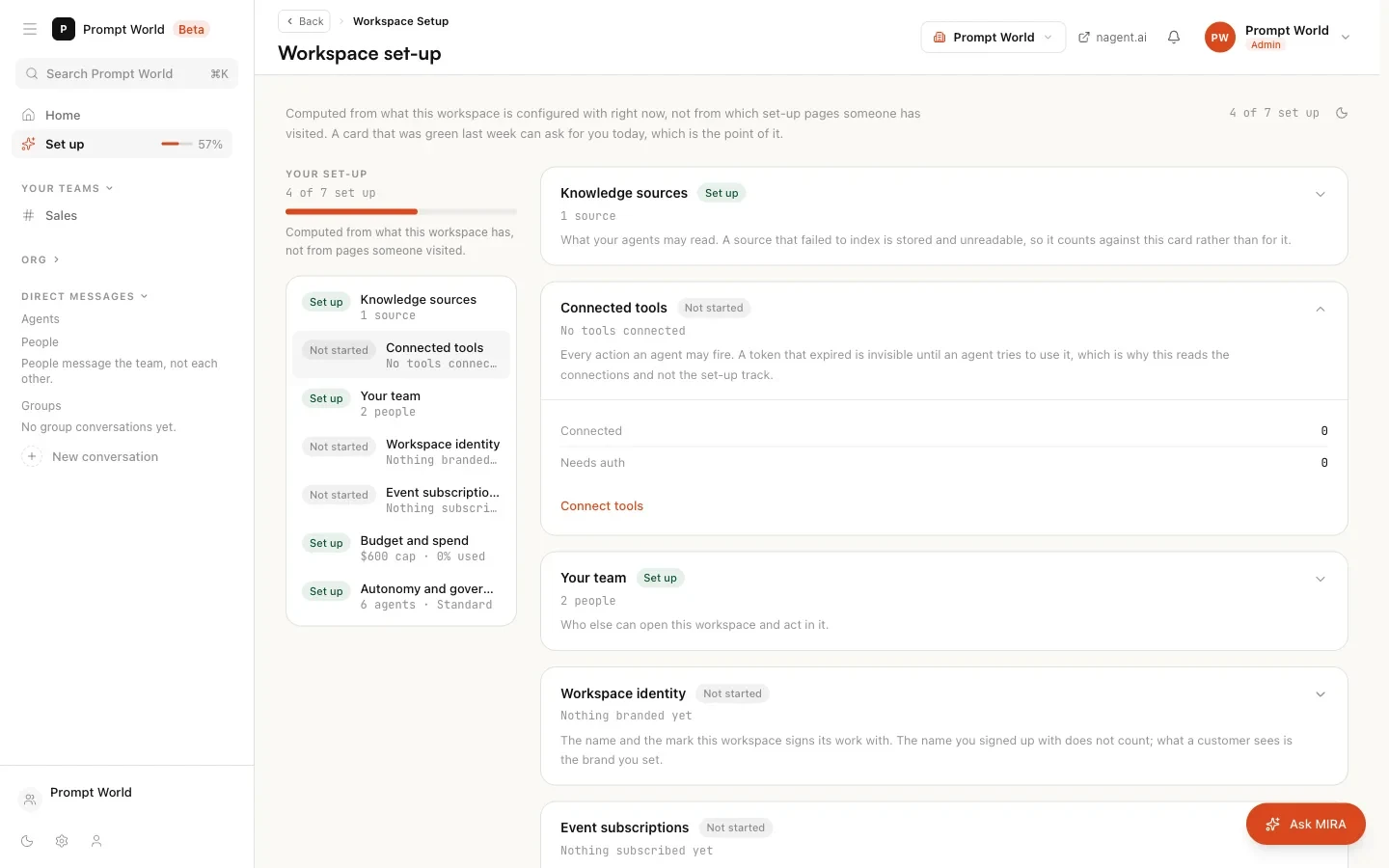
The Budget and spend card on Workspace set-up shows three figures:
| Figure | What it is |
|---|---|
| Monthly cap | The sum of every agent's monthly cap, the most your agents can spend this month before they stop |
| Used this month | What they have spent so far |
| Per-agent ceiling | The largest single agent's monthly cap |
The card reads Needs you once 90 per cent of the monthly figure is used. As the card itself says, the figure is the sum of the caps actually enforced per agent, not your plan's allowance. It grows as you add agents, because each new agent brings its own cap.
The agent's page
The Budget pane described above is the most exact view: one agent, today and this month, against its own caps.
Where to go next
- Autonomy and governance: what an agent may do without asking, which is the other half of keeping it safe.
- Billing and plans: plans and payment.
- Approvals and the inbox: where queued work waits for you.