
Browse documentation
The Knowledge Hub
What the Knowledge Hub holds, its six tabs, the order to fill them in, and what your agents read from it when they work.
Your agents work from your material, not from guesses
An agent that does not know what you sell, who buys it and how you sound writes something generic. The Knowledge Hub is where you tell it. It holds your documents, the customer you sell to, your products and services, the pages of your website, your brand and your images, in one place, and all of it belongs to your workspace alone.
Open it at nagent.ai/admin/knowledge, or from the Knowledge sources card on Workspace set-up.
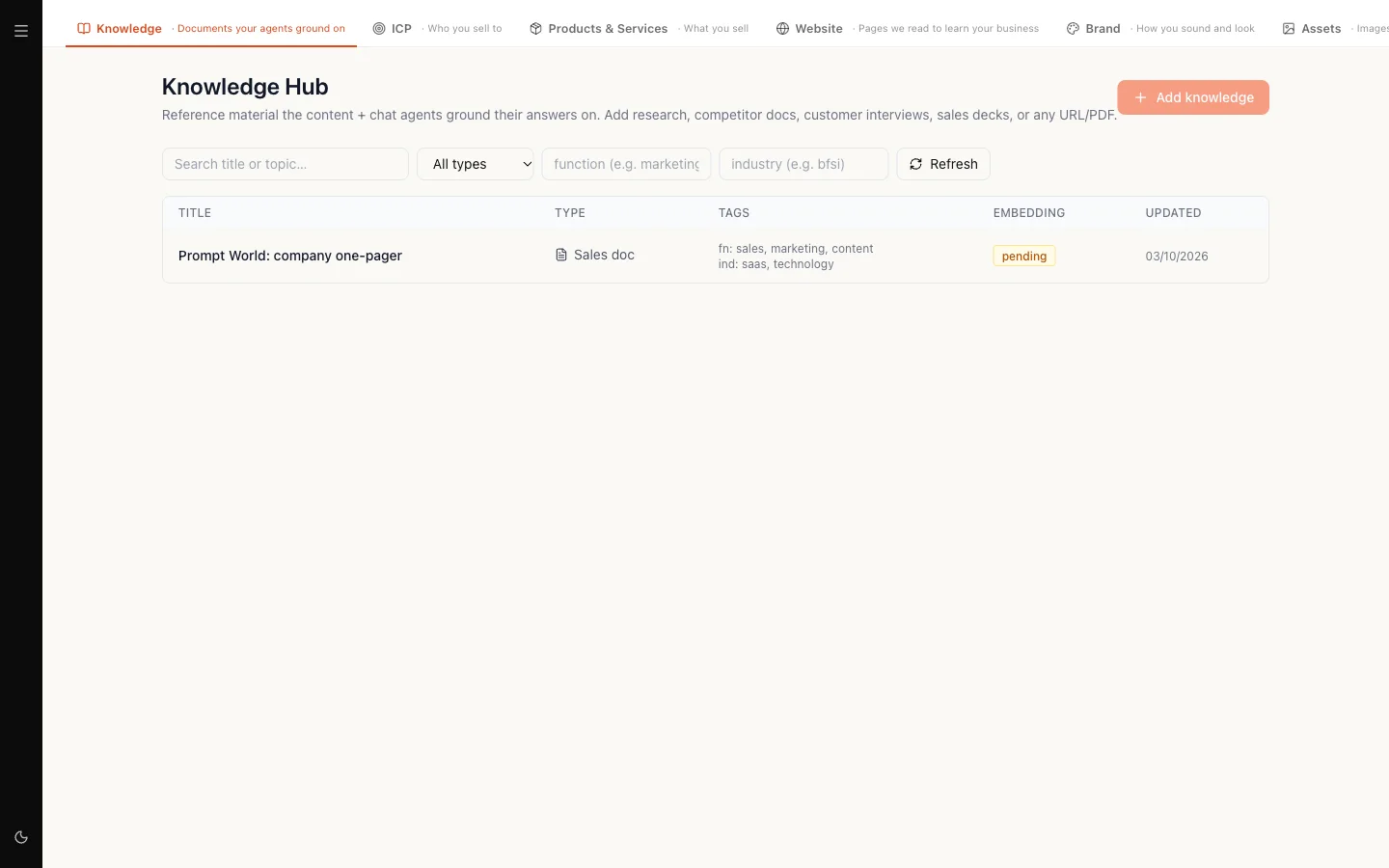
The six tabs
Each tab is its own screen, and each says in a few words what it holds.
| Tab | What it holds | Read more |
|---|---|---|
| Knowledge | Documents your agents ground on | Adding knowledge |
| ICP | Who you sell to | Who you sell to |
| Products & Services | What you sell | Products and services |
| Website | Pages we read to learn your business | Bootstrapping from your website |
| Brand | How you sound and look | Brand Lock AI |
| Assets | Images and files agents can use | RUPA Studio |
You see the tabs your role allows. Someone who may read documents but not your brand, for example, sees the Knowledge tab and no Brand tab. A workspace admin sees all six.
Knowledge
The list of your documents: research, competitor material, sales decks, call transcripts, product notes, anything written down. Search it, filter it by type, function or industry, and check each document's status.
Select Add knowledge to paste text, give a URL or upload a file. A document is readable by agents once its status reads embedded. Pending means it is still being indexed, and failed means agents cannot read it at all. Adding knowledge covers each step and what to do about a failed document.
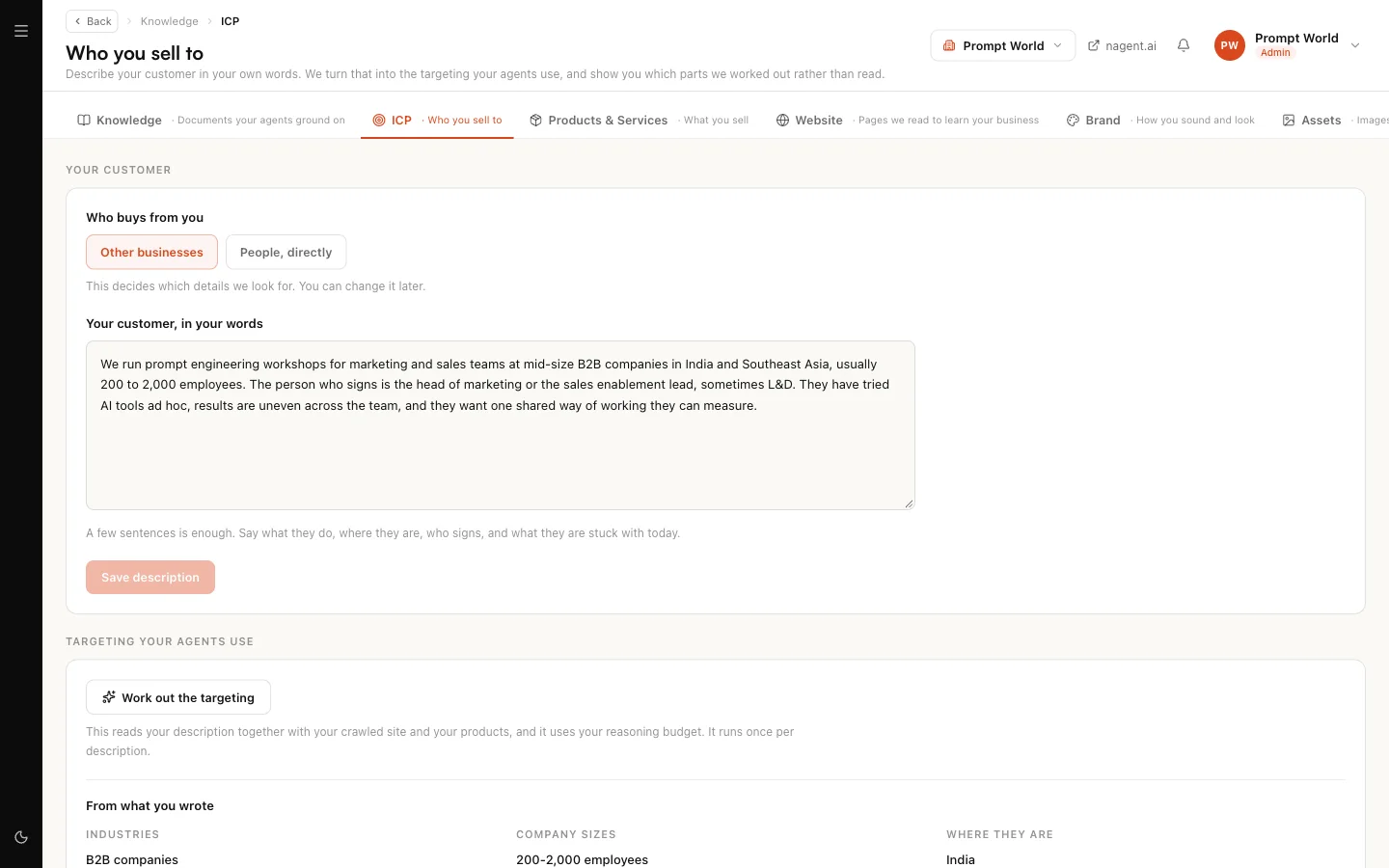
ICP
The Who you sell to screen. Describe your customer in a few sentences, and Nagent works out the targeting your agents use: industries, company sizes, where buyers are and who signs. What you wrote and what Nagent concluded are shown apart, so you can correct the second without losing the first.
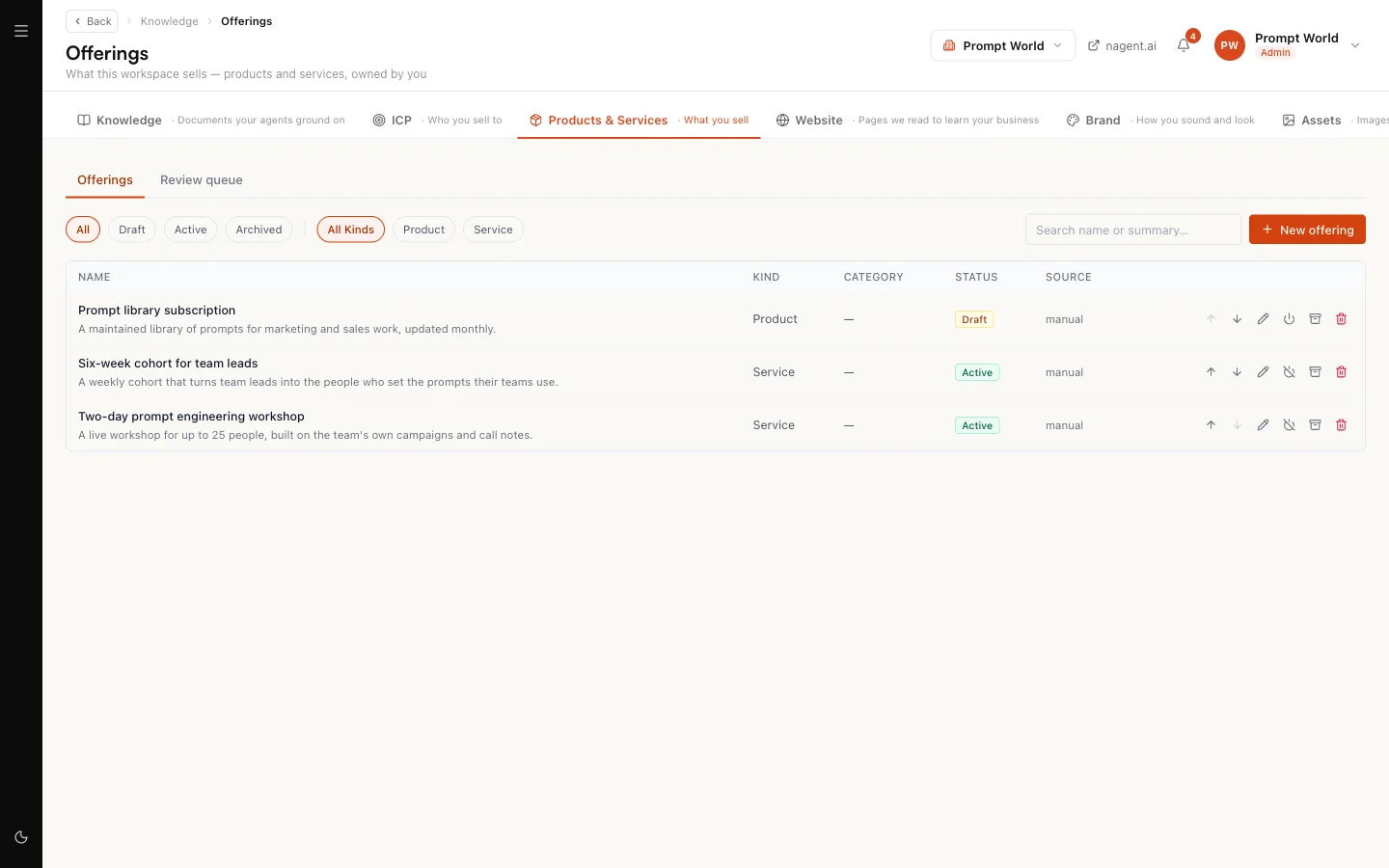
Products & Services
The Offerings screen: what you sell. Nagent can draft offerings from your website, a page or a file, and those drafts wait in the Review queue. An offering reaches your agents only once a person makes it active.
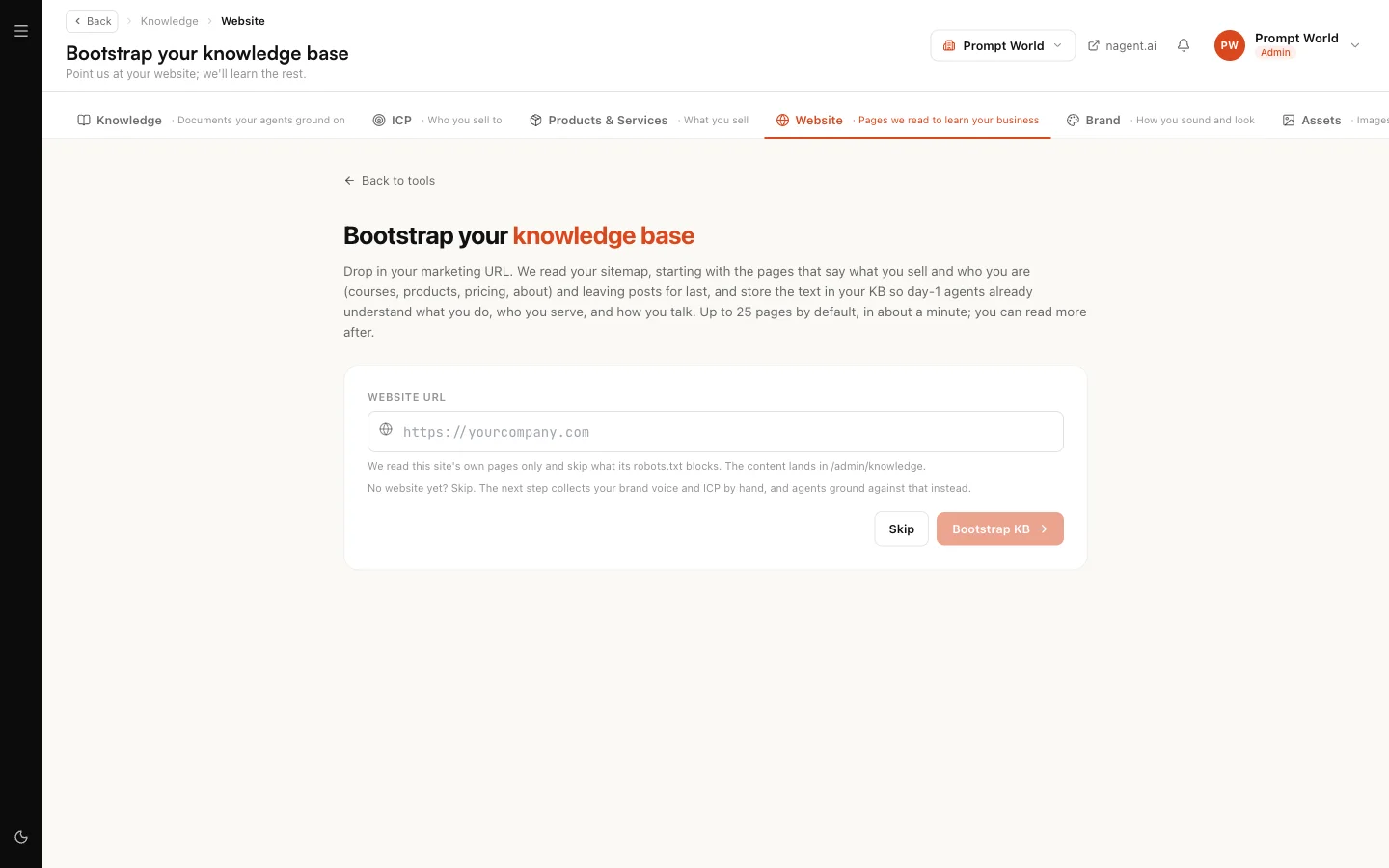
Website
Give Nagent your marketing site's address and it reads your sitemap, starting with the pages that say what you sell and who you are. Each page becomes a document on the Knowledge tab, so agents know your business from day one. No website yet? Select Skip.
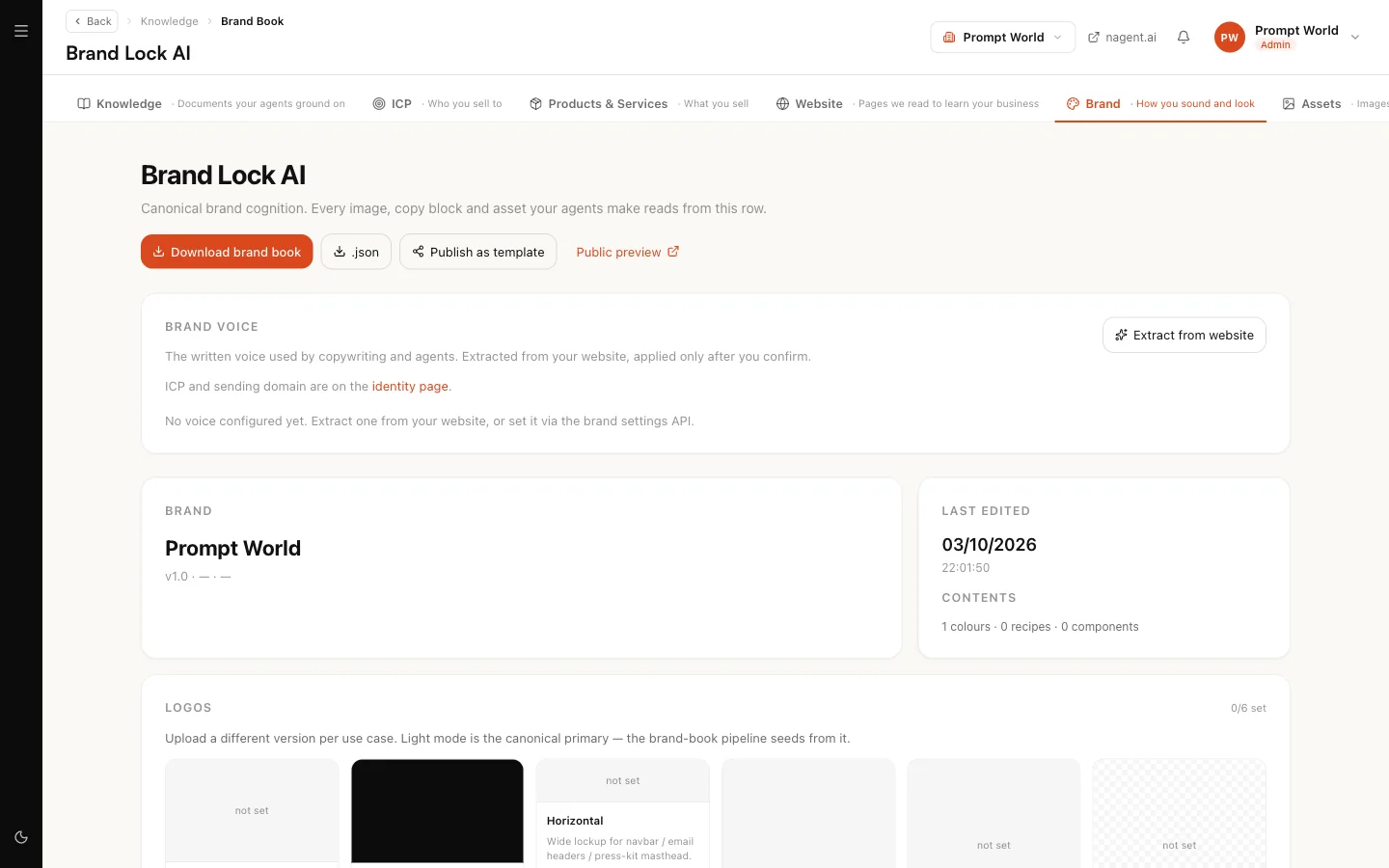
Brand
The Brand Lock AI page: your brand voice, logos, colours, guideline document and brand book. Writing agents take their voice from it, and RUPA, the image agent, applies it to images. A drafted voice applies only once you confirm it.
Assets
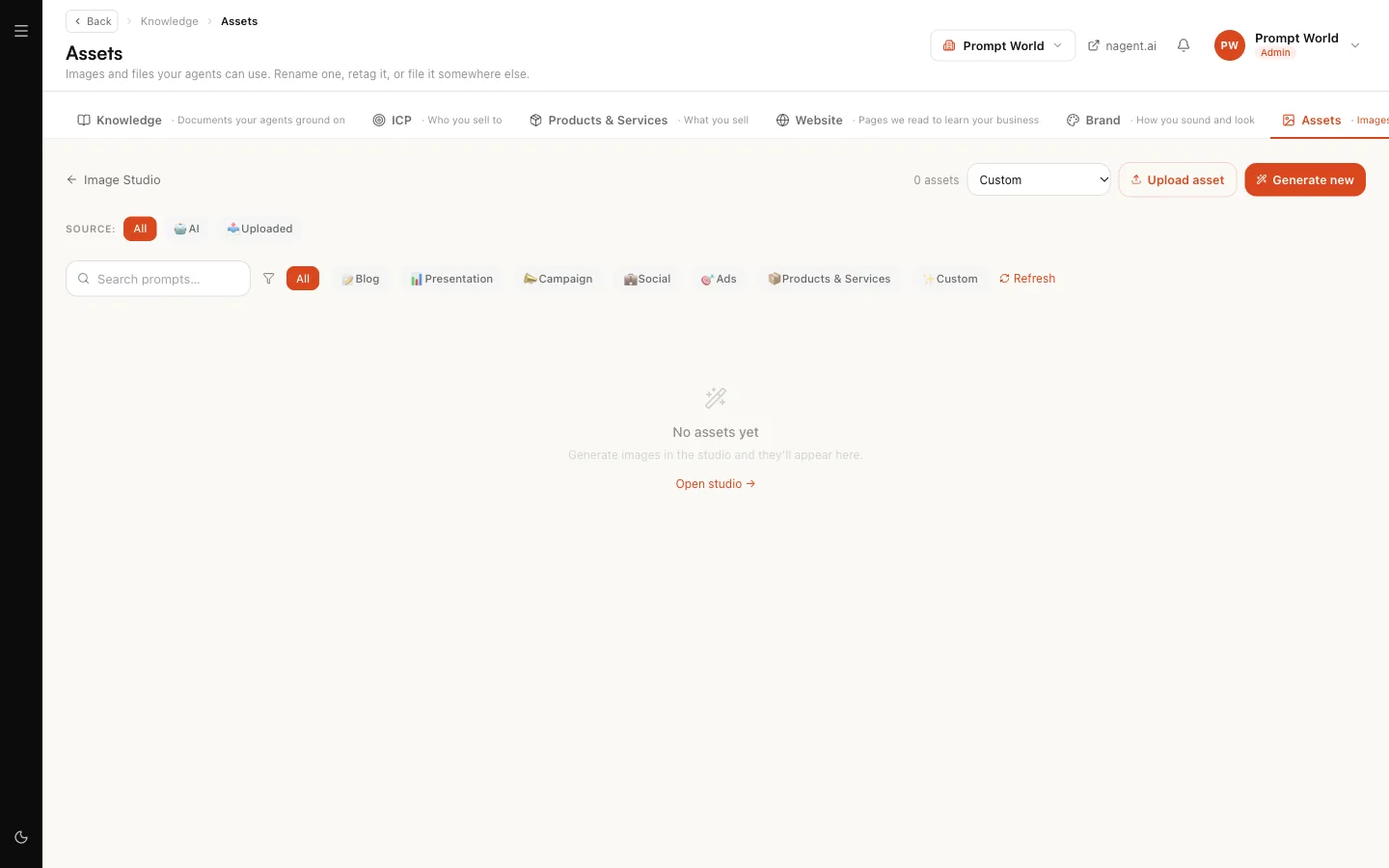
Images and files your agents can use, whether you uploaded them or RUPA made them. Select Upload asset to add your own, or Generate new to make one in the image studio. Filter by source, AI or uploaded, or by what the image is for.
The order to fill it in
On a new workspace, work through the tabs in this order. Each step gives the next one more to go on.
- Website. Point Nagent at your site, so it has your own pages.
- ICP. Describe your customer. Working out the targeting reads your description together with the pages from step 1 and your products.
- Products & Services. Review the drafted offerings, correct them, and make the right ones active.
- Brand. Draft your voice from your website, read it, and confirm it.
- Knowledge. Add what your site does not carry: decks, price sheets, call transcripts.
For Prompt World, which runs prompt engineering workshops for marketing and sales teams, that is its site; a description of heads of marketing at mid-size B2B companies; its two-day workshop and six-week cohort as active offerings; its voice; and the one-pager it sends after a discovery call.
The Knowledge sources card on Workspace set-up shows how far you are. It asks for you when a source failed to index, however many you added. See workspace set-up.
What your agents read, and how
Different material reaches agents in different ways.
- Documents are read by passage. When an agent answers a question or drafts something, it looks up the passages of your documents that bear on the request and works from those.
- Your customer, offerings and brand are read as settings. An agent that finds prospects reads your targeting. One that suggests what to lead with picks from your active offerings. One that writes takes your confirmed voice.
- Assets are files, not text. They are not read for meaning; agents and RUPA pick them up and use them.
Your workspace is one of three sources. Each team also keeps its own record in its team room: its charter, the files shared with it, its decisions and what it has agreed to remember (see the team files). And each agent carries its own skills, which say how it does its work. An agent working in a team draws on all three.
Our logic
What an agent tells your customer should trace back to something you wrote or confirmed. That is why offerings stay out of reach until a person makes them active, why a drafted voice waits for your confirmation, and why a failed document counts against you on set-up rather than as added. If two of your sources disagree, fix the source: an agent cannot know which one you meant.
Who can do this
Reading the Knowledge tab needs knowledge read permission, and adding or editing documents needs knowledge write permission. The other tabs follow the permissions of the screens they open. A workspace admin holds all of them.
Where to go next
- Adding knowledge: paste, link or upload a document, and read its status.
- Bootstrapping from your website: load your site in one go.
- Who you sell to: describe your customer.
- Products and services: confirm what you sell.
- Brand Lock AI: confirm your voice and your look.