
Browse documentation
The Agentic CRM
Your leads and pipeline in Nagent, how agents read and write them, how email to a lead is written and sent from a rep's own mailbox, and where agent work waits for your approval.
One pipeline, worked by people and agents on the same record
The Agentic CRM is where your leads live in Nagent, and where your sales agents do their work on them. A rep and an agent look at the same lead, the same stage and the same email thread. When an agent moves something, the record says so; when it wants to write to a lead, the draft waits for a person first.
You reach it from CRM in the sidebar, which opens Leads. Accounts groups leads by company.
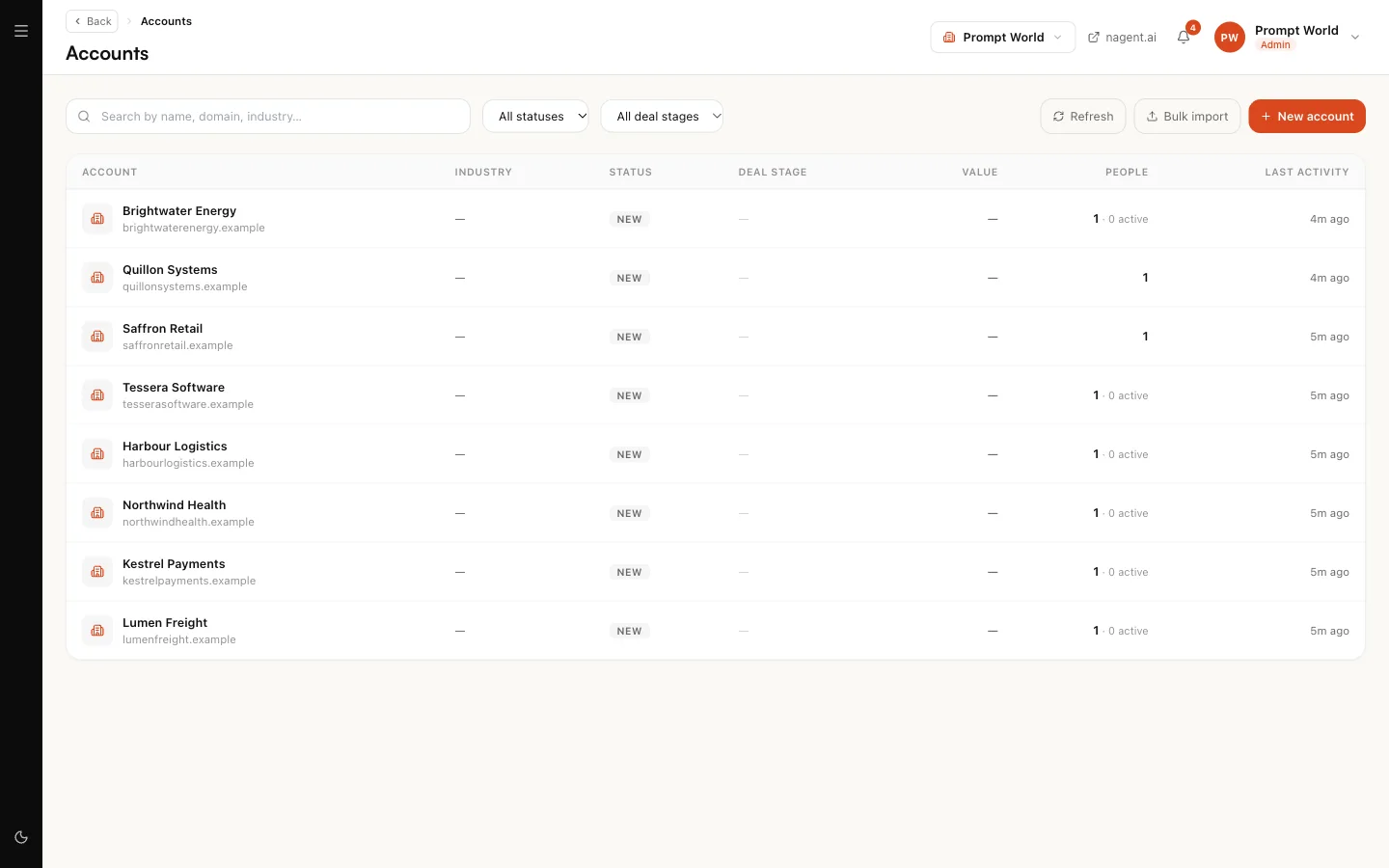
Leads
The Leads page lists every lead in your workspace, in a list or as a kanban board with one column per pipeline stage. Drag a card to another column to move the lead to that stage.
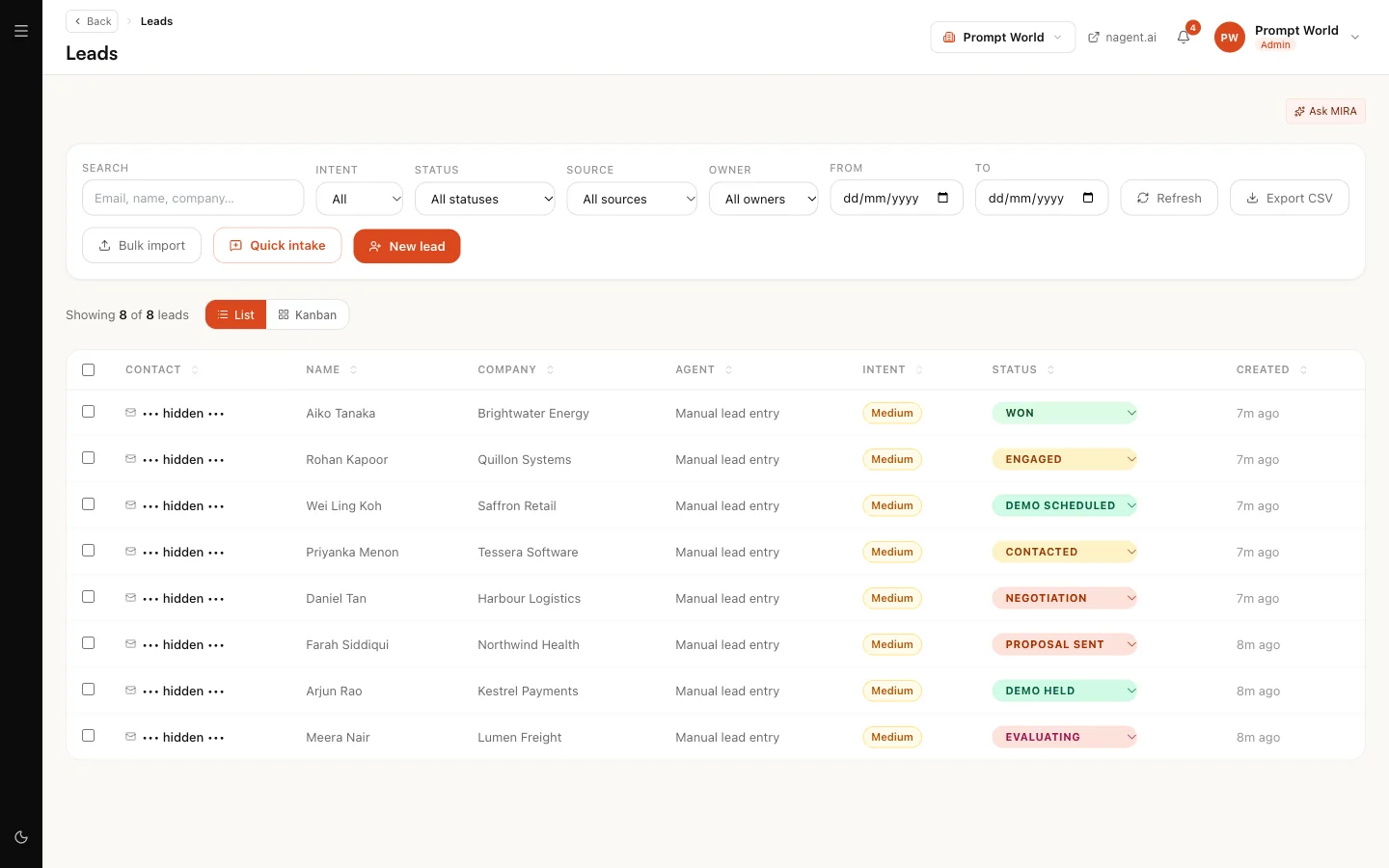
Filter by:
| Filter | Options |
|---|---|
| Intent | High, medium or low |
| Status | Any pipeline stage |
| Source | Website forms, chatbot, Cal.id bookings, manual, prospecting |
| Owner | All owners, My leads, Unassigned |
Four ways to add leads sit above the list:
- New lead: type one in.
- Quick intake: paste an email or chat thread, and the lead's fields are read out of it for you to check.
- Bulk import: upload a spreadsheet or CSV of up to 5,000 contacts, and optionally enrol them in a sequence.
- Leads also arrive on their own from your website forms, chatbot and booking links once those are connected.
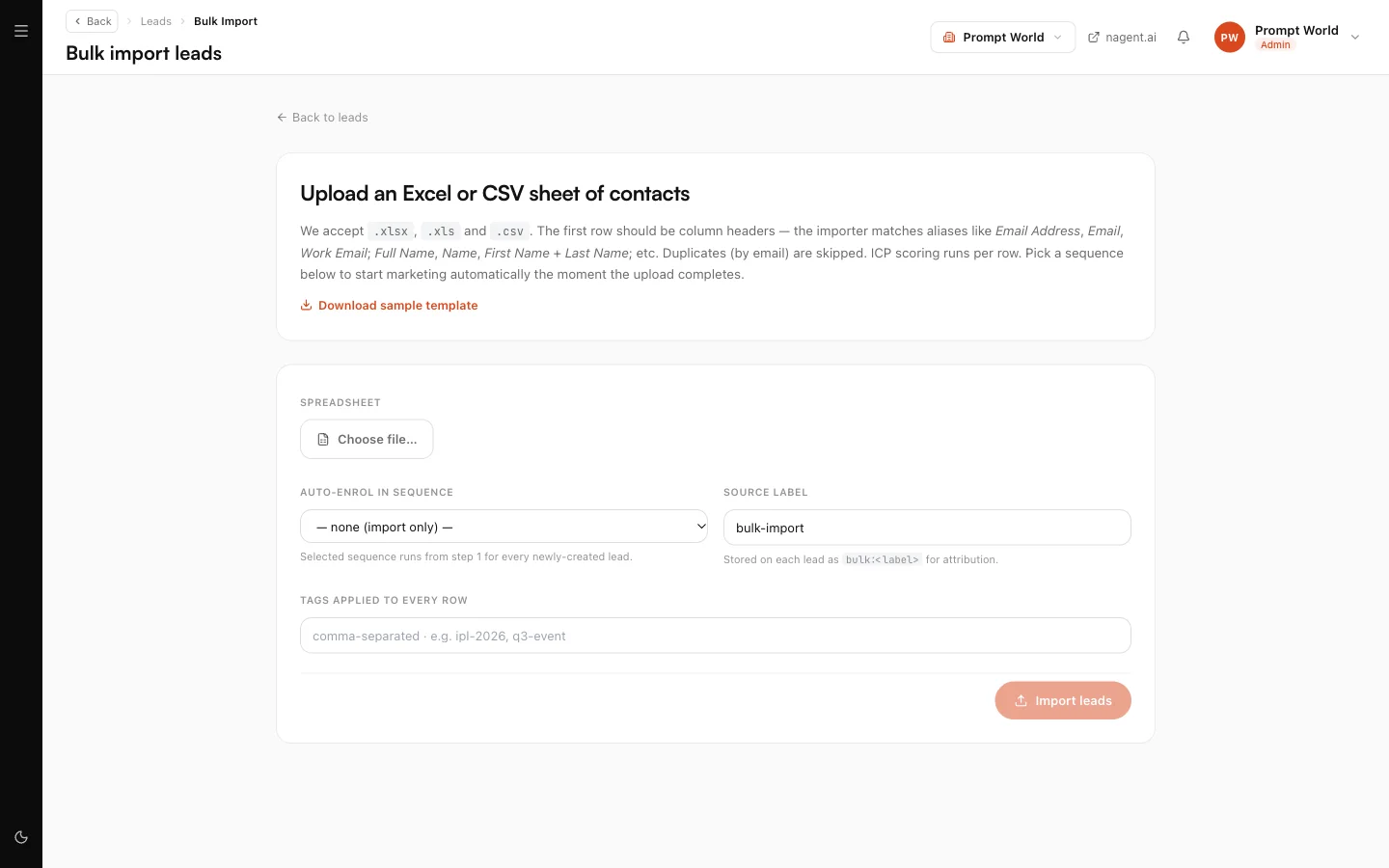
Export CSV takes the filtered list away as a file.
The pipeline
Every workspace starts with thirteen stages: New, Contacted, Engaged, Demo Scheduled, Demo Held, Evaluating, POC, Proposal Sent, Negotiation, Verbal Commit, Contract Sent, Won and Lost.
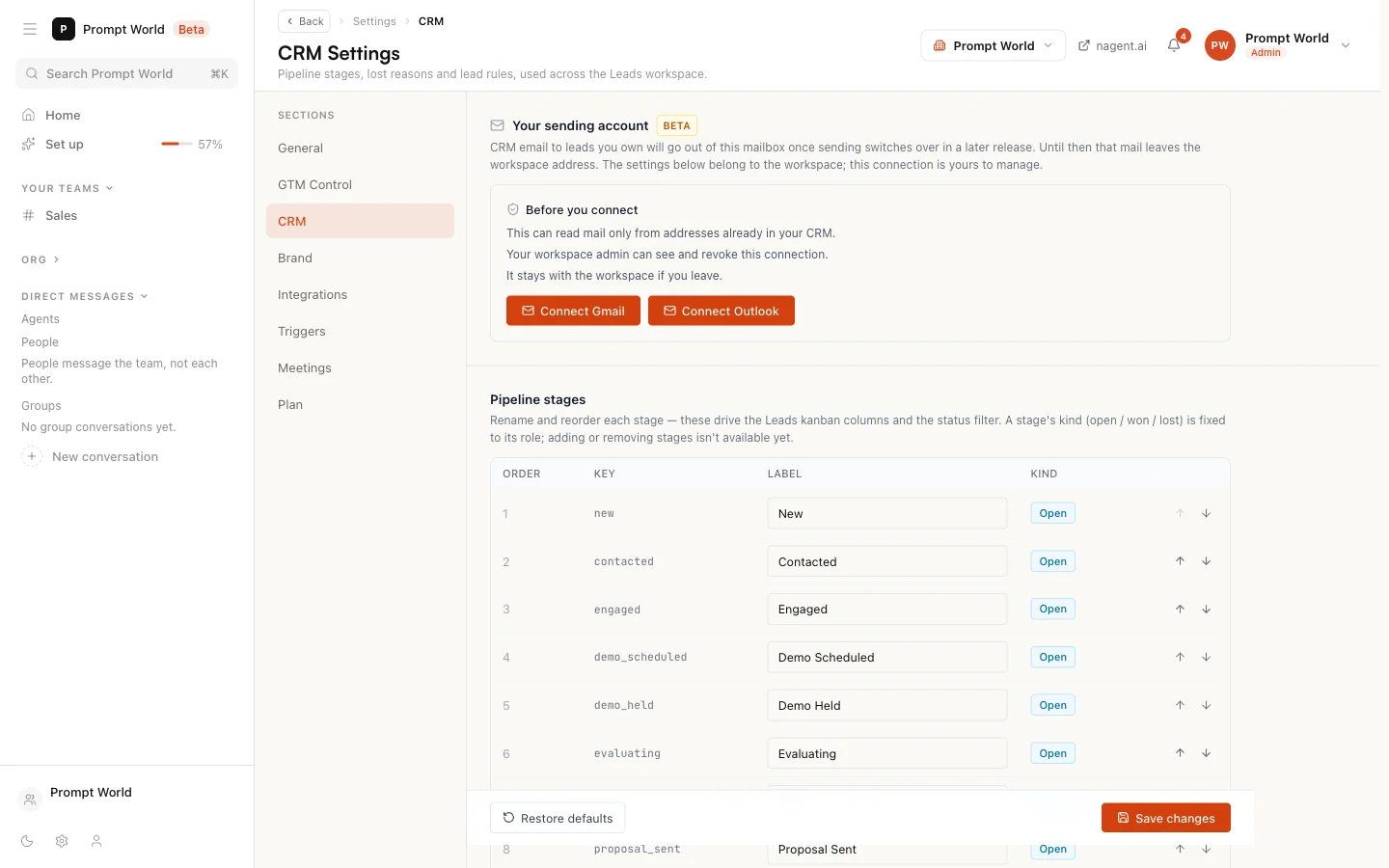
To fit them to how you sell, open Settings, CRM:
- Pipeline stages: rename and reorder them. Adding or removing stages is not available yet, and each stage keeps its kind: open, won or lost.
- Lost reasons: rename the reasons offered when a deal is lost.
- Currency and escalation: your default currency, and the deal value above which a lead escalates to a person.
- Hot-lead rules: the minimum intent, the ICP bands and the reply window that make a lead show as hot.
Nothing is saved until you press Save changes. Restore defaults returns every setting on the page to the built-in defaults.
The lead page
Open a lead to see everything about it in one place. The main tabs are Timeline, Emails, Notes, Meetings, Files and Research, with transcripts, proposals, company intelligence and comments under More.
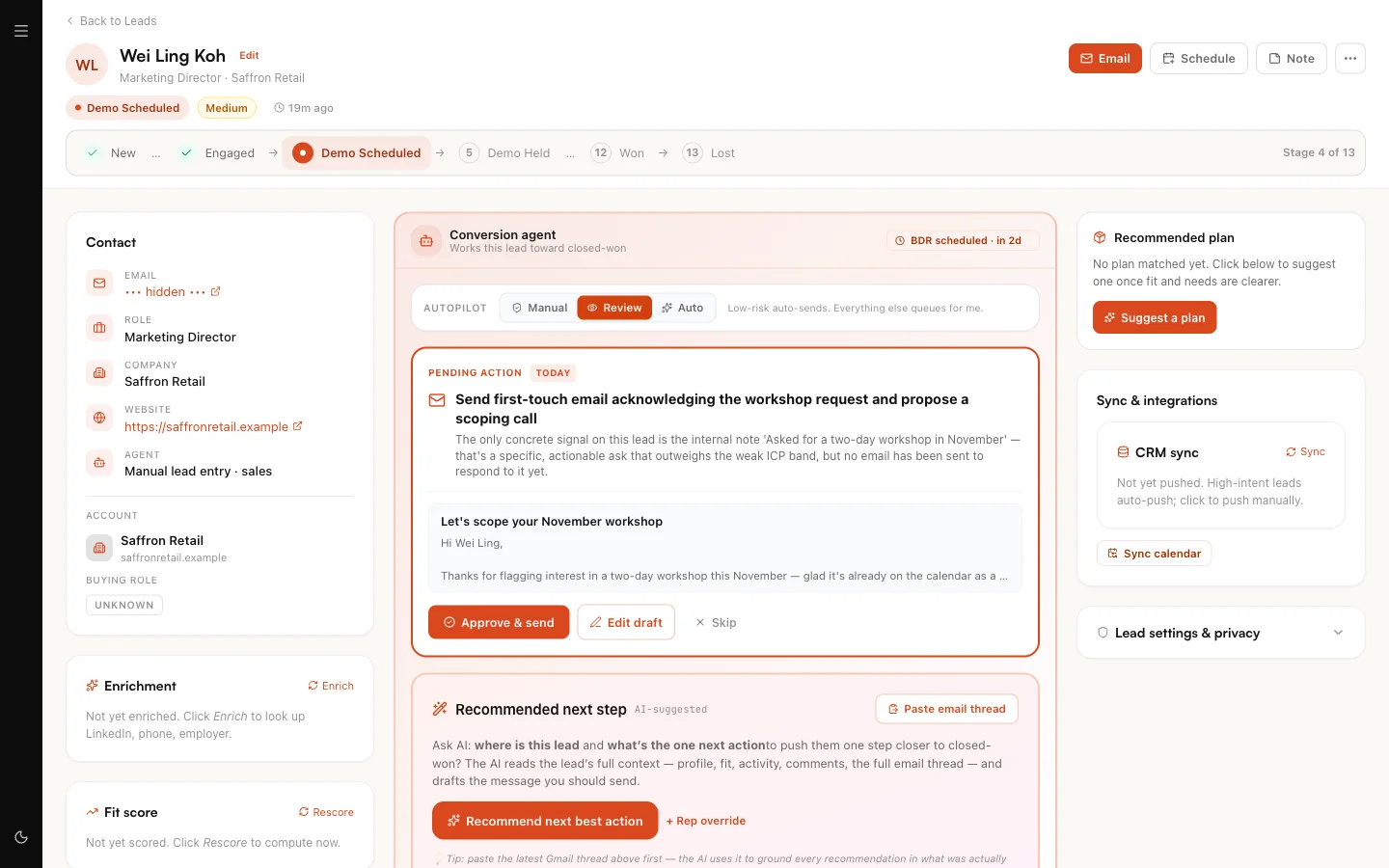
The lead's score shows its ICP fit as Strong fit, Medium fit, Weak fit or Out of ICP, with Rescore to compute it again. The Meetings tab schedules an upcoming meeting or logs one that has happened; see Meetings.
Each lead also carries Data subject rights: export everything held on the person, or erase them. Erasure cannot be undone and keeps only the audit record that it happened.
Who writes the email
Two AI teammates write email to leads, and both join every Sales team. You will see them on the org chart with a Beta chip.
| Teammate | Writes to | From |
|---|---|---|
| LIPI, CRM Email Writer | People your workspace has already spoken to | The lead's record and conversation |
| VANI, Outbound Email Writer | Prospects who have never replied | NORA's research dossier |
Both write only from your own material: their prompt, which you can edit in the Agent Workbench, your Knowledge Hub, your brand voice and your products and services. Every product or outcome a draft names must come from your list of offerings. A draft signs off as the lead's owner, or as your company's team when the lead has none.
If your workspace has no offerings and no knowledge yet, you still get a draft, but it makes no product claim and the lead page says: "Drafted on your brand name only. Add Offerings or knowledge and the next draft will use them."
Our logic: an email that names a product you do not sell is worse than no email. Grounding the writers in your material alone is what lets you trust a draft enough to approve it.
Sending from your own mailbox
By default, email to leads leaves from your workspace's sending address. A rep can instead send from their own Gmail or Outlook mailbox, so the lead hears from a person and replies land in that person's inbox. This is in Beta.
- Open Settings, CRM and find Your sending account.
- Read Before you connect. The connection can read mail only from addresses already in your CRM, your workspace admin can see and revoke it, and it stays with the workspace if you leave.
- Choose Connect Gmail or Connect Outlook and approve the request with your mail provider.
- Reload the page. The card reads "Connected and sending."
Once connected:
- Approved agent follow-ups and sequence emails to a lead go out from the mailbox of the person who owns that lead. A lead with no owner, or an owner with no mailbox, uses the workspace address. An email you write and send by hand from the lead page still leaves from the workspace address.
- Replies from your leads are pulled onto the lead's timeline, so reply detection and stage movement keep working. Nothing else in the mailbox is read or stored.
- Each rep has one sending mailbox. Connecting a different one makes it the sender; the old one stops sending but keeps collecting replies to threads that left it.
- If a mailbox reaches its daily sending limit, further email that day goes from the workspace address and starts a fresh thread rather than switching addresses inside a live one.
- Password resets, invitations and digests never leave a rep's mailbox.
Disconnect returns that rep's email to the workspace address.
What agents read and write
| Agent | Reads | Writes |
|---|---|---|
| NORA and RIVA, in the Sales room | Each open lead's stage, owner, value and last activity. Never notes | Nothing, from the room |
| DEXA | Your open deals, their committee and qualification | A deal's next commitment, qualification answers with evidence, draft documents |
| RIVA | Pipeline hygiene, stalls, the funnel and credits used | Nothing. RIVA reports; a person fixes |
| LIPI and VANI | The lead, your knowledge and offerings | Drafts only |
DEXA cannot change a deal's amount, stage or owner. Those three are what pipeline health is measured on, and an agent that could move them could improve its own report.
Where Nagent has set up the Agentic CRM agents for your workspace, a further group works the records: outreach (follow-ups, nudges, post-demo recaps, break-up emails), enrichment, scoring, meeting booking and data health. They start at L3, where every email and every booking waits for approval, while scoring, enrichment and stage changes go ahead and are logged. See autonomy and governance.
Where agent work waits for you
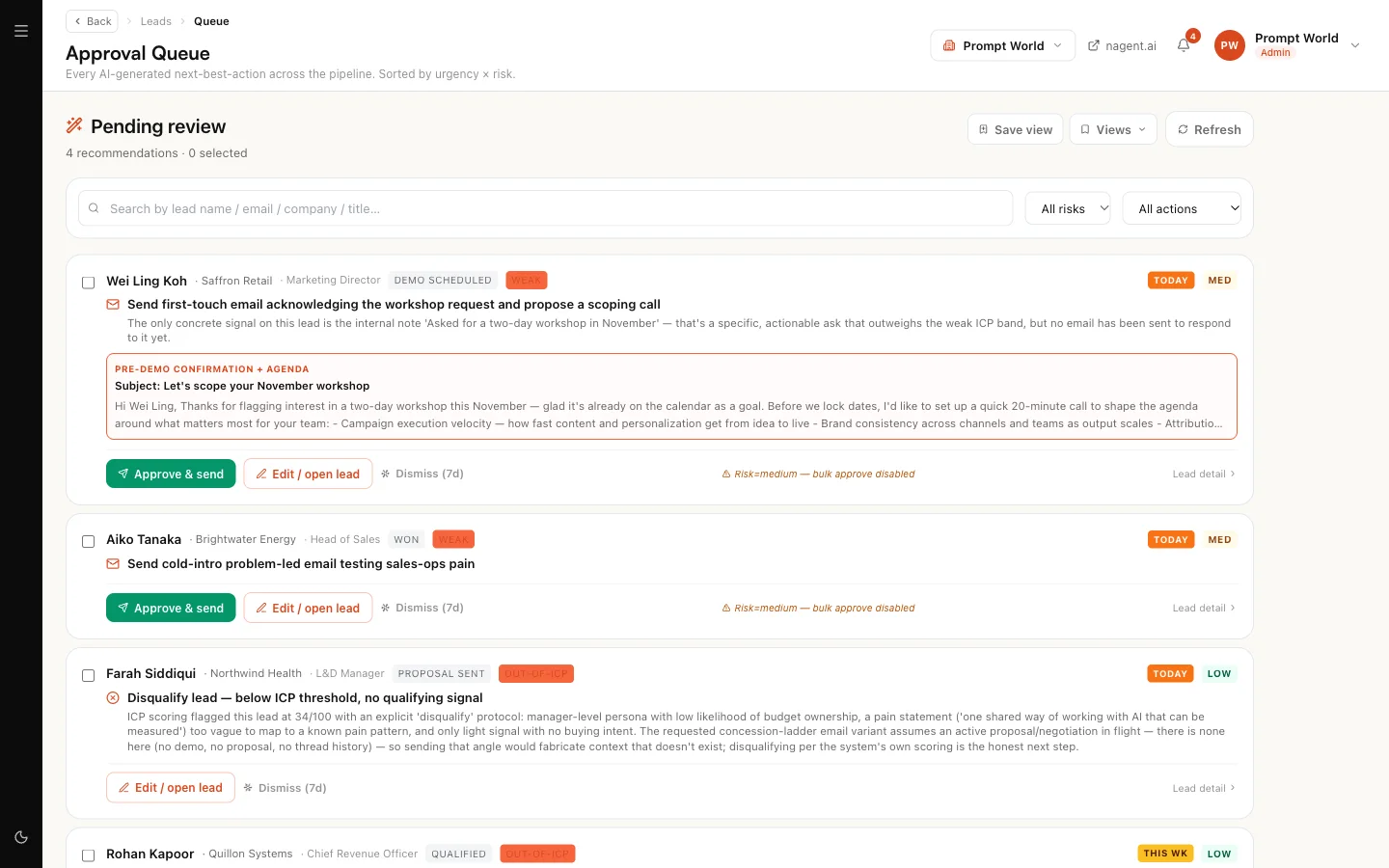
- Approval queue: every next-best action an agent has drafted across the pipeline, sorted by urgency and risk. Approve sends the drafted email straight away; Edit opens the lead to change it; Dismiss hides it for seven days.
- Reply triage: inbound replies, sorted by priority, with a jump to the lead to answer.
- Actions: every agent action that is waiting for approval, across all agents.
Where to go next
- The Sales team: NORA, DEXA, RIVA, LIPI and VANI.
- Customer profile: the ICP your scores use.
- Email and integrations: your workspace sending address.