
Browse documentation
CREA and the content studio
How CREA's team writes blog posts grounded in your Knowledge Hub and brand, how you review and publish them, and how your website shows them.
CREA writes for your company, from your own material
CREA leads your content team. Give her team a topic and it researches, drafts, edits, reviews, illustrates and links a blog post, then stops and waits for you. Nothing goes live until a person approves it.
The content team is CREA plus RUPA, who makes the images, plus a small group that turns documents into publications. Every workspace has the content module, so the screens below are open to you from the start.
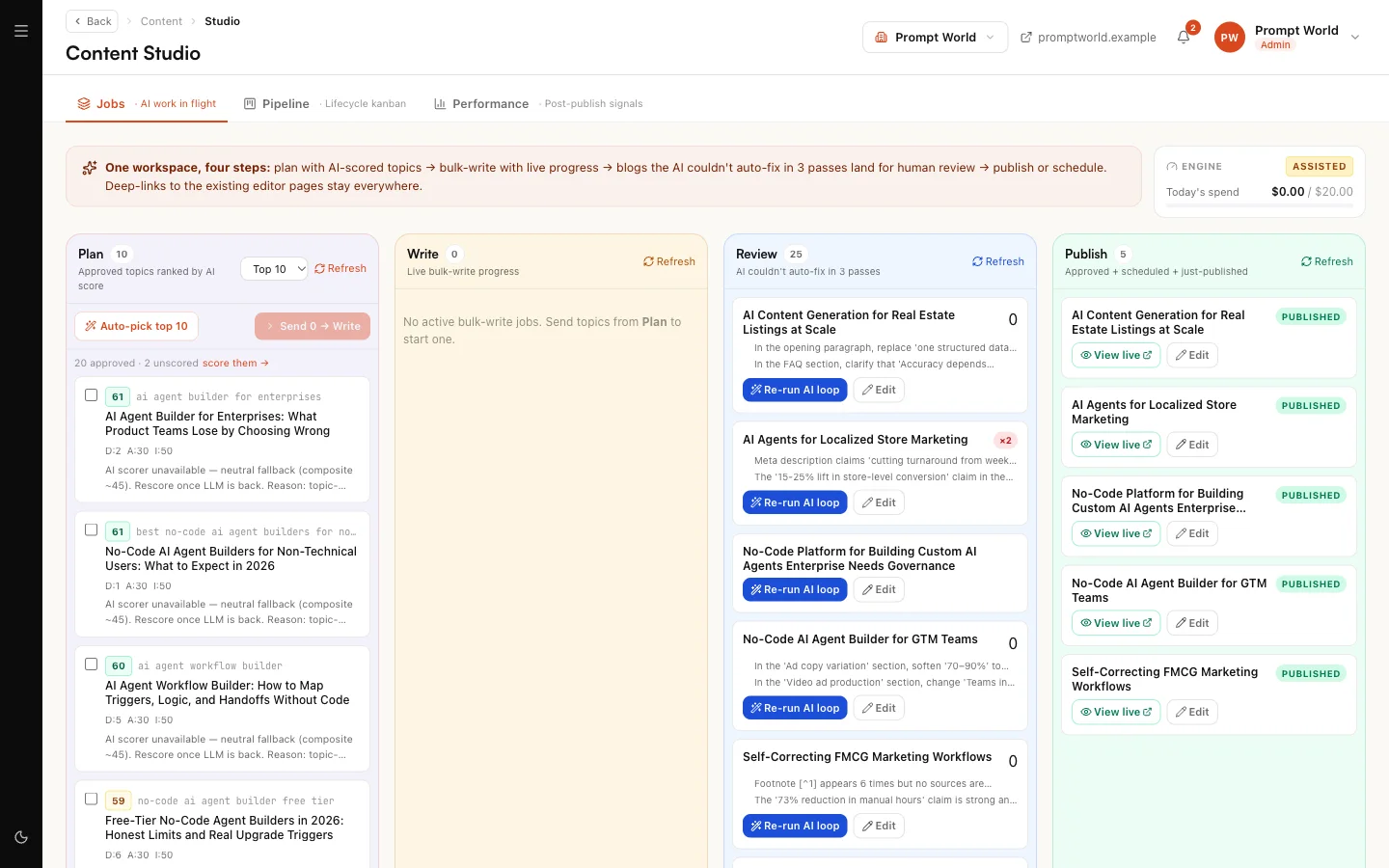
Find them in the sidebar under Content studio. The two you will use most are Blog Studio, under Pages & Posts, and the Studio (Plan to Publish) board under Strategy & Planning.
How a draft is grounded
A draft is only useful if it is about your company. CREA's team builds every draft from what your workspace knows:
| What | Where it comes from |
|---|---|
| Your company name | Your brand profile, or the workspace name |
| Your products and services | Products and services in the Knowledge Hub |
| Facts and detail | Up to six passages from your Knowledge Hub that match the topic |
| Voice | Your brand book |
| Call to action | Your demo or booking link, if you have set one |
If your Knowledge Hub has nothing on a topic, the draft is written without it rather than inventing detail. If you have no brand book yet, the draft uses a plain, neutral voice: "Write professionally and concisely. Active voice. Specific outcomes." Internal links are never made up.
Our logic: a general-purpose writer will fill gaps with confident generalities. Grounding the draft in your own documents, products and voice is what makes it yours, and the more you put in the Knowledge Hub and the brand book, the better every draft gets.
So before your first post:
- Add your key documents to the Knowledge Hub.
- Add what you sell under Products and services.
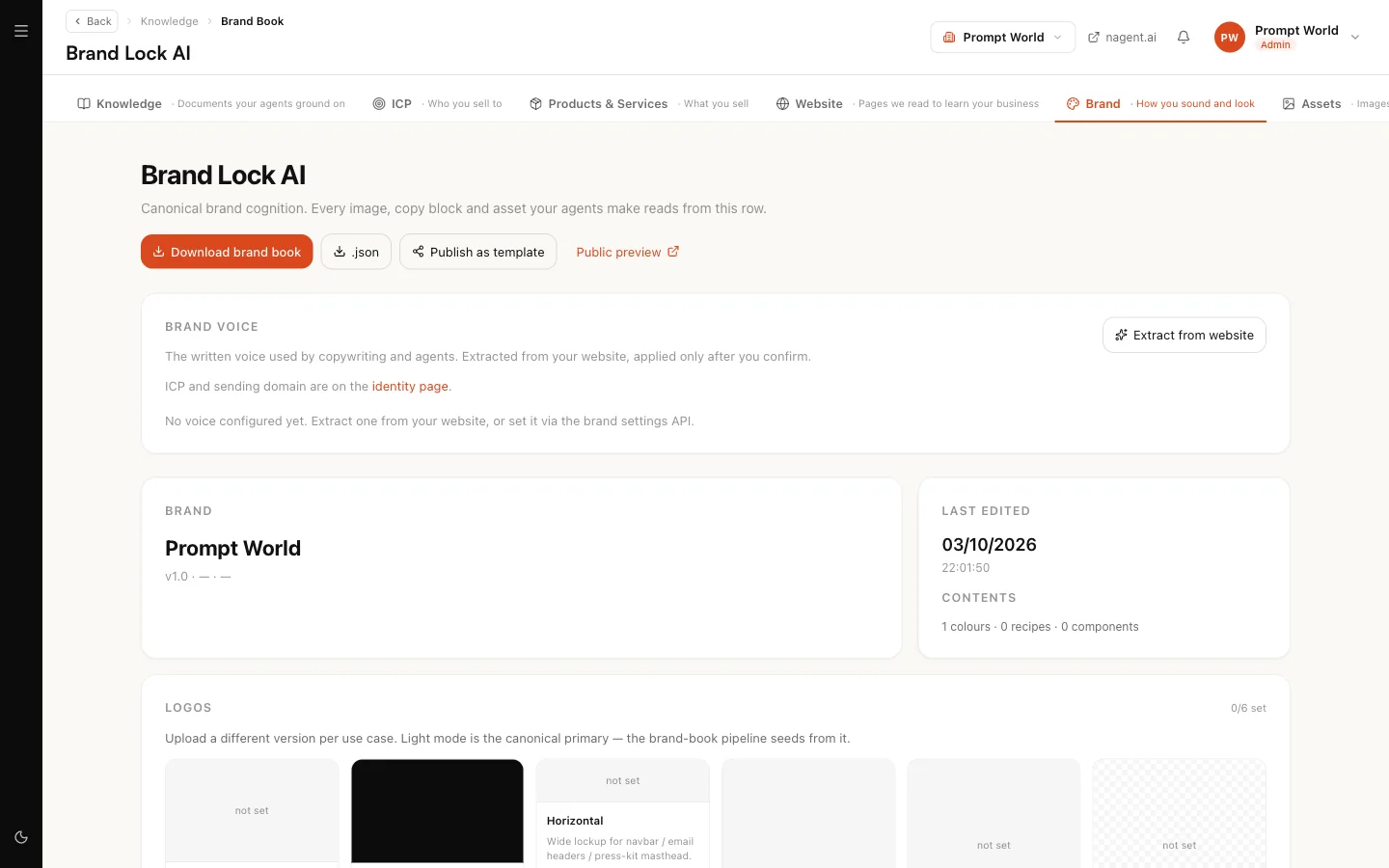
- Fill in your brand book at nagent.ai/admin/brand, especially the Communication tab, which sets voice.
Write a post in Blog Studio
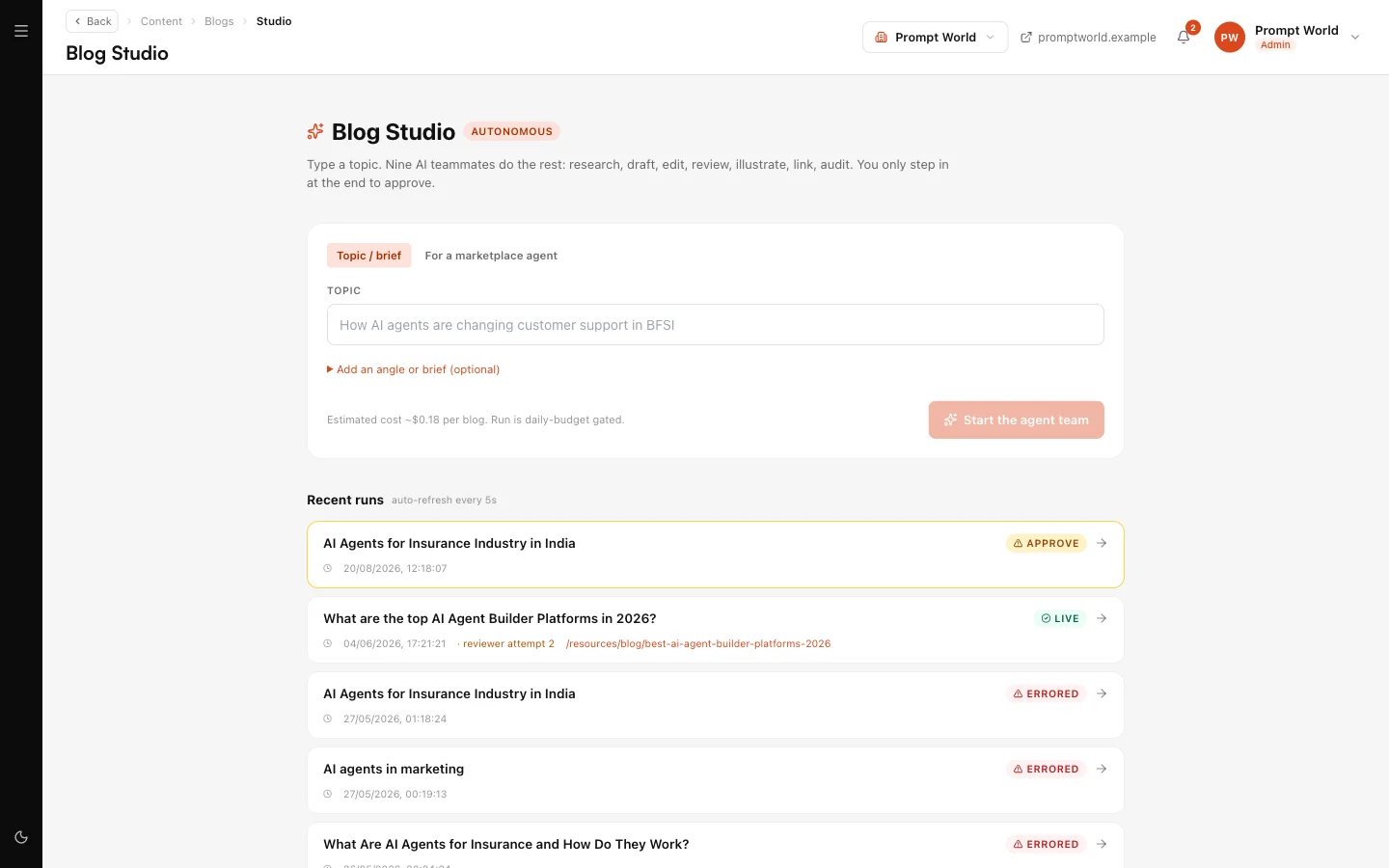
Open Blog Studio. It reads: "Type a topic. Nine AI teammates do the rest: research, draft, edit, review, illustrate, link, audit. You only step in at the end to approve."
- Leave the mode on Topic / brief.
- Type the Topic. For Prompt World: "How sales enablement teams can use prompt libraries to shorten ramp time".
- Optionally open Add an angle or brief and say who it is for and what it must argue.
- Click Start the agent team.
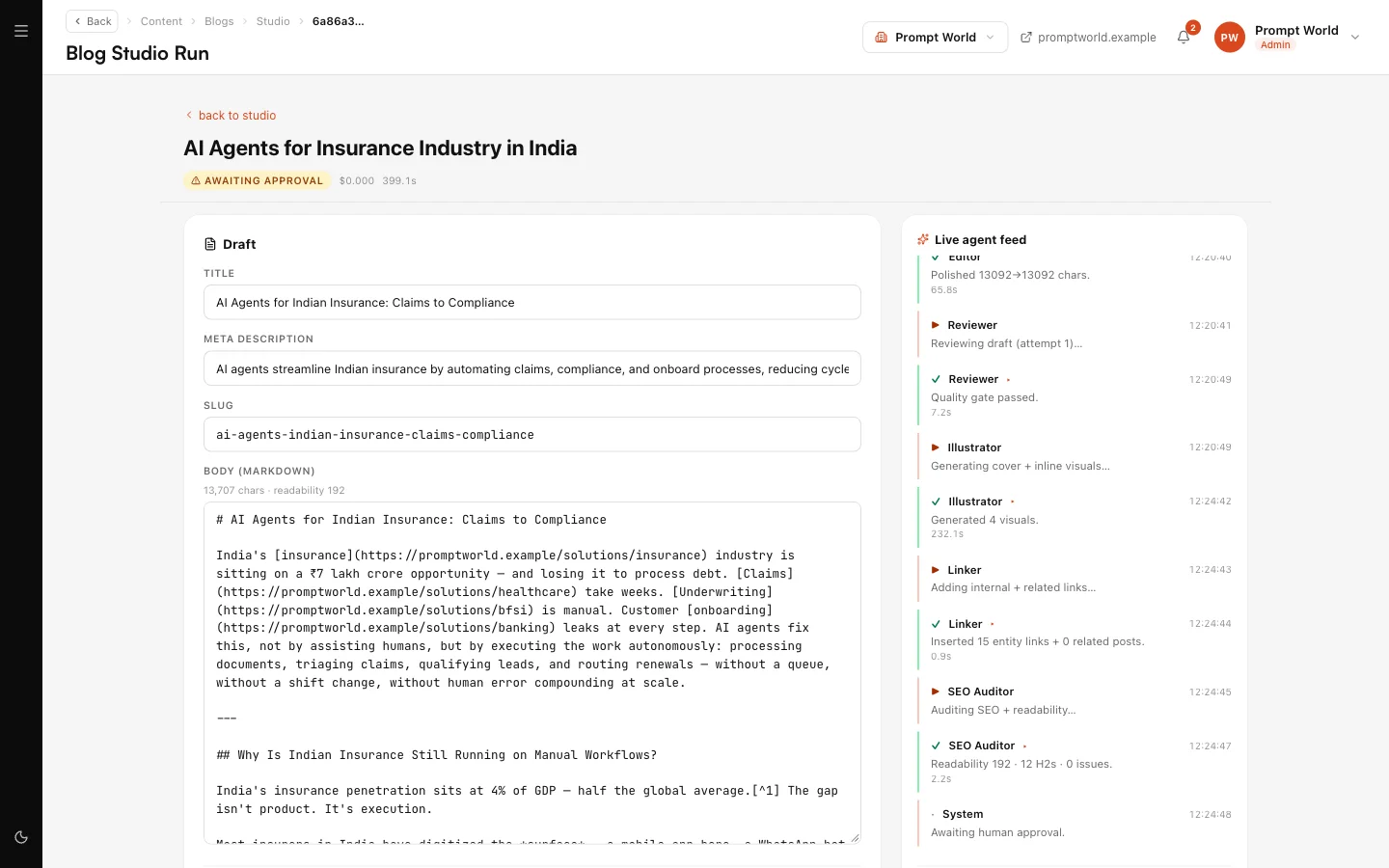
The run appears under Recent runs, which refreshes every few seconds. A row reads Live while the team works, Approve when it is waiting for you, and Errored if it failed.
Open a run to watch it. The run page shows a Live agent feed, the Draft so far, the Citations gathered and the Visuals generated.
Ignore the For a marketplace agent mode. It writes about Nagent's own AI teammates and is not meant for your content.
Review and publish
When a run reaches Approve, the run page opens the draft for editing: the Title, Meta description, Slug and Body. If the team's reviewer flagged something, its feedback is shown above the draft.
You then have two choices:
- Send back with feedback returns the draft to the team with your note, and it runs again.
- Approve & Publish publishes the post.
An independent editorial check runs at publish. If it finds a blocker it holds the post and tells you what to fix.
After publishing, you can keep editing on the same page and click Save changes. Changes to a published post take effect immediately, so treat that as editing a live page.
To approve and publish you need the publish permission for content, which a workspace admin holds. Overriding a reviewer's rejection needs a separate override permission that is not part of the workspace admin role.
Our logic: a blog post carries your name. The team can do every step up to the last one, but the last one is yours.
How your website shows your posts
Your posts are stored in your workspace. Your own website reads them with a site key: issue it in Settings, Integrations on the Site connection card, which is marked Beta, and give it to your developers. The same key serves approved visibility fixes. The full set-up is in Connect your site.
The run page shows a Live at path and a View live link after publishing. Those point at the Nagent website, not yours. Check the post on your own site once your developers have connected it.
The other content screens
| Screen | What it is for |
|---|---|
| Studio (Plan to Publish) | A board of topics and posts in four columns: Plan, Write, Review, Publish |
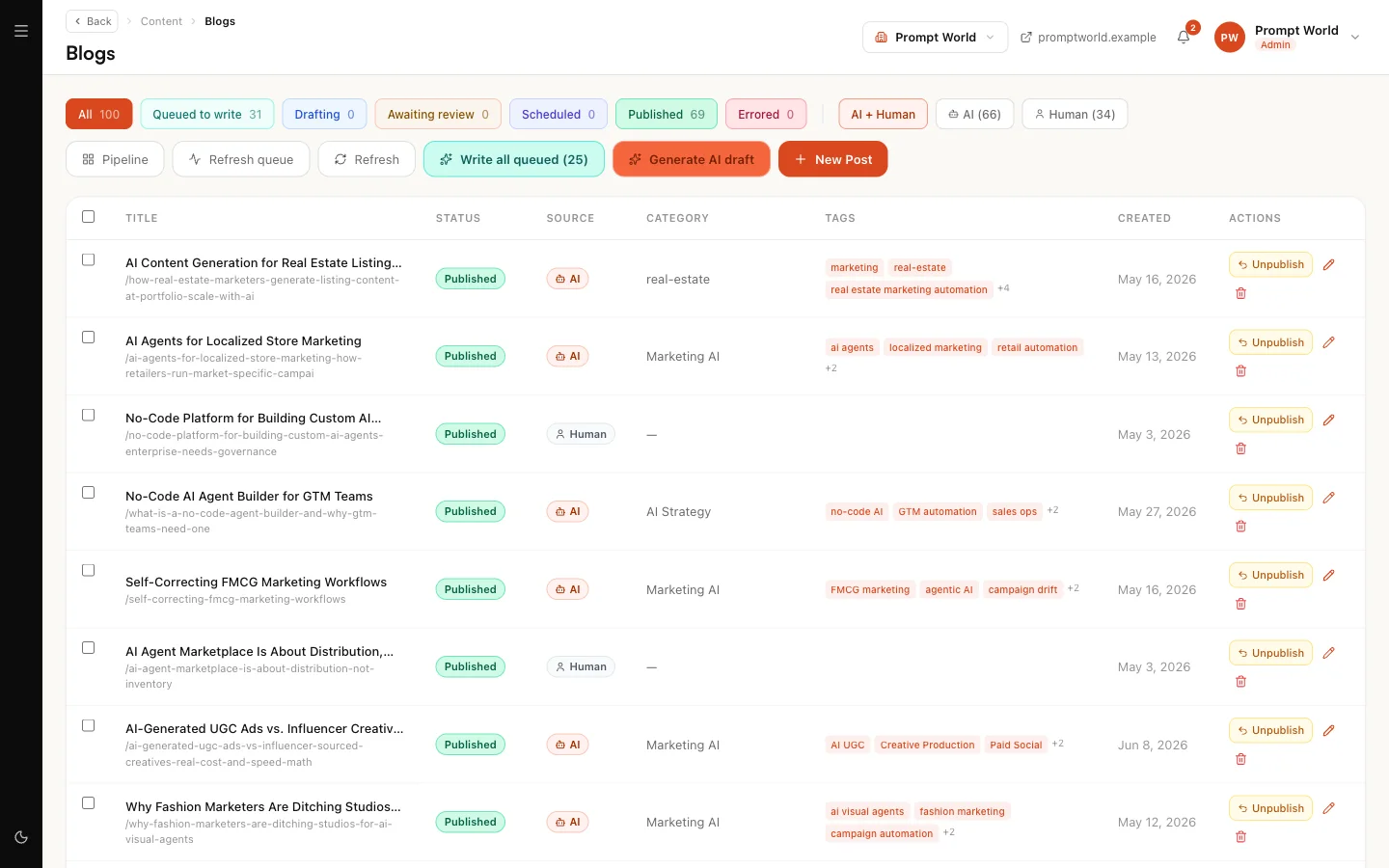
| Posts | Every post, AI and human, filtered by status. New Post writes one by hand |
| Posts pipeline | Posts by stage, from queued to published |
| Image Studio | RUPA, for images. See RUPA |
The Studio board's Review column holds drafts the team could not fix on its own in three passes. Its Publish column has Publish now for each approved post.
Asking CREA directly
In your Content team's room, a message without an @ goes to the team lead,
CREA. Type @crea to address her by name. A brief like "Draft a post on why
prompt workshops fail without follow-up practice, for heads of marketing"
becomes a task on the team's board. See The team room.
If you also run DRIS, it hands content gaps it finds, such as a keyword with no page, to the content team as board tasks, up to ten a day.
What it costs
Blog Studio says it under the start button: "Estimated cost ~$0.18 per blog. Run is daily-budget gated." The team's runs share a daily blog budget; when it is spent, a new run stops with "Daily blog budget exceeded" and you can start it again the next day. The Studio board shows Today's spend against the cap, and each run page shows what that run actually cost.
Limits today
- Publish by hand. Scheduled publishing, the blog engine modes in Settings (Manual, Assisted, Autopilot) and automatic topic discovery do not run for customer workspaces yet. A post marked Scheduled may not go out on its own: use Approve & Publish or Publish now.
- View live shows the Nagent website, not yours.
- The For a marketplace agent mode is for Nagent's own content.
Where to go next
- The Knowledge Hub: the material every draft reads.
- RUPA, the image studio: the images in your posts.
- Connect your site: show posts on your website.