
Browse documentation
People and roles
How to invite a teammate, what each of the six workspace roles may do, what the invitation e-mail contains, and how to reset a password or deactivate someone.
Agents do the work, people decide it
A workspace runs with one person in it, but it is designed for several. Agents need someone to approve what they send, someone to connect the tools they act in, and someone to set the money they may spend. Those are jobs for people, and the role you give each person decides which of them they can do.
People are managed on Team Members. Only a Workspace Admin can invite, change roles, reset passwords or deactivate. Everyone else sees the list read-only.
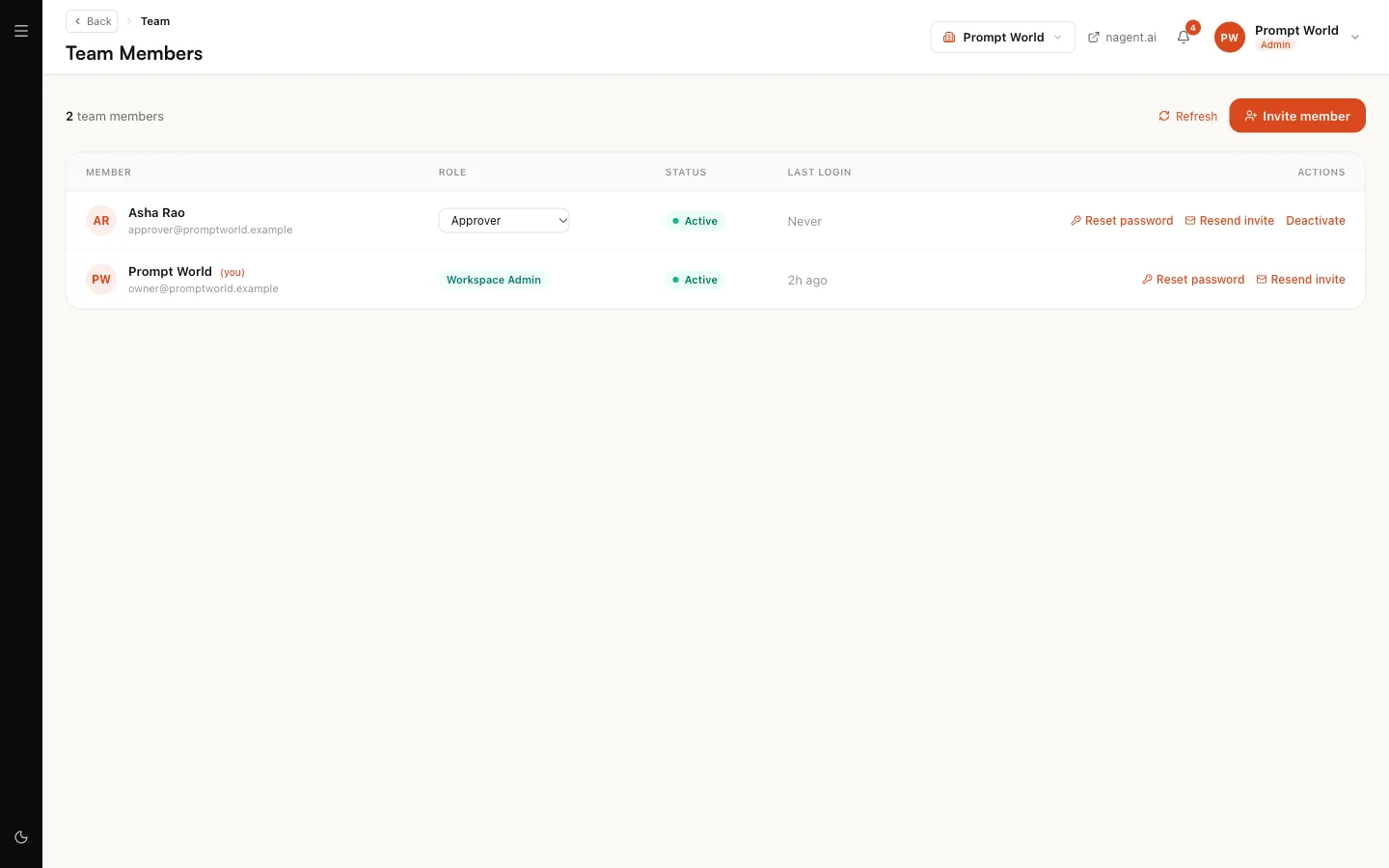
The list shows each person's name and e-mail, their Role, their Status (Active or Inactive) and their Last login.
Inviting a teammate
- Open Team Members and press Invite member.
- Fill in Name and Email.
- Choose a Role. It defaults to Editor, so check it.
- Press Send invite.
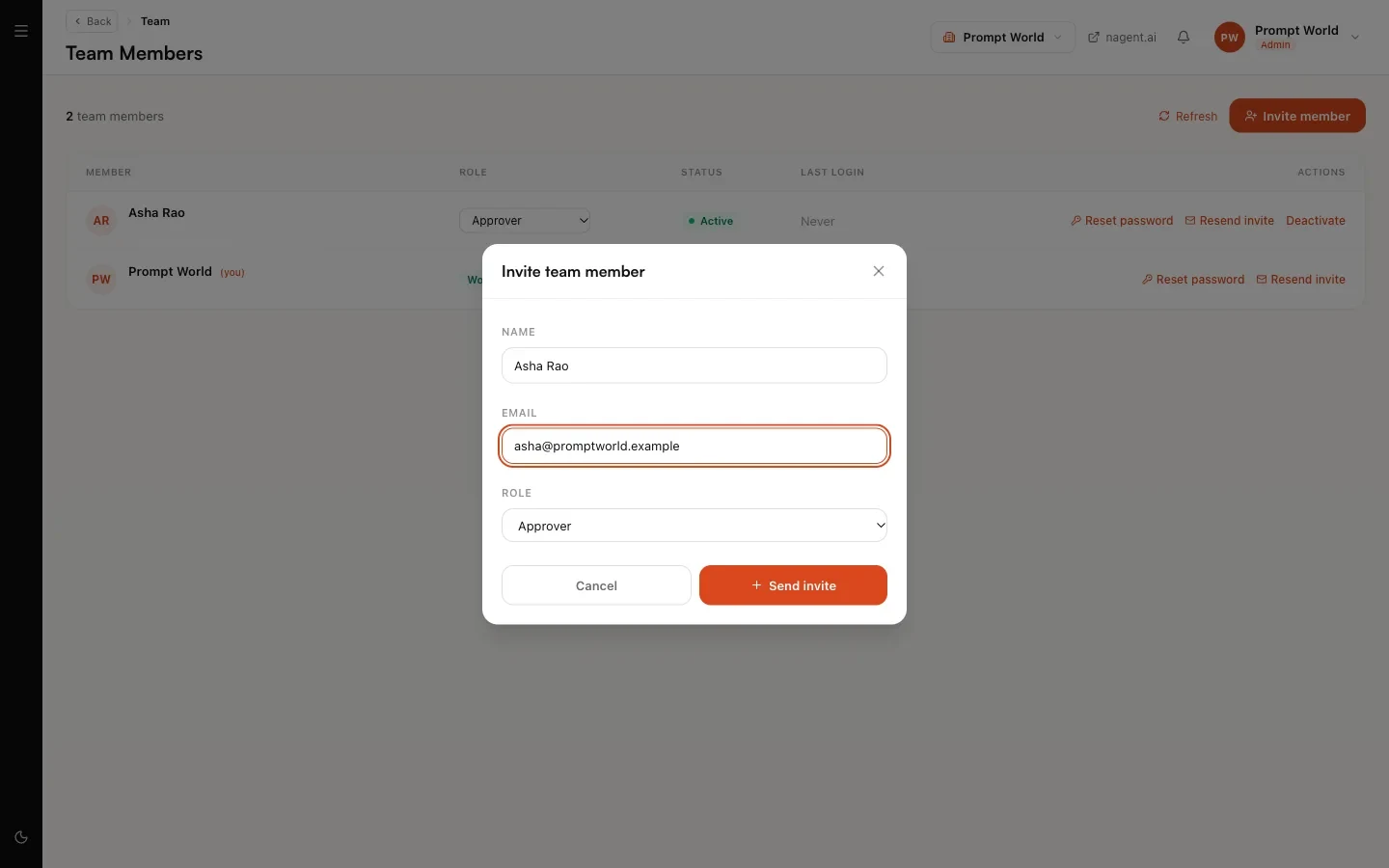
The dialog confirms "(name) has been invited" and "An email with login details was sent to (address)."
If the e-mail could not be sent, the dialog says so and shows the Temporary password with a Copy button. Pass it to your teammate yourself, over a channel you trust.
Some things to know:
- An address that already has a Nagent account cannot be invited. The invitation is refused with "A user with this email already exists".
- The new member is active immediately. They count as a person in the workspace from the moment you invite them, before they have signed in.
- The invitation does not choose rooms. It gives the person a role in the workspace. They join a team from inside its room.
The invitation e-mail
The e-mail is headed "You're invited to the (workspace) admin panel" and names your workspace. It contains the person's e-mail, a temporary password, and a Sign in to Admin button that opens the sign-in page. It asks them to change the password after signing in.
They can also skip the temporary password and sign in with an e-mailed link or with Google. See signing in.
Resend invite in the person's row mints a new temporary password and e-mails it. The previous one stops working.
The six roles
| Role | Who it is for |
|---|---|
| Workspace Admin | Whoever runs the workspace: people, tools, money, agents |
| Sales | A salesperson working leads, the CRM, e-mail and proposals |
| Approver | Someone who signs off on content and on approval requests |
| Editor | Someone who works on content, knowledge and agents' material |
| Writer | Someone who writes content and adds knowledge |
| Viewer | Someone who needs to see, not change |
The person who created the workspace is a Workspace Admin. You cannot change your own role or deactivate yourself, so a workspace always keeps the admin who is looking at it.
What each role may do
This table is the permission set each role carries today.
| Can they | Admin | Sales | Approver | Editor | Writer | Viewer |
|---|---|---|---|---|---|---|
| Invite people, change roles, deactivate | Yes | No | No | No | No | No |
| Change settings, connect tools, manage billing | Yes | No | No | No | No | No |
| Install teams; set an agent's level and budget | Yes | No | No | No | No | No |
| See agents | Yes | No | Yes | Yes | Yes | Yes |
| Read the Knowledge Hub | Yes | No | Yes | Yes | Yes | Yes |
| Add to the Knowledge Hub | Yes | No | Yes | Yes | Yes | No |
| Read leads | Yes | Yes | No | Yes | No | Yes |
| Change leads and the CRM | Yes | Yes | No | No | No | No |
| Send e-mail and proposals | Yes | Yes | No | No | No | No |
| Write content | Yes | No | Yes | Yes | Yes | No |
| Publish content | Yes | No | Yes | No | No | No |
| Run and publish campaigns and workflows | Yes | No | No | No | No | No |
| Approve agent actions on the Actions page | Yes | No | No | No | No | No |
| Decide approval requests in the Inbox | No | No | Yes | No | No | No |
| See approval requests | Yes | Yes | Yes | No | No | No |
| Accept an autonomy promotion | Yes | No | No | No | No | No |
| Read the audit log | Yes | No | Yes | No | No | No |
Two rows deserve a second look before you invite anyone.
Approvals are split between two roles. Actions an agent holds for approval are approved on the Actions page, which needs a Workspace Admin. Requests that arrive in the Inbox under Awaiting approval are decided by an Approver. A Workspace Admin sees those requests but cannot decide them. If you are the only person in the workspace, invite at least one Approver. See approvals and the Inbox.
The roles Home suggests are jobs, not roles. Home suggests inviting a growth lead, someone from IT or security, and someone from finance. Naming team numbers, connecting tools and setting caps all need the Workspace Admin role today.
Choosing a role
For Prompt World, a team of five might look like this:
| Person | Role | Why |
|---|---|---|
| Founder | Workspace Admin | Runs the workspace and approves agent sends |
| Head of marketing | Workspace Admin | Connects tools and sets agent budgets |
| Sales enablement lead | Approver | Signs off on content and Inbox requests |
| Account executive | Sales | Works leads and the CRM |
| Workshop designer | Writer | Adds workshop material to the Knowledge Hub |
Start narrow. A role can be raised later from the list in one click; a role that gave too much has already been used.
Changing a role
A Workspace Admin sees a role drop-down in each row other than their own. Pick the new role and it applies at once.
Resetting a password
Press Reset password in the person's row and set a new password for them. It needs at least 8 characters, an uppercase letter, a lowercase letter, a number and a special character. The page confirms "Password reset for (address). Share the new password securely." Ask them to change it after signing in.
People can also reset their own password from Forgot password? on the sign-in page.
Deactivating someone
Press Deactivate in the person's row. Their status changes to Inactive and they can no longer sign in. If they connected a mailbox for sending, mail stops leaving under their name, but the mailbox and its conversations are kept, so the workspace loses no history.
Deactivation applies to the person's Nagent account, not only to your workspace. If they belong to another workspace too, they lose access there as well.
Reactivate in the same place restores sign-in and sending.
Where to go next
- Approvals and the Inbox: what approvers see.
- Signing in: what an invited teammate does first.