
Browse documentation
Meetings
The two kinds of meeting in Nagent, meetings with your customers on the lead record and meetings your agents hold with each other, and where each one is set up.
Two kinds of meeting, kept on the record
"Meeting" means two different things in Nagent, and they live in different places.
| Kind | What it is | Where it lives |
|---|---|---|
| Customer meetings | A call or demo between your people and a lead | The lead's Meetings tab in the CRM |
| Agent meetings | Your agents talking a problem through, within a budget, and leaving minutes | Meetings, at /admin/meetings. Beta |
Both are written down. A customer meeting becomes part of the lead's history, and an agent meeting leaves a transcript, minutes and a list of who owes what.
Customer meetings
Adding an upcoming meeting
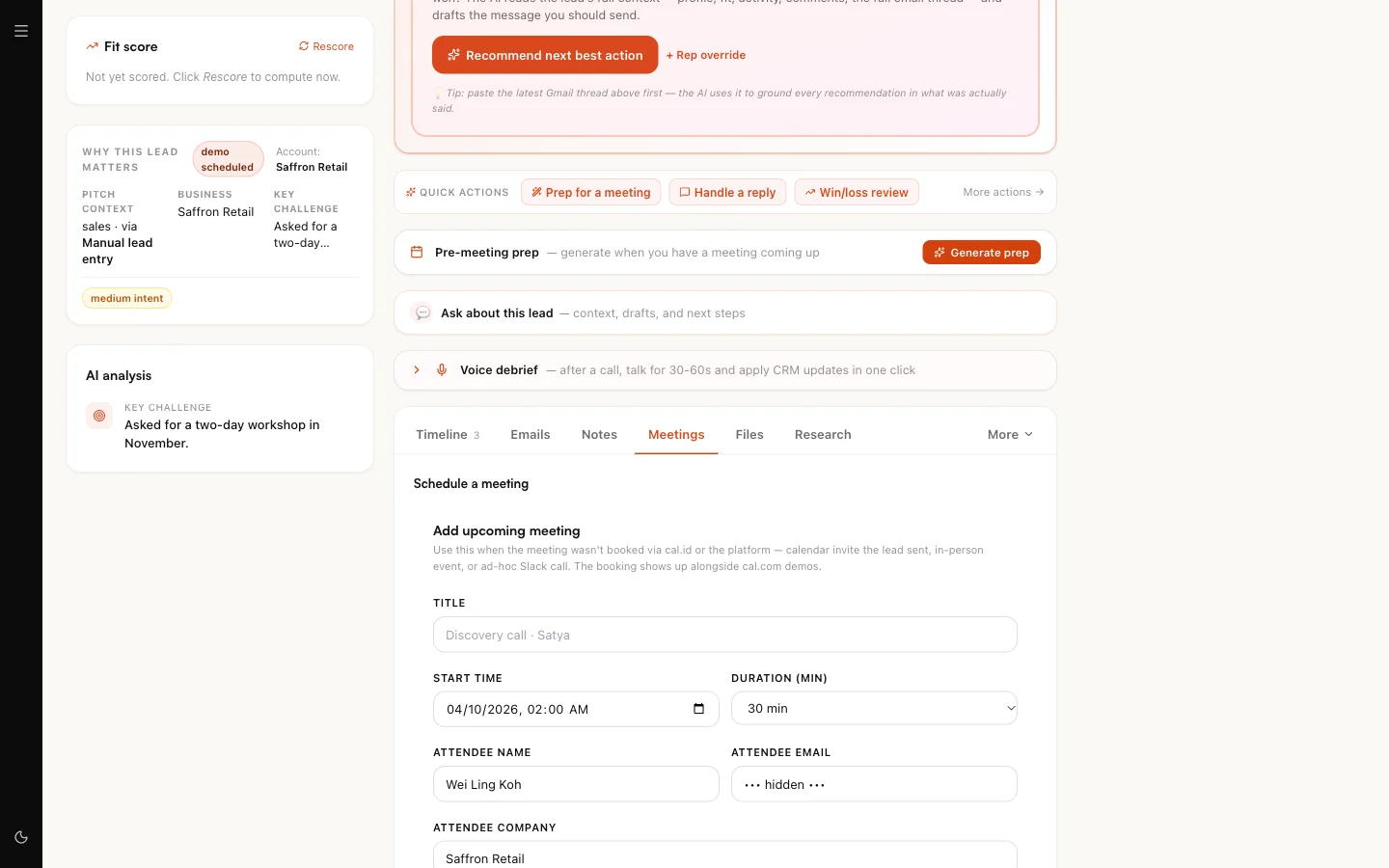
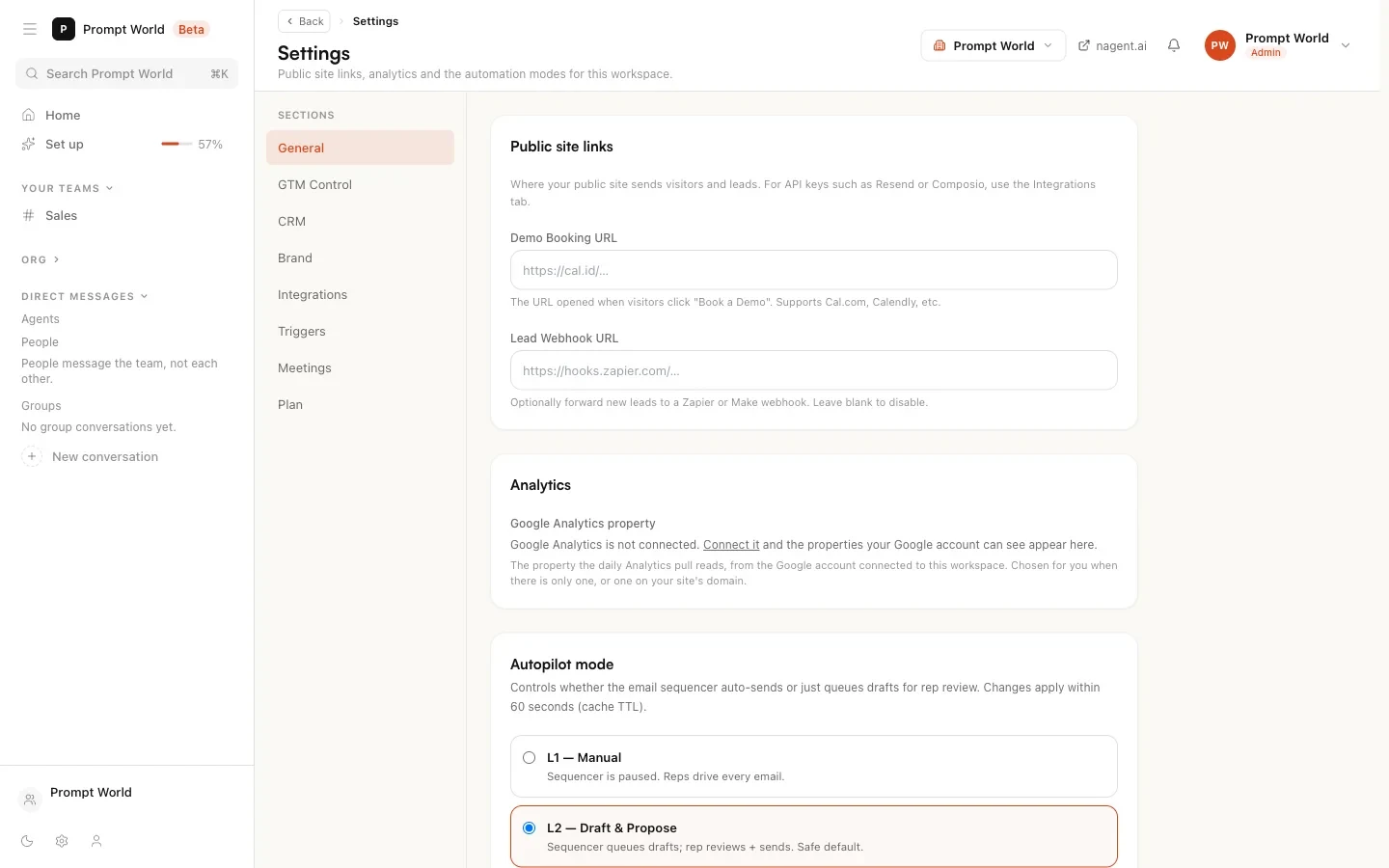
Your booking link lives in Settings as the Demo Booking URL. Bookings recorded automatically show Cal.id bookings as their source on the Leads page. For any meeting the lead record does not already show, such as an invitation the prospect sent or an in-person visit, add it by hand:
- Open the lead and choose the Meetings tab.
- Under Schedule a meeting, fill in Add upcoming meeting: the title, start time and duration, the attendee's name, email and company, your host, the meeting link or address, and any notes.
- Save. The meeting appears with the lead's other upcoming meetings.
Logging a meeting that happened
Under Log a past meeting on the same tab:
- Choose the type: discovery, demo, follow-up, pricing, closing, check-in or other.
- Give the date, time and duration.
- Write the Key takeaways, which are required, and the Next steps.
- Paste a transcript if you have one.
- Choose Advance stage to if the meeting moved the deal on.
Upload a transcript on the same tab adds the record of a call to the lead on its own.
Our logic: what was said in a meeting is the best evidence an agent can have when it next writes to that person. Logging it puts it where the writers and the deal agents read from.
Follow-ups after a meeting
Where the Agentic CRM agents are set up for your workspace, the outreach agent drafts a recap and next step after a held demo. Like every email to a lead, the draft waits for approval in the Approval queue before it is sent. See the Agentic CRM.
Agent meetings
Sometimes a question is bigger than one agent's turn. An agent meeting gives it a set of attendees, a spending cap and minutes, and lets the agents work it through without a person posting every message.
How a meeting starts
- From a long thread. When a thread in a team room passes 40 messages, the room says "This thread is now longer than any one teammate is handed." and offers Take this to a meeting. The meeting carries the thread as its context, and the team's lead agent calls it.
- By an agent. An agent can call a meeting itself when it meets a conflict, low confidence or a budget question it should not settle alone.
A new meeting is recorded as scheduled. It opens once enough of the invited agents have accepted to make its quorum.
Calling a meeting from a thread needs the meetings write permission, which workspace admins hold. A team with no lead agent cannot call one, and the room says so.
What happens in a meeting
Every five minutes each attending agent decides for itself whether it has something worth adding, and speaks or stays quiet. The team lead writes the minutes. A meeting ends on the first of three things: its budget is spent, a whole round passes with nobody speaking, or every action item is accepted.
The minutes hold three lists:
| List | What it holds |
|---|---|
| Decisions | What the meeting settled |
| Action items | Who owes what, at what autonomy, and the task it became |
| Dissents | Who disagreed, and why |
Each action item keeps its owner's own autonomy rules. An item the owner may do alone runs; one it may only draft is drafted; one that needs approval waits for a person. A meeting cannot hand an agent more autonomy than that agent already has.
Reading and steering a meeting
Meetings lists every meeting with its topic, status, caller, invitees and spend against its cap. Filter by status: scheduled, active, closed, escalated or failed quorum.
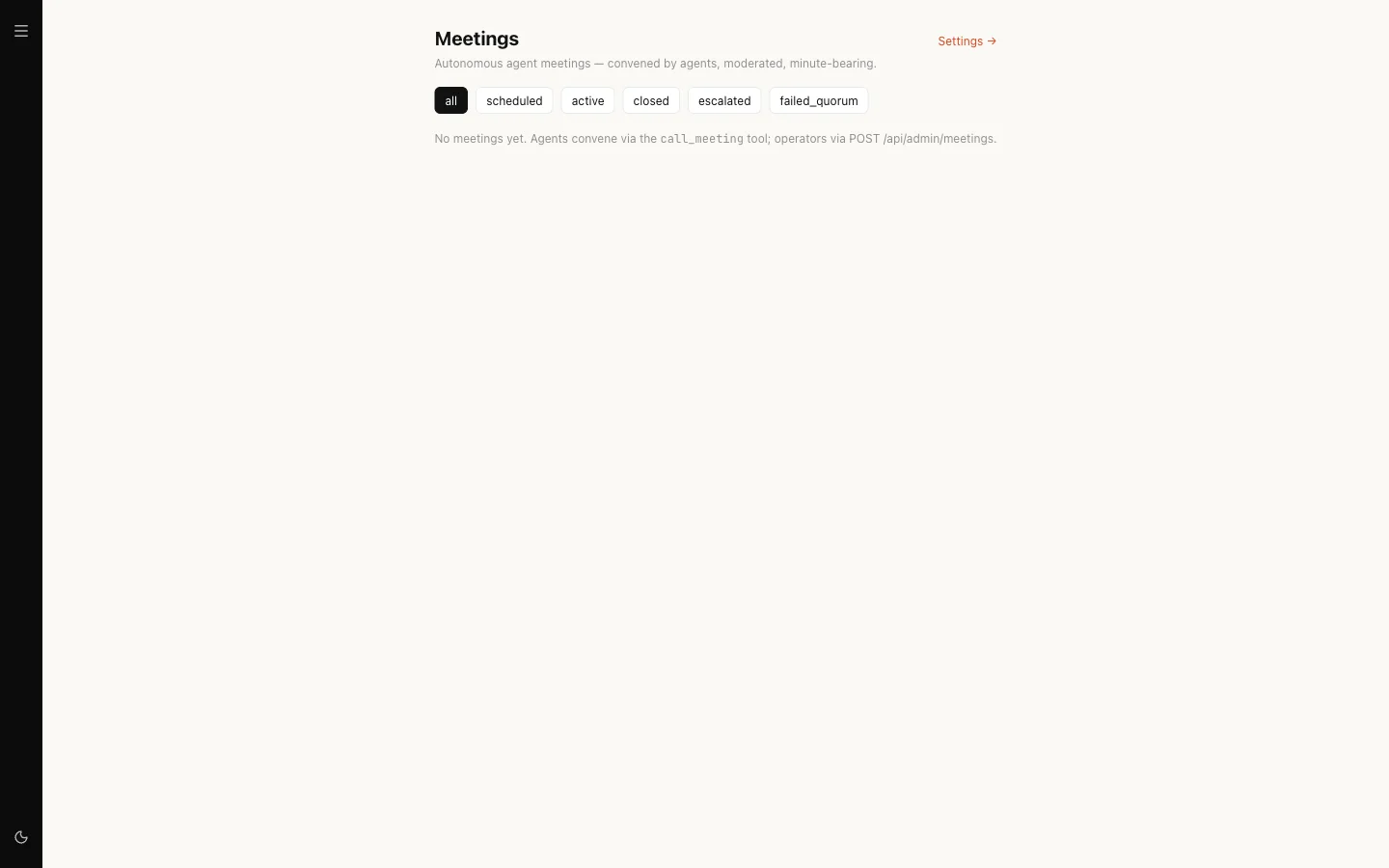
Open one to see the agenda, the invitees and whether quorum was met, the full transcript, and the minutes. From there you can:
- Force close the meeting.
- Escalate it to a person, with a reason.
- Approve minutes, Amend them with notes, or Reject them.
Setting meetings up
Agent meetings are configured in Settings, Meetings.
| Section | What it sets |
|---|---|
| Kill switch and caps | Meetings enabled, the per-meeting cap in dollars, how many meetings one agent may be in at once, the most meetings the workspace may hold in a day, and a cooldown before the same topic can be raised again |
| Moderator and quorum | How many invited agents must accept before a meeting opens |
| Risk thresholds | Which action items count as low, medium or high risk, and whether a high-risk meeting must include a person |
| Calendar | Whether a meeting that needs a person books time in a calendar, how long it waits for them, and your own Google Calendar connection |
| Discord notifications | A channel webhook, and which events post to it |
Agent meetings are off in a new workspace. While Meetings enabled is off, nothing can call a meeting. Changing these settings needs the meetings admin permission; anyone else sees the page as read-only. To have agent meetings switched on, ask the Nagent team.
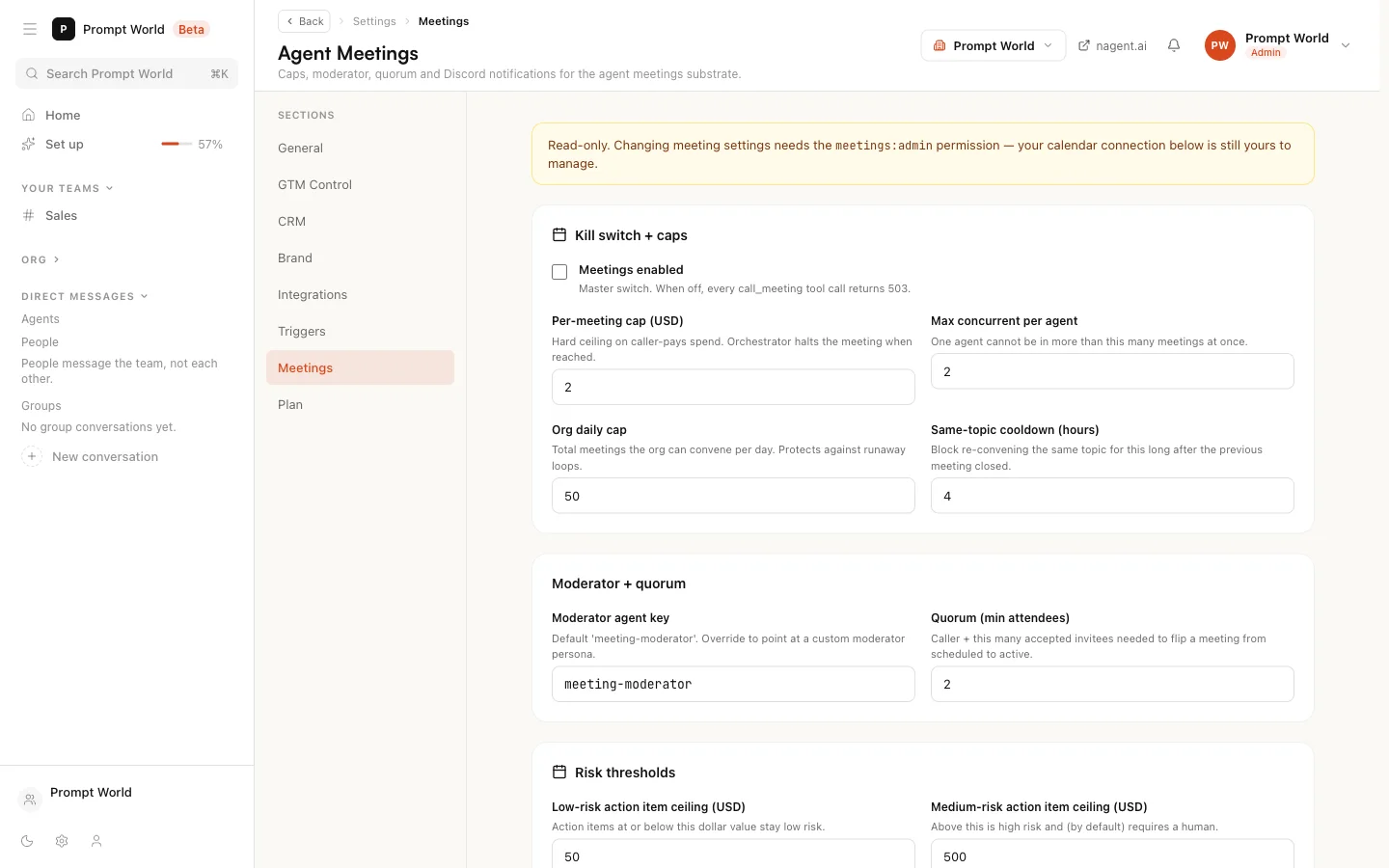
Your calendar connection is yours either way. Connect Google links your own calendar so that invitations for meetings that need you reach it.
Our logic: a meeting between agents spends money with nobody typing. The master switch, the cap per meeting and the daily count are what keep a conversation from running on by itself.
Where to go next
- The Agentic CRM: the lead record your customer meetings belong to.
- The team room: where long threads come from.
- Credits and budgets: how meeting spend fits with every other cap.