
Browse documentation
Products and services
How to record what you sell, why only active offerings reach your agents, and how to review the drafts Nagent extracts from your website, a page or a file.
Your agents only recommend what you have confirmed you sell
When a sales agent looks at a lead and suggests what to lead with, it picks from your offerings: the products and services your workspace sells. Nagent can draft those for you from your website or a document, but a draft is a machine's proposal. It reaches no agent until a person on your team makes it active.
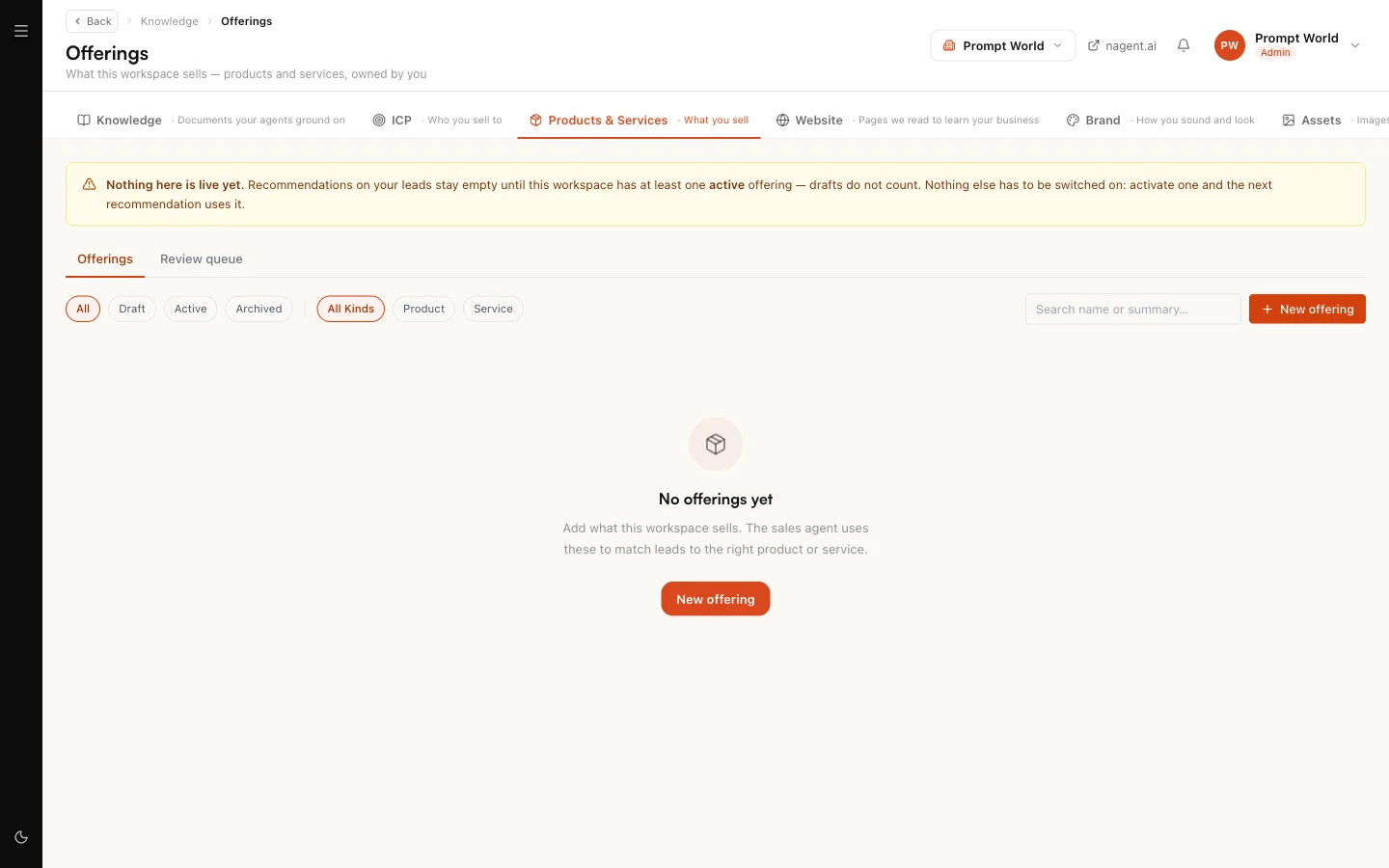
Open the Knowledge Hub's Products & Services tab, or go to nagent.ai/admin/knowledge/offerings. The screen is titled Offerings.
Draft, active and archived
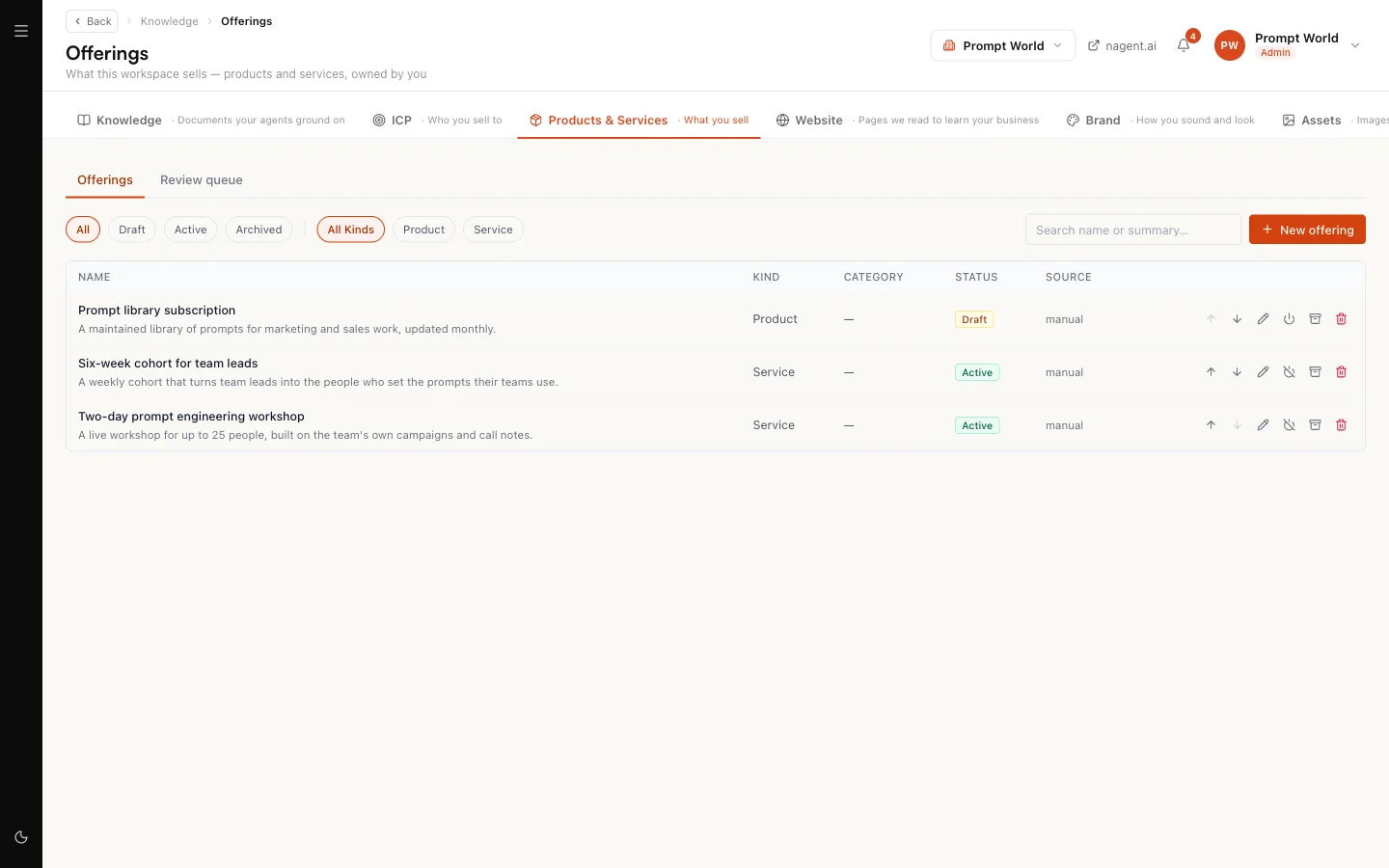
Every offering is in one of three states.
| State | What it means | Reaches your agents? |
|---|---|---|
| Draft | Written down, not vouched for | No |
| Active | Confirmed by a person as something you sell | Yes |
| Archived | Kept as history, no longer offered | No |
Each row also shows its source: manual if someone on your team typed it, extracted if Nagent drafted it.
Why recommendations stay empty until one is active
Until your workspace has at least one active offering, the screen shows a banner: "Nothing here is live yet." Recommendations on your leads stay empty until then, and drafts do not count.
That is deliberate. A workspace with nothing confirmed gets no recommendation at all, rather than a confident pitch for a product you may not sell. Nothing else has to be switched on: activate one offering and the next recommendation uses it.
Active offerings also feed other parts of Nagent, for example the targeting worked out on Who you sell to. Drafts are left out there too.
Adding an offering by hand
- On the Offerings tab, select New offering.
- Fill in Name (the only required field), Kind (product or service), and as much of the rest as you can: category, pricing model, summary, value proposition, price band, key features, ideal for, avoid when, competitors and proof points. The list fields take one item per line.
- Select Create offering. It is saved as a draft.
- In the list, select Activate (the power icon) on its row. The status changes to active and the screen says "Offering activated".
Avoid when is worth filling in. It tells the sales agent when not to lead with this offering, which is often as useful as when to.
For Prompt World, a first offering might be a two-day prompt engineering workshop for a marketing team, kind service, ideal for "heads of marketing whose teams already use AI tools", avoid when "the team has no AI tools yet".
Research to fill the gaps
Once an offering exists, open it with Edit and you will see Research. It reads the offering's own page and runs one web research pass, and asks before it spends: the confirmation tells you the estimated cost, which comes from your workspace's visibility (DRIS) budget. It fills only empty fields, each with its source, and never changes anything you typed.
The review queue
The Review queue tab holds every extracted offering still in draft. A count on the tab tells you how many are waiting.
Each draft shows its name, kind, category, summary, value proposition and first few features. For each one you can:
- Confirm. It becomes active, and is stamped as confirmed.
- Edit first. Correct it in the editor, save, then confirm.
- Reject. The draft is deleted. Nothing was ever scored against it, because drafts never reach a prompt. A rejected name is not proposed again for 30 days.
Where drafts come from
There are three ways to fill the queue.
Extract from website. Reads up to 20 pages of your website that Nagent has already crawled and proposes offerings from them. If nothing has been crawled yet, it tells you to run the website scrape first. See Bootstrapping from your website.
Add products from a file or a page (Beta). Give it a product page address and select Read this page, or select Upload a file and pick a deck, a price list or a spec sheet (Word, PowerPoint, spreadsheets, PDF, Markdown, plain text or JSON, up to 15 MB). Images and screenshots are not read yet, so send the document itself.
Your first visit. The first time someone who can edit offerings opens this screen, Nagent runs one extraction from your crawled website on its own, once per workspace. If it drafts anything you see "Drafted N offerings from your website for review". If your site has not been crawled yet, the run spends nothing and is kept for later.
Every source lands in the same queue under the same rule: drafted, never live, until a person confirms it.
Our logic
Extraction is a reasoning call against your budget, and a model reading a website can be wrong about what you sell. So it is allowed to propose and never allowed to commit. The person who confirms is the one who knows.
Keeping the list tidy
On the Offerings tab you can filter by status and kind, search by name or summary, and reorder rows with the up and down controls. Reordering works only when no filter or search is applied, so you never renumber rows you cannot see.
- Deactivate an active offering to send it back to draft.
- Archive one you no longer sell. It stays as history on leads already scored against it, and you can restore it.
- Delete removes it for good. If leads were scored against it, archive instead.
Who can do this
Anyone who can read leads can open the screen. Adding, confirming, editing and extracting need permission to edit leads, which a workspace admin has.
Where to go next
- Who you sell to: describe the buyer these offerings are for.
- Bootstrapping from your website: crawl your site so extraction has something to read.
- The Knowledge Hub: the rest of what your agents know.