
Browse documentation
Signing in
The three ways back into your workspace, how a self-serve account gets a password, and what an invited teammate does the first time.
Three ways in, and you only need one
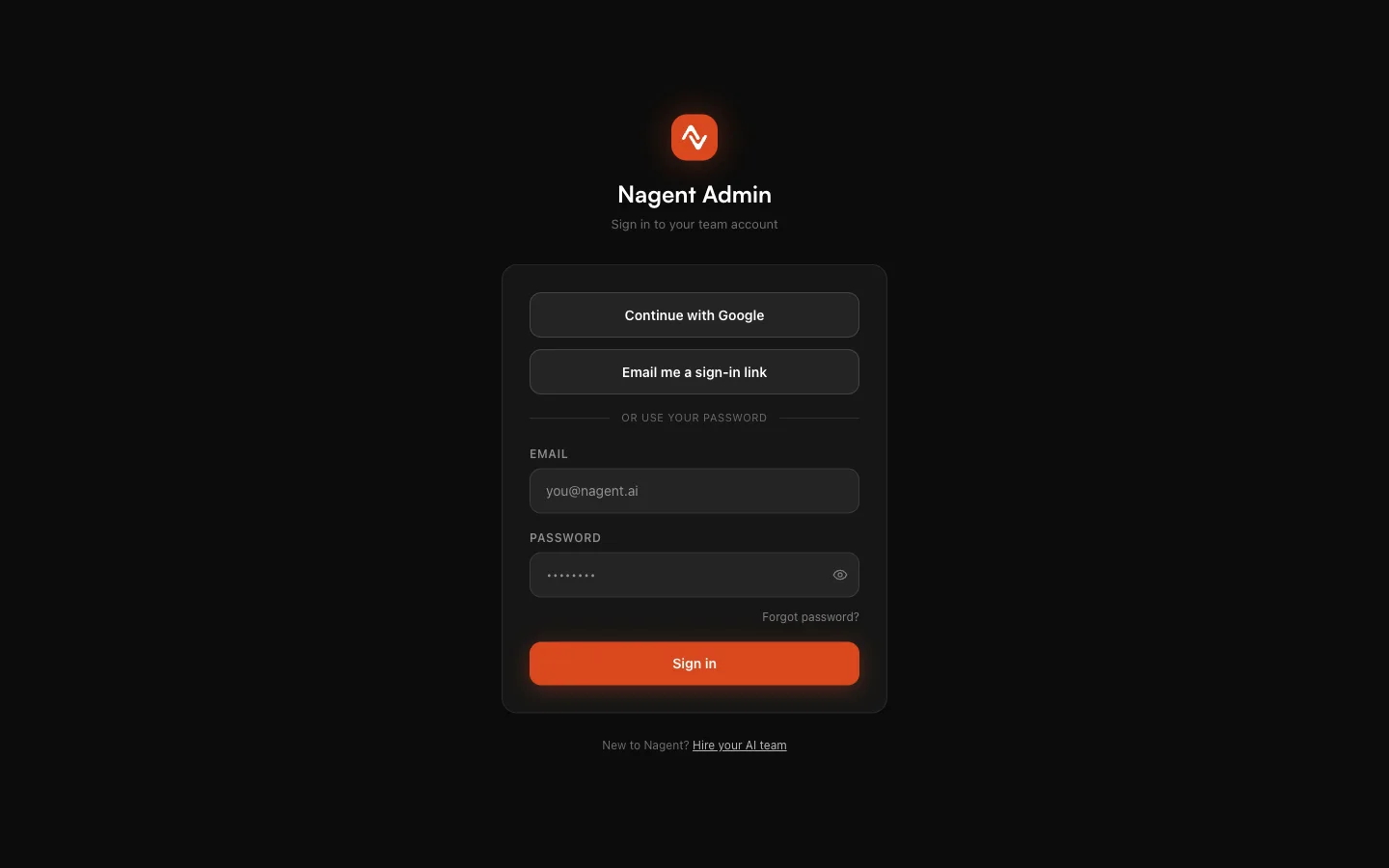
The sign-in page is at nagent.ai/admin/login. It offers three ways in, in this order:
- Continue with Google.
- Email me a sign-in link.
- Your password, under "or use your password".
All three open the same account. Use whichever suits you; you can switch between them freely.
E-mail me a sign-in link
This is the way in that always works, whether or not you have ever set a password.
- Press Email me a sign-in link.
- Type your work e-mail and press Send link.
- The page says "If that email has an account, a sign-in link is on its way. It works once, for 30 minutes."
- Open the e-mail, "Your Nagent sign-in link", and press Sign in to Nagent.
- On the page that opens, press Open my workspace.
The same three rules apply as at sign-up: the link lasts 30 minutes, it works once, and asking for a new one cancels the old one. The extra button press in step 5 is there because e-mail scanners open links on their own, and a link that signed you in on opening would be spent before you reached it.
The page gives the same answer whether or not the address has an account. That is on purpose: the sign-in page must not tell a stranger who has an account with us.
You can ask for a few links an hour. If you ask too often, the page tells you how long to wait.
Continue with Google
Press Continue with Google and pick the Google account whose address matches your Nagent account. You come straight back signed in.
Google is accepted only for an address Google says it has verified. Three things can happen.
| Your Google address | What happens |
|---|---|
| Matches an active Nagent account | You are signed in |
| Has no Nagent account | You are taken to sign-up, with the address filled in |
| Is not verified with Google | You are asked to verify it with Google, or use an e-mailed link |
The Google button appears only where Google sign-in is switched on for the site.
Your password
Type your e-mail and password and press Sign in.
A self-serve account has no password yet
If you created your workspace yourself, you signed up with an e-mailed link or with Google, and no password was set. The password form will not work for you until you set one. There are two ways to do it.
- Signed out: on the sign-in page press Forgot password?, enter your e-mail and press Send reset link. Open the e-mail within 30 minutes and choose a password of at least 8 characters.
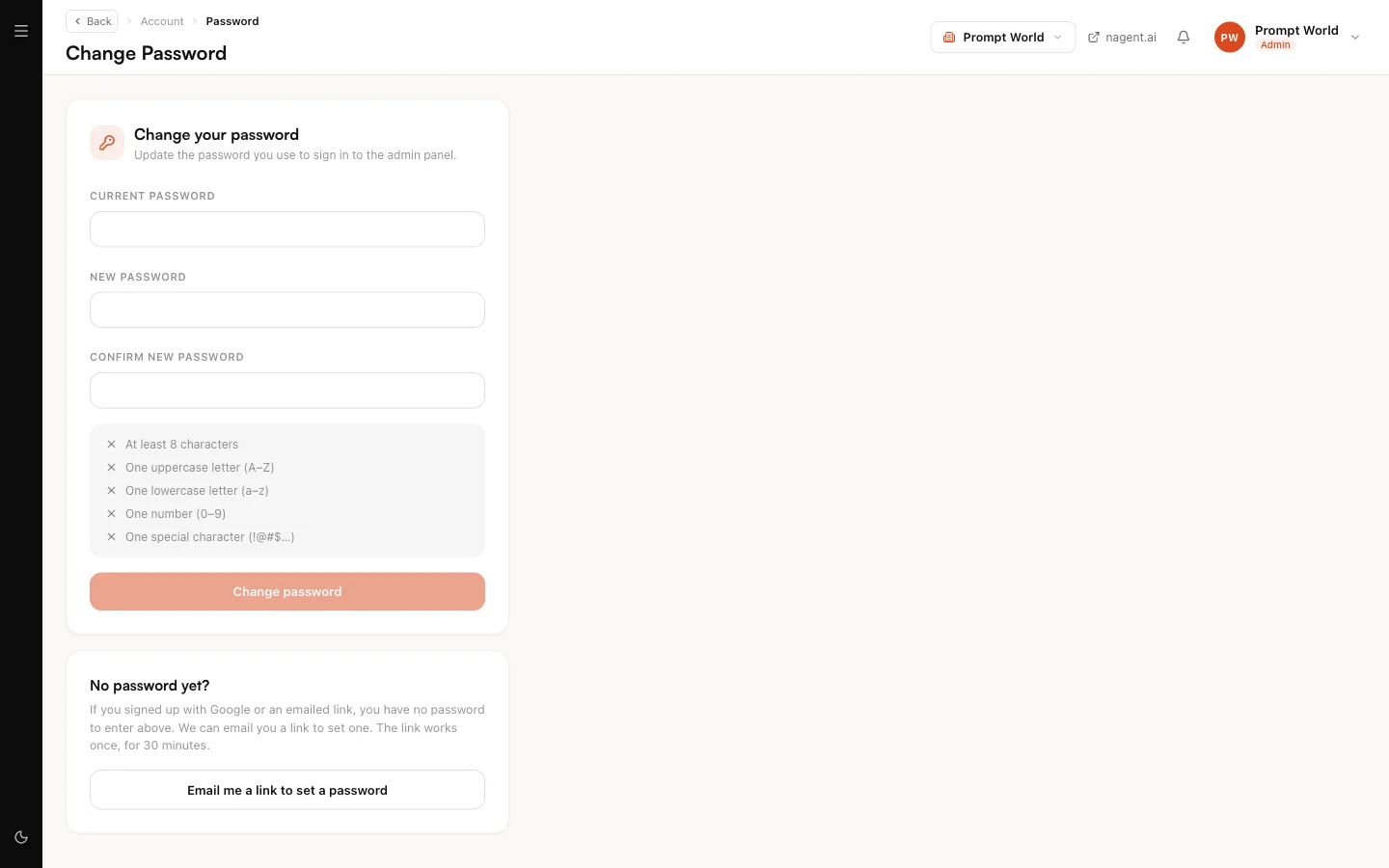
- Signed in: open Change password and press Email me a link to set a password. The same 30-minute link arrives.
Our logic: a password is only ever set from your inbox. Being signed in is not enough, so someone using a laptop you left open cannot plant a password on your account.
Changing a password you know
Open Change password, give your current password and a new one. The new password needs at least 8 characters, an uppercase letter, a lowercase letter, a number and a special character.
Too many wrong attempts
After five wrong passwords in a row the account is locked for 15 minutes. The e-mailed link still works during the lock, so you are never stuck.
Invited by a teammate
When a Workspace Admin invites you, you receive an e-mail headed "You're invited to the (workspace) admin panel". It contains your e-mail address, a temporary password, and a Sign in to Admin button.
- Press Sign in to Admin, or open the sign-in page.
- Enter your e-mail and the temporary password, and press Sign in.
- Change the password straight away at Change password.
You can also ignore the temporary password and use Email me a sign-in link or Continue with Google with the invited address. All three work from your first visit.
If your admin presses Resend invite, a new temporary password is issued and the old one stops working.
What you can see and do once inside depends on the role you were given. See people and roles.
How long you stay signed in
While you are using Nagent your session renews itself, so an active working day needs no repeated sign-in. If you are away for more than about an hour, you will be asked to sign in again. Signing out on a shared computer is still a good habit.
Messages you may see
| Message | What it means | What to do |
|---|---|---|
| Invalid email or password | The password does not match, or none is set | Use an e-mailed link, or set a password |
| This link has expired or was already used | Older than 30 minutes, used, or replaced by a newer link | Ask for a fresh link |
| Your workspace is not open | You signed up but never opened the first link, or the workspace was suspended | Open the sign-up link, or contact your administrator |
| Google has not verified that email address | Google does not vouch for it | Verify it with Google, or use an e-mailed link |
| Your role needs two-factor authentication | Your role requires a second factor, which only the password form asks for | Sign in with your password and authenticator code |
Where to go next
- Your first hour: what Home shows you.
- People and roles: inviting others.