
Browse documentation
Echo, the reputation coworker
How Echo reads your Google Business reviews into cases, samples what answer engines say about you and checks each claim against your approved facts, and what still waits on a person.
Echo turns what people and AI say about you into work
Echo is the reputation coworker, and reports to MIRA. It watches the sources you authorise, opens a case when something needs a response, and checks what AI assistants say about your company against facts you have approved. When a fix belongs to another teammate, such as a page DRIS should improve or a post MOXA should make, Echo hands it to them.
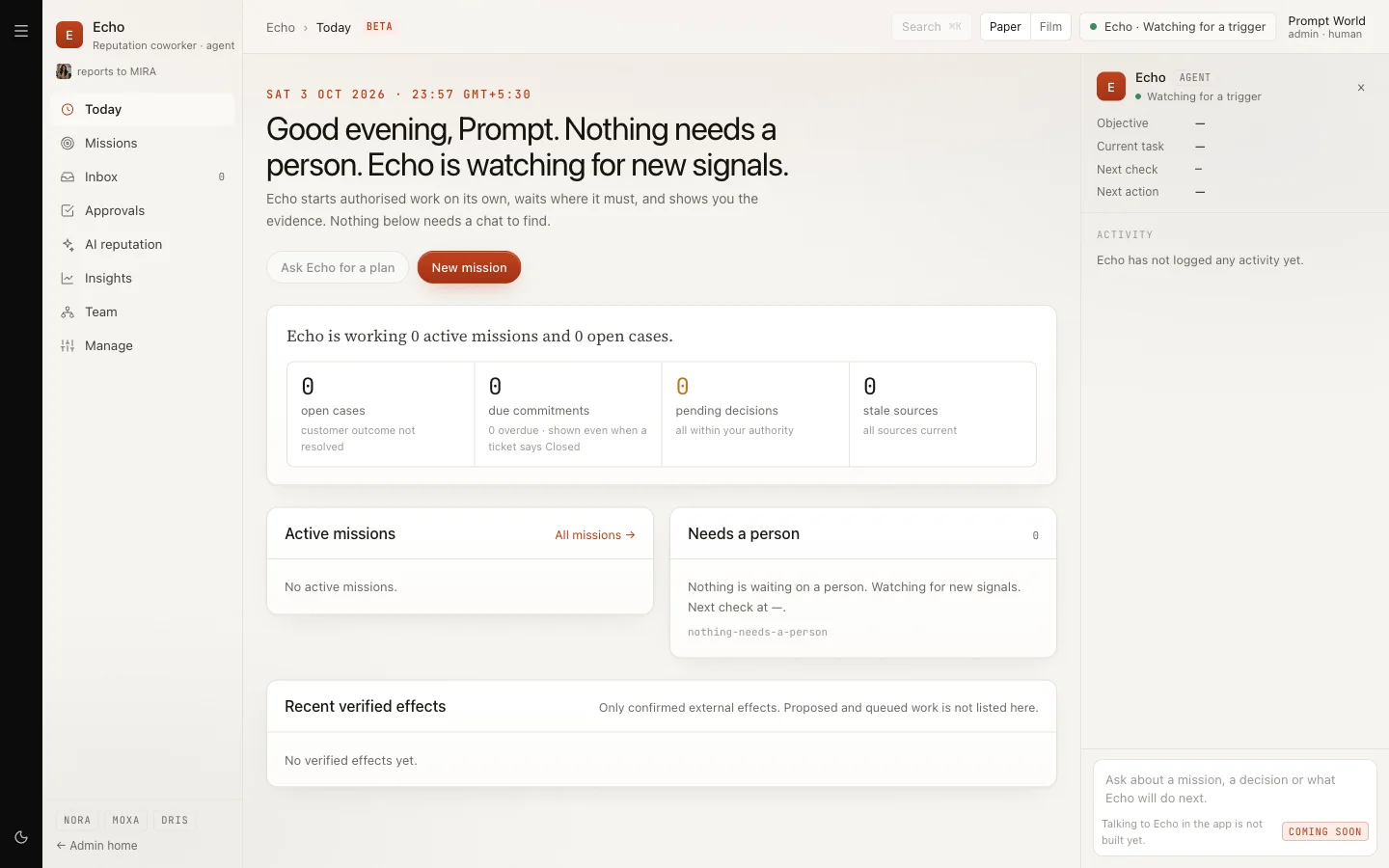
Echo is in Beta for every workspace. The pill beside the breadcrumb says so, and its note is honest about what is missing: "Coming soon: approving and sending, listening connectors and asking Echo in the app." Today Echo reads and checks. It does not yet reply to anyone.
Open it from the sidebar under Echo, or go to nagent.ai/admin/echo.
The screens
The rail down the left holds eight screens, in this order.
| Screen | What it is for |
|---|---|
| Today | What is active, what needs a person, what has been verified |
| Missions | Sustained work Echo is running toward an objective |
| Inbox | What arrived: triage, cases, mentions and incidents |
| Approvals | Decisions waiting on a named person |
| AI reputation | What answer engines say, and whether it is right |
| Insights | Service, themes and usage counts |
| Team | Who Echo works with, and the digest for MIRA |
| Manage | Facts, sources, authority and set-up |
A panel on the right, Echo activity, shows Echo's current objective, task, next check and next action, so you can see what it is doing without asking.
Set Echo up in Manage
Start in Manage. Two tabs matter on day one.
1. Write down the facts Echo checks against
The Knowledge tab holds your approved facts: what is true about your company, your offer and your prices. Click Add fact for each one. You can Edit a fact or Expire it when it stops being true.
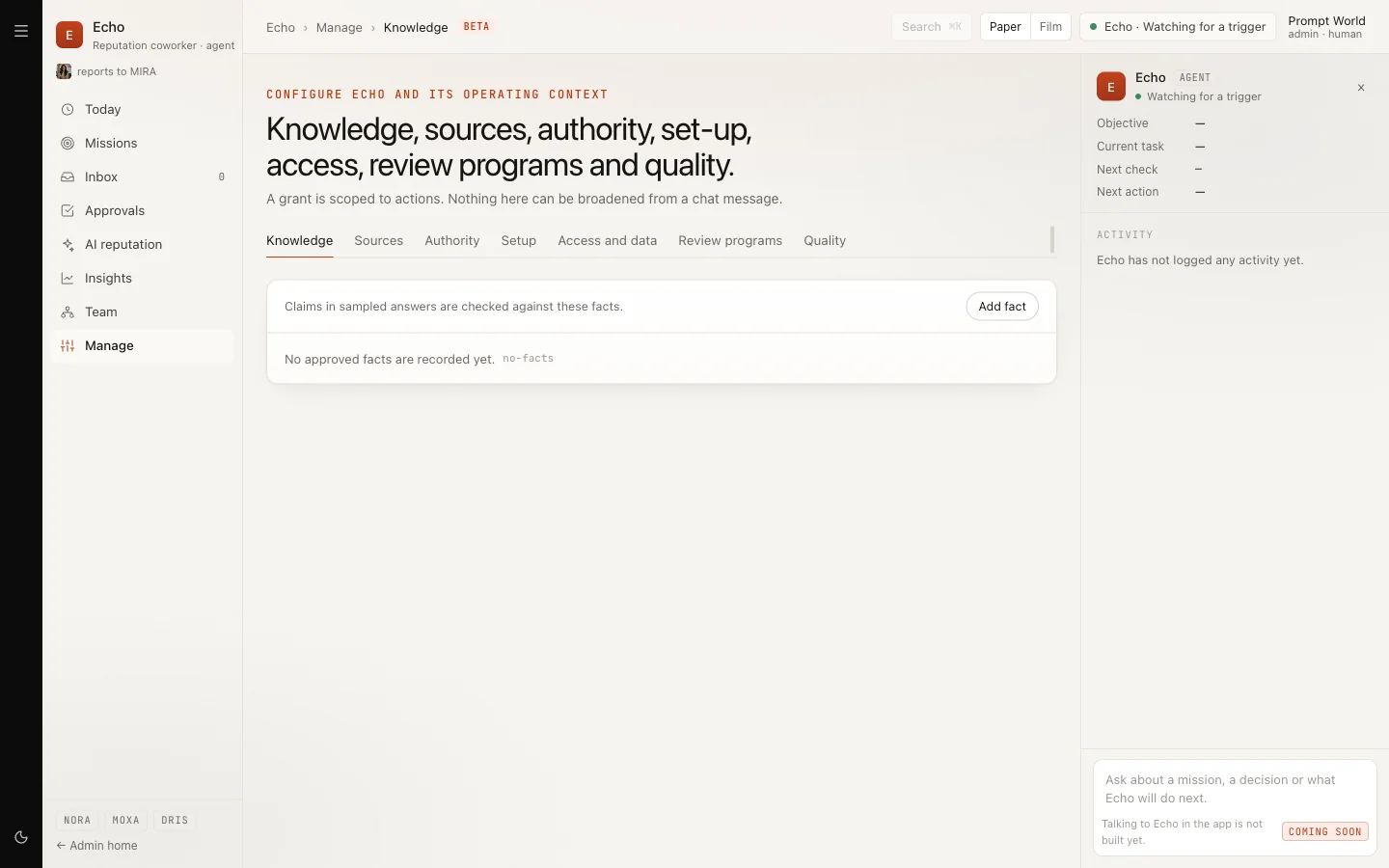
These facts are what Echo judges every AI answer against. For Prompt World, facts might be "Workshops run in English, in person or online" and "Workshops are for marketing and sales teams, not individuals".
Our logic: Echo never decides on its own what is true about you. A claim is accurate only if it matches a fact a person in your workspace approved.
2. Connect Google Business Profile
On the Sources tab, click Connect Google Business Profile and sign in with the Google account that manages your listing. Then Choose the locations Echo reads and click Connect selected. You need permission to manage integrations to do this.
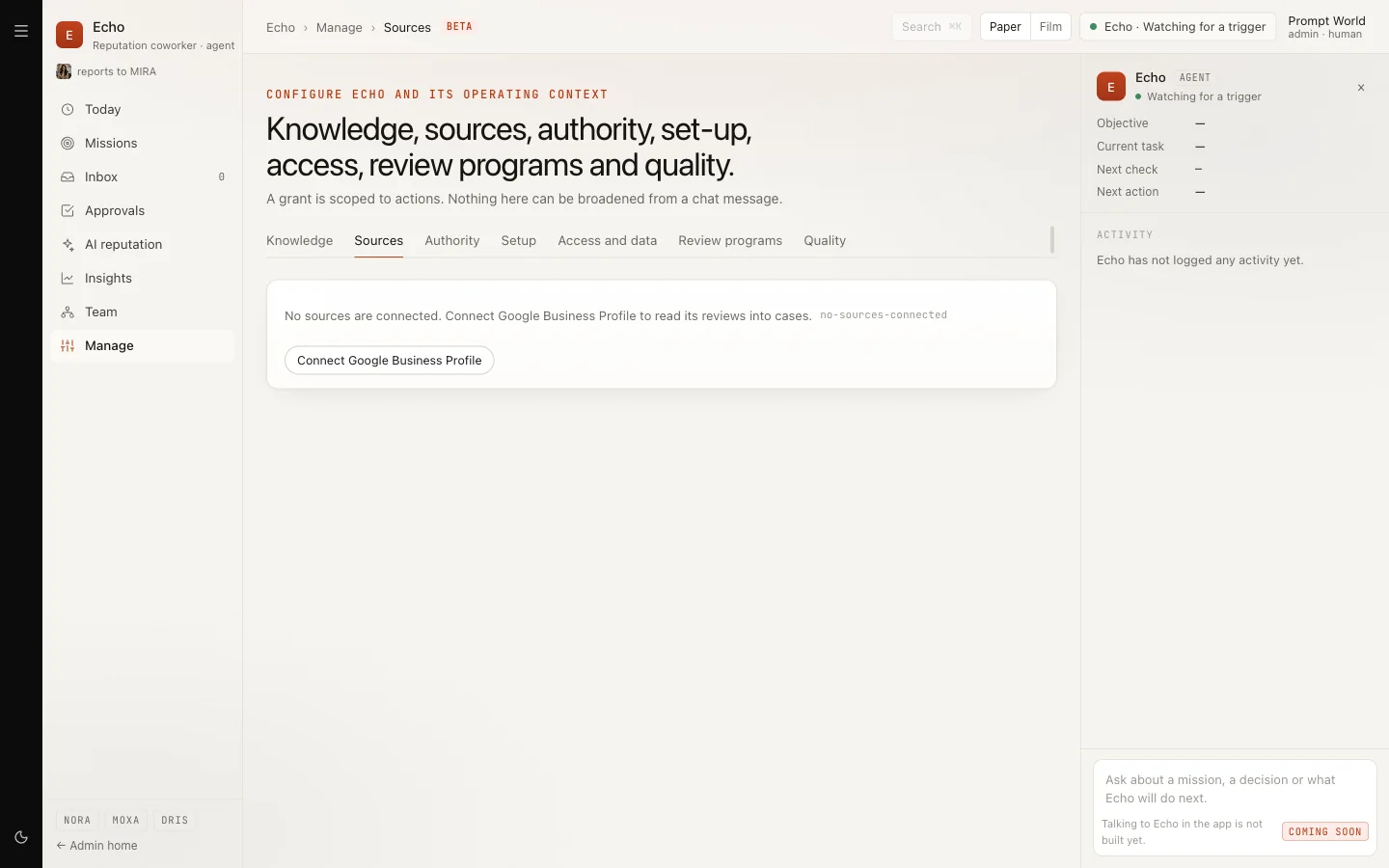
Once connected, the source card offers Fetch now to read reviews immediately, View affected work and Disconnect. Echo reads up to 500 reviews per location; older ones are not read.
Google Business Profile is the only source that can connect today, and the connection reads reviews only. Replying to reviews is planned, not built. Other listening sources are Coming soon.
Reviews become cases in the Inbox
Reviews Echo reads arrive in the Inbox: "What arrived, what is actionable, what is already a case." The tabs are Needs triage, Cases, Mentions and Incidents.
A case lists the issue and source, its risk and owner, the reply state and when it is due. Open one to see Overview, Evidence, Response, Resolution and Activity.
On a case you can:
- Take over from Echo, and later Return to coworker.
- Add completion evidence and Record customer confirmation once the issue is resolved.
Closing a case with a disposition is not available yet. The mention actions (create a case from a mention, confirm a link, mark it non-actionable) are shown but not yet active. If nothing is connected, the Inbox says so: "No sources are connected, so nothing has arrived."
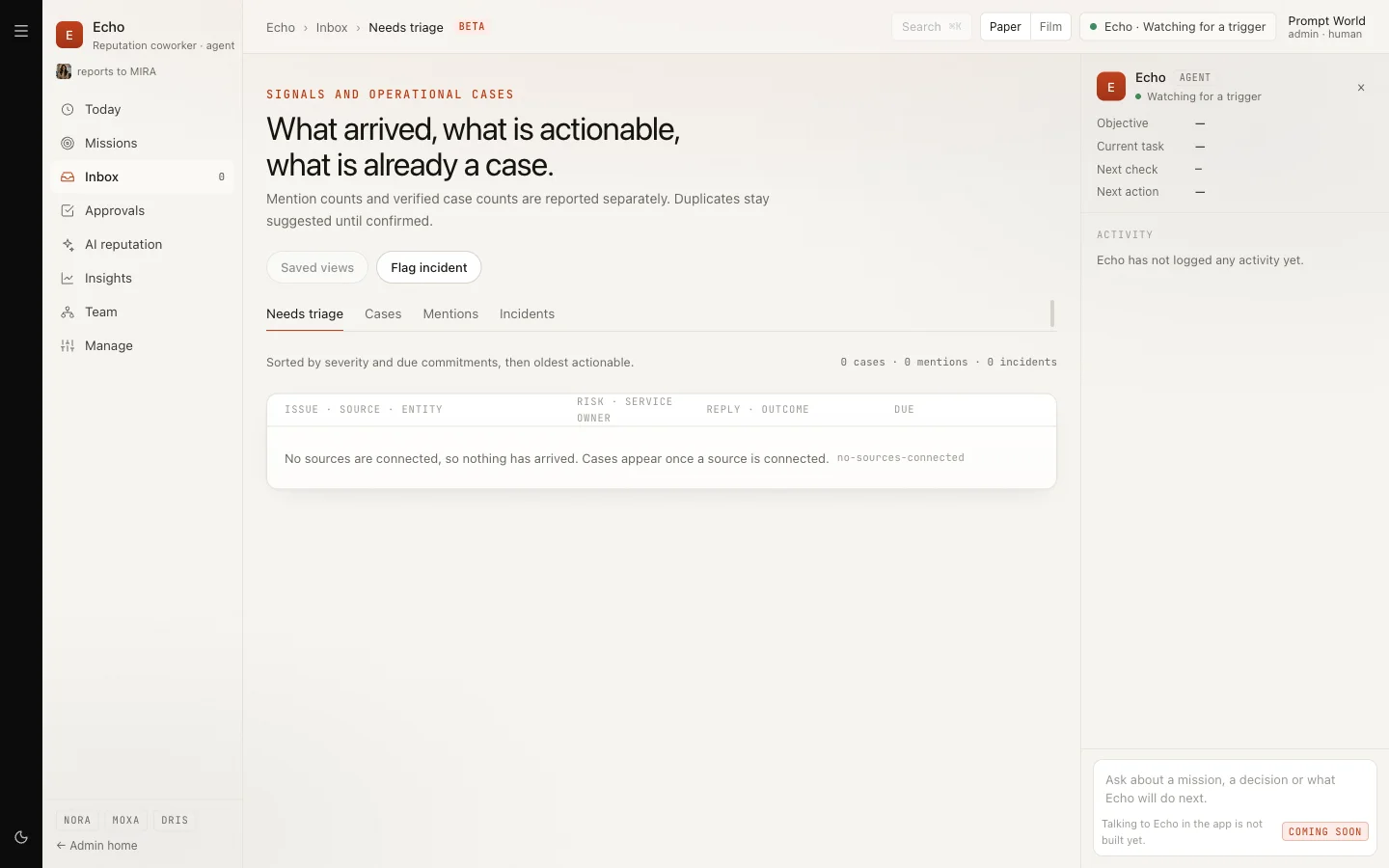
You can also Flag incident for something that needs urgent handling.
What answer engines say about you
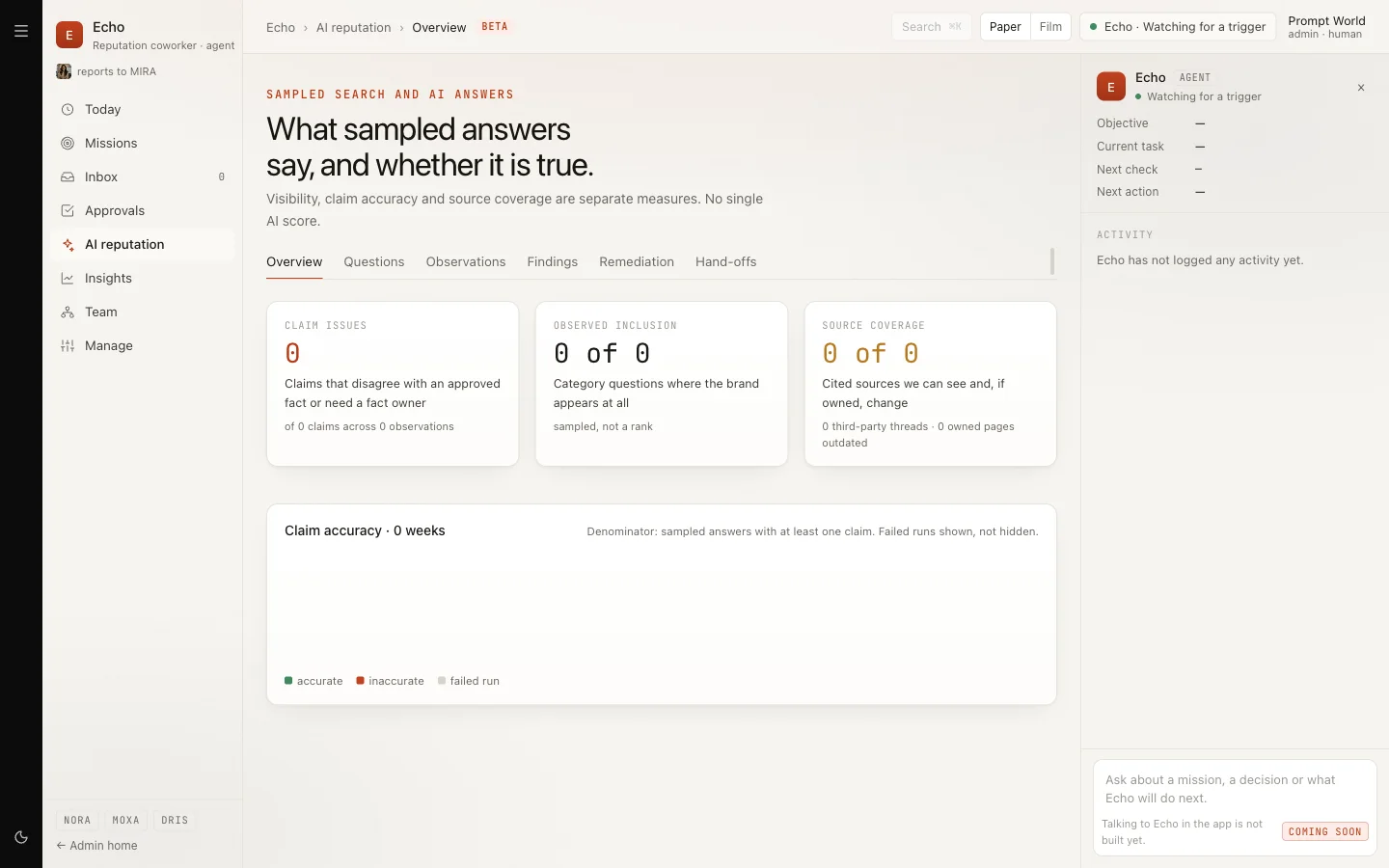
AI reputation is where Echo asks AI assistants the questions your buyers ask, and checks the answers. Its own subtitle sets the rule: "Visibility, claim accuracy and source coverage are separate measures. No single AI score."
1. Add the questions
On Questions, click Add question and write it as a buyer would. For Prompt World: "Who runs prompt engineering workshops for B2B marketing teams in Singapore?" Then click Run sample on one question or Run all.
Echo also samples every question once a week, on Mondays.
2. Read the answers
Each run asks up to three answer engines and stores what they said under Observations. Open one to see the claims Echo pulled out of the answer and its verdict on each: accurate or inaccurate against your facts.
From an observation you can Create finding, Request fact review, Add to remediation or Compare observations.
3. Work the findings
Findings lists what is wrong or missing, with a state, an owner and a severity you can set and Save. Remediation and Hand-offs show work Echo has passed to other teammates.
The Overview tab shows three separate cards, Claim issues, Observed inclusion and Source coverage, and a weekly Claim accuracy chart.
What it costs
Echo shows counts, never prices. Each question has a weekly allowance of 12 samples, and one sample is one engine's answer, so a run across three engines uses three. The run button tells you what is left: "Runs on up to 3 engines · X of 12 samples left this week". The allowance resets on Monday.
Every read and every sample also counts against Echo's daily budget. When it is spent, Echo stops and says so: "Echo has reached its budget for today." Reads resume when the budget resets.
What asks for approval
Echo's two actions today are reading a connected source and sampling an answer engine. Both are read-only, and both run on their own: neither waits for an approval.
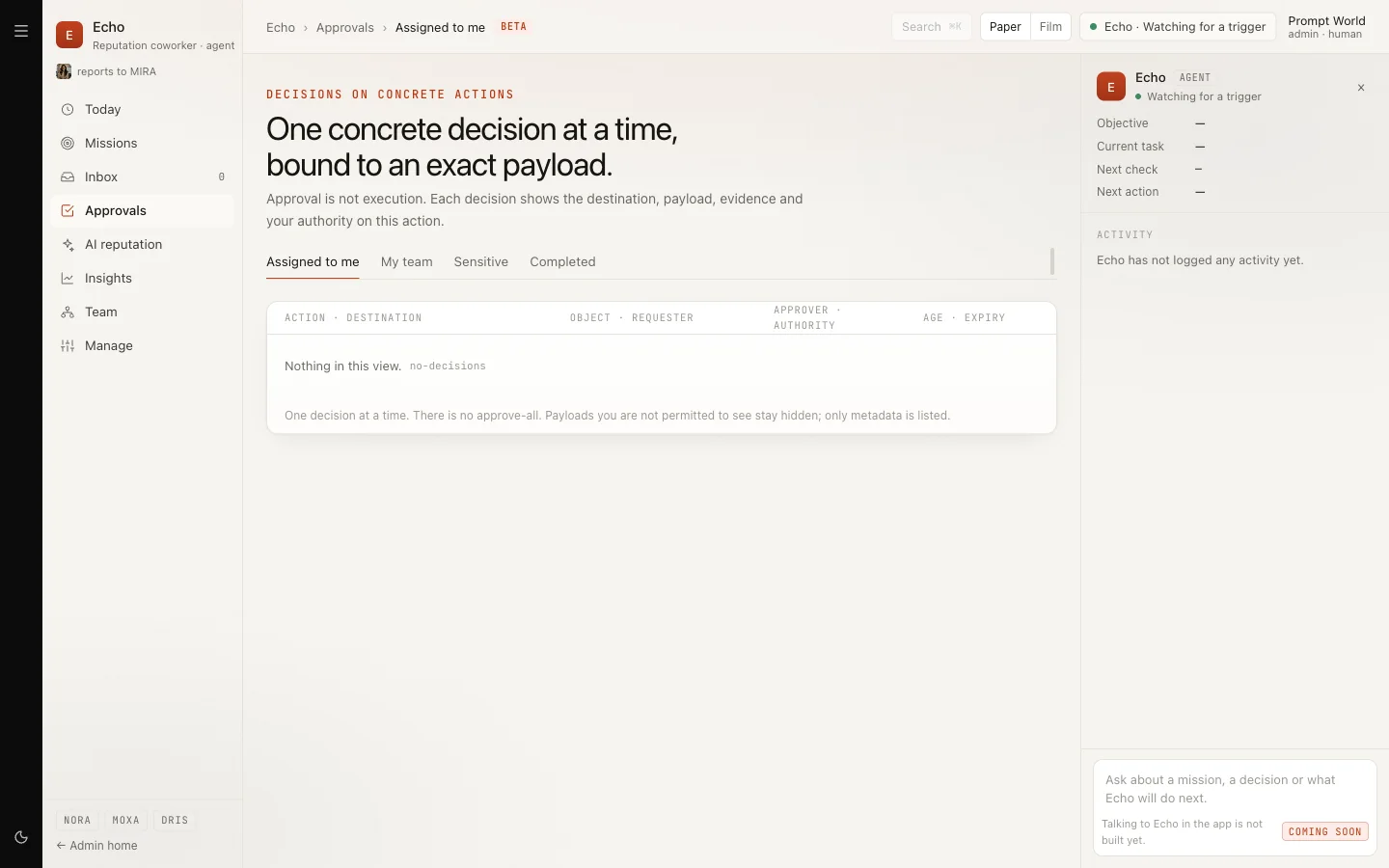
Echo's own Approvals screen is where public replies will wait for a named person once replying is built. Its rule is already printed at the foot: "One decision at a time. There is no approve-all." On a live workspace the decision buttons are disabled for now, and the list reads "Nothing in this view."
Our logic: anything Echo says in public will speak for your company. It will always wait for a person, and that person will approve the exact version that goes out, never a summary of it.
Limits today
- Reads and checks only: no replies are sent.
- One source, Google Business Profile. Google must grant API access to the connection before reviews flow; until then a fetch may report that Google is rate limiting reads.
- Talking to Echo in the app is not built: the composer reads "Talking to Echo in the app is not built yet." Ask Echo for a plan, New mission and Redirect are marked Coming soon.
- Missions, incidents, insights and the MIRA digest stay empty on a live workspace until those parts are built.
- Some disabled buttons carry an internal note such as "Approval runs from E4". Read it as Coming soon.
- Search inside Echo is Coming soon.
Where to go next
- DRIS, AI Visibility: improving how often answer engines include you, as distinct from whether they are right.
- MOXA: the social programme Echo hands posts to.
- The Knowledge Hub: the wider source of truth your teammates draw on.