
Browse documentation
Skills
What a skill is, how to read the Skills page, how a skill is written, who may create one, how to attach one to an agent, and how skills sit beside levels and tool access.
A skill is a written procedure an agent follows
An agent's role says what it is for. Its skills say how it does the work. A skill is a short document in plain markdown: when it applies, the steps, the rules, and what to do when something goes wrong. When an agent works, the skills attached to it are part of its instructions, so its behaviour traces back to something a person can read, question and change.
"Handles social media" is a role. "Every post passes five checks before a person sees it: voice, claims, consent, channel fit and community" is a skill. It has a trigger, a procedure and a boundary.
The Skills page
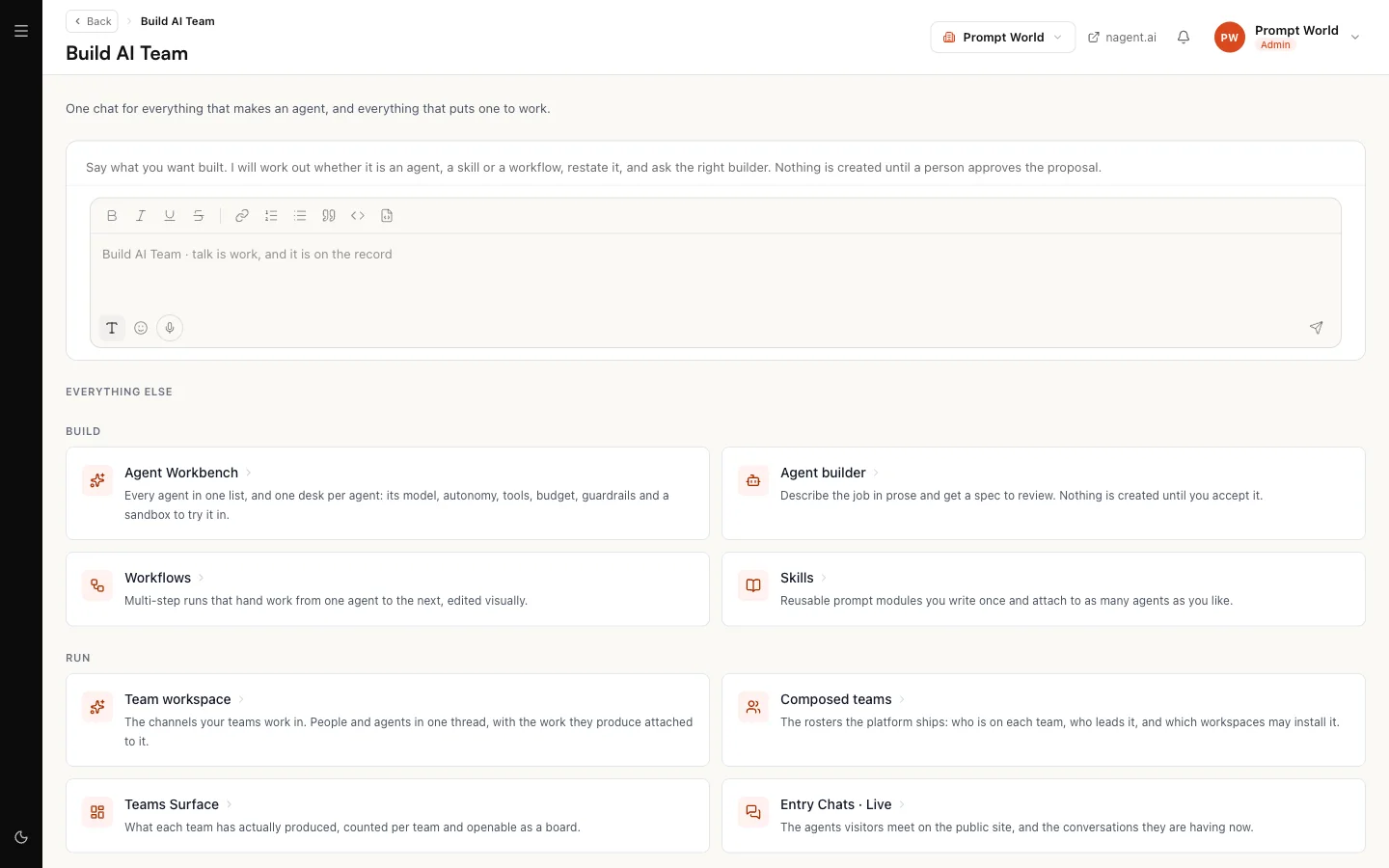
Open Skills, or select Skills on Build AI Team, where it is described as "Reusable prompt modules you write once and attach to as many agents as you like." The Agent Workbench's Skills tab shows the same library.
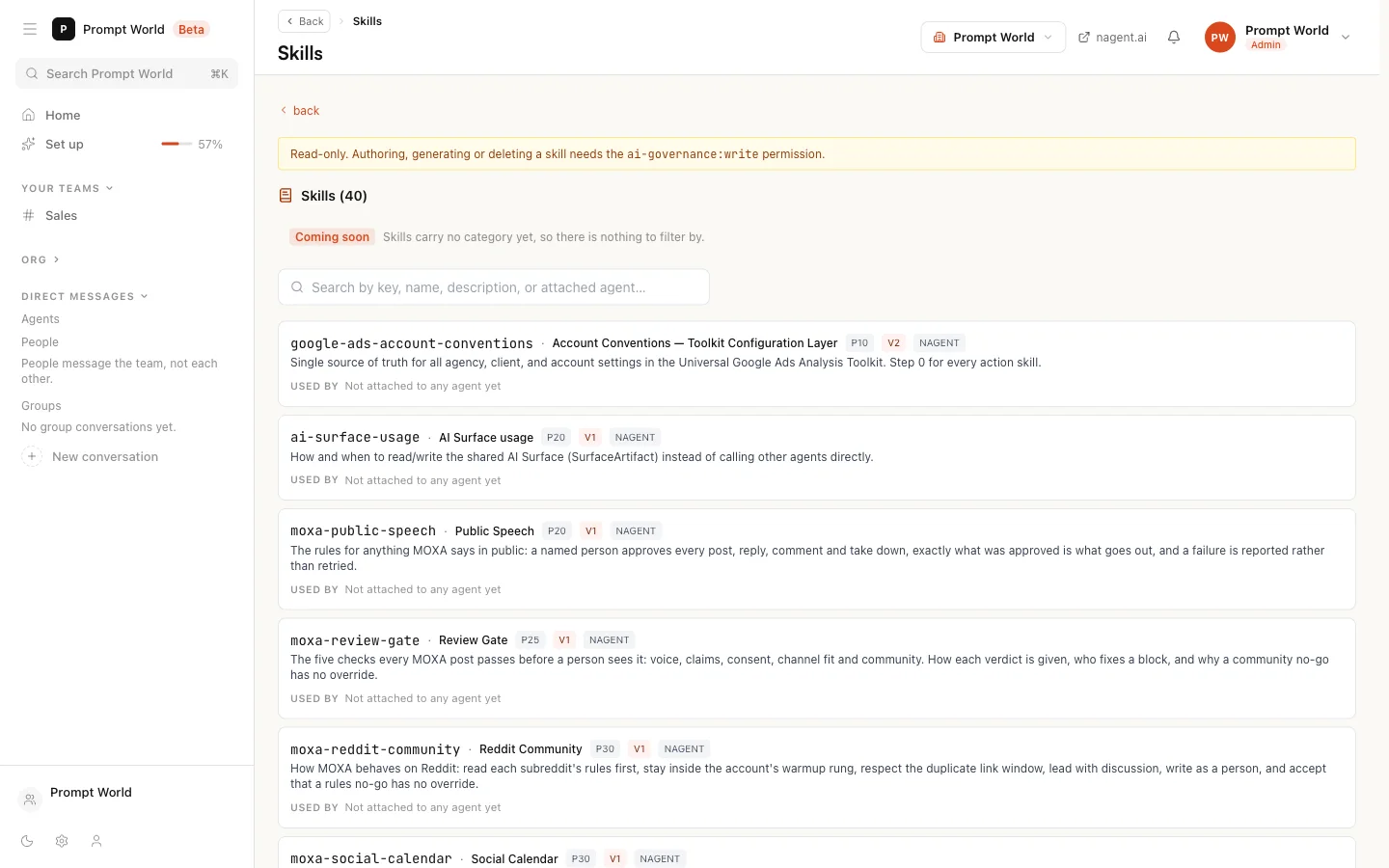
Each skill in the list shows:
| On the row | What it means |
|---|---|
| The key | The skill's fixed identifier, such as moxa-review-gate |
| The name | Its readable name, such as Review Gate |
| P and a number | Its priority. Lower numbers come first in an agent's instructions |
| V and a number | Its version |
| Nagent | A skill Nagent maintains for every workspace. You can attach it, not edit it |
| disabled | Switched off. It reaches no agent |
| Used by | The agents it is attached to, each linking to that agent, or "Not attached to any agent yet" |
Search by key, name, description or attached agent. Categories are marked Coming soon: skills carry no category yet, so there is nothing to filter by.
What a skill is made of
| Field | What it holds |
|---|---|
| Key | A unique identifier in kebab-case. Required, and fixed once created |
| Name | The readable name. Required |
| Description | One or two lines on what the skill does. Required |
| When to use | The situations in which it applies |
| Priority | 1 to 100, lower first. Defaults to 50 |
| Allowed agents | The agents that may carry it, as a comma-separated list of agent keys. Empty means any agent |
| Markdown body | The procedure itself, with a live preview beside it. Required |
A good body has three parts:
- When to use, precise enough that the agent knows when the skill governs and when it does not.
- How to apply, as numbered rules that can each be checked. "Append and supersede, never edit in place" can be checked; "keep good records" is an argument waiting to happen.
- Examples, including what correct failure looks like: bad work goes back to be fixed, the check is never relaxed to let it pass.
Priority, and why foundations go first
Skills attached to an agent are joined in priority order, lowest first. The Nagent skills show the pattern worth copying. A conventions skill, such as the Google Ads account conventions at P10, holds the settings and vocabulary every other skill in its area relies on, and loads first. Gate skills, such as MOXA's public speech rules and review gate at P20 and P25, come next. The skills that do the work come after the rules they depend on.
Creating a skill
Select Create Skill. There are three ways to start.
- Generate from a description. Describe what the skill should do and select Generate. Helix writes the instructions and lists any problems it found, and you review and edit them before saving. Treat the result as a draft: add the thresholds and limits it could not know.
- Upload Files. Upload a PDF, Markdown or text file, such as an existing standard operating procedure, and Nagent fills the editor from it.
- Write the instructions yourself. A blank editor. Nothing is generated.
All three end in the same editor. Fields still empty are outlined, and saving is blocked until key, name, description and body are filled in. Select Create to save.
For Prompt World, a skill for NORA might be workshop-follow-up: when a
head of marketing replies with interest, offer the two-day workshop first,
name the team's own campaigns as the material, and never quote a price that
is not on an active offering.
Who can create a skill
Creating, editing and deleting skills needs a governance permission that the Workspace Admin role does not carry today. Without it the Skills page opens read-only and says so: "Authoring, generating or deleting a skill needs the ai-governance:write permission." The skill builder on Build AI Team asks for the same permission. If you need a skill written, ask the Nagent team, who can grant it or write it with you.
Attaching a skill to an agent
A workspace admin can attach and detach skills, including the Nagent ones.
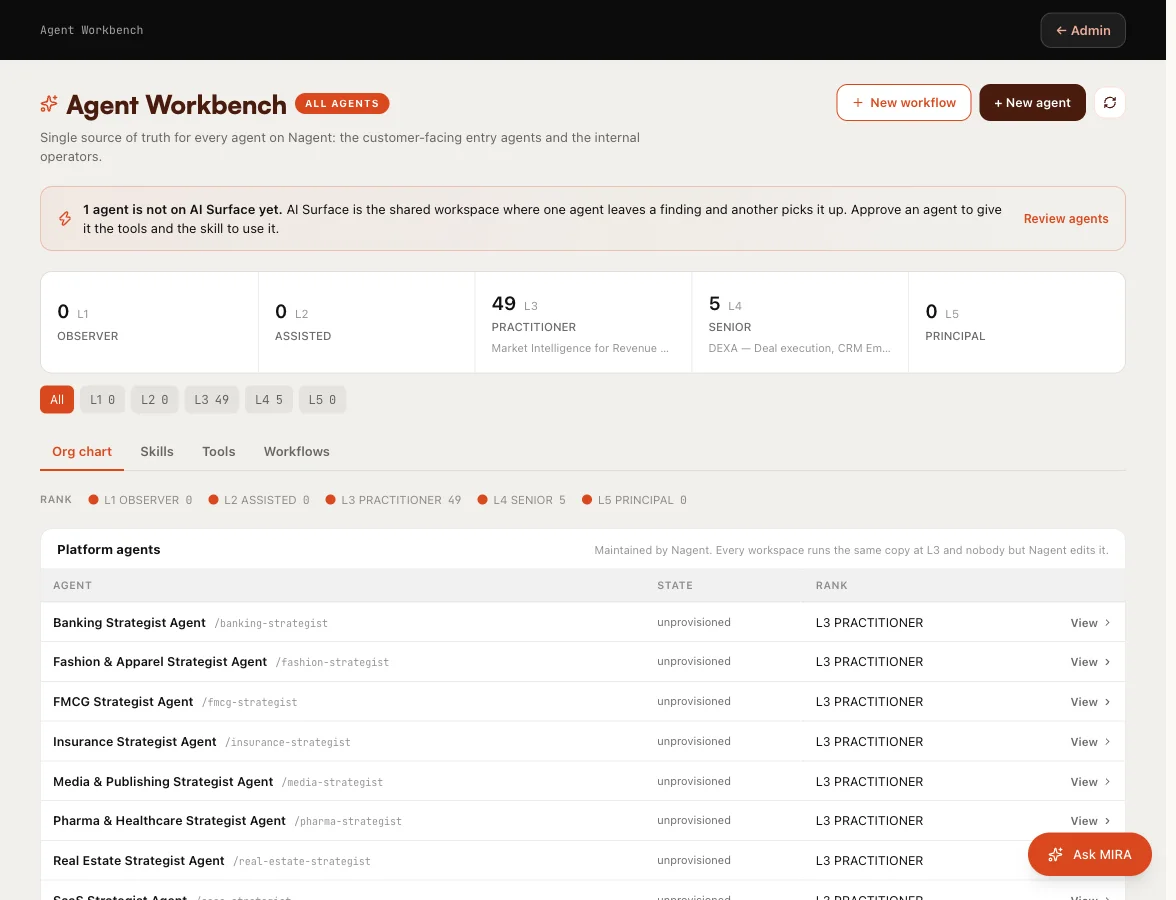
- Open the agent in the Agent Workbench.
- Go to its Skills pane. Skills attached lists what it carries.
- Under Available to attach, select Attach on the skill you want. Only skills whose Allowed agents include this agent, or are empty, are offered.
- To remove one, select the cross beside it under Attached.
Suggest skills proposes skills that fit the agent. Agents Nagent maintains for every workspace keep the skills they ship with; their set-up cannot be changed.
One skill can serve many agents. Change it once and every agent that carries it follows, within about a minute.
Versions
Each save from the editor raises the version shown on the row, v1, v2 and so on. The page keeps the current text only, so if you need an earlier wording, keep your own copy before you change it.
Skills, levels and tools: three controls, one behaviour
What an agent does on a piece of work is decided by three separate controls.
| Control | The question it answers | Where it is set |
|---|---|---|
| Skill | How is this work done, and within what limits? | Skills, and the agent's Skills pane |
| Autonomy level, L1 to L5 | How much may the agent do without asking? | The agent's Autonomy pane |
| Tool access | Which outside actions can it reach at all? | Connecting a tool |
They do not widen each other. A skill may describe sending an e-mail; whether the send runs or waits for a person depends on the agent's level; whether it can send at all depends on the actions allowed on your mail tool. That is why one skill can be shared by a new agent and a proven one: the same procedure, different freedom.
Our logic
A skill is the part of an agent you can read. Writing rules down, in order, with their limits, is what makes an agent predictable enough to trust with more. Where work crosses into publishing, spending or personal data, put a gate skill in front of it rather than trusting each working skill to check itself.
Where to go next
- The Agent Workbench: the agents that carry skills.
- Creating an agent: where skills fit in an agent.
- Autonomy and governance: levels and who may change them.