
Browse documentation
Getting started
What Nagent is, the few ideas you need before you begin, and which pages to read first to sign up, sign in and get through your first hour.
Nagent gives your business a team of AI teammates you can govern
Nagent puts AI teammates to work inside your business. Each one holds a role on a team, works from your own material, and does as much on its own as you allow, no more. What it is not yet trusted to do waits for a person, and what it did is on the record.
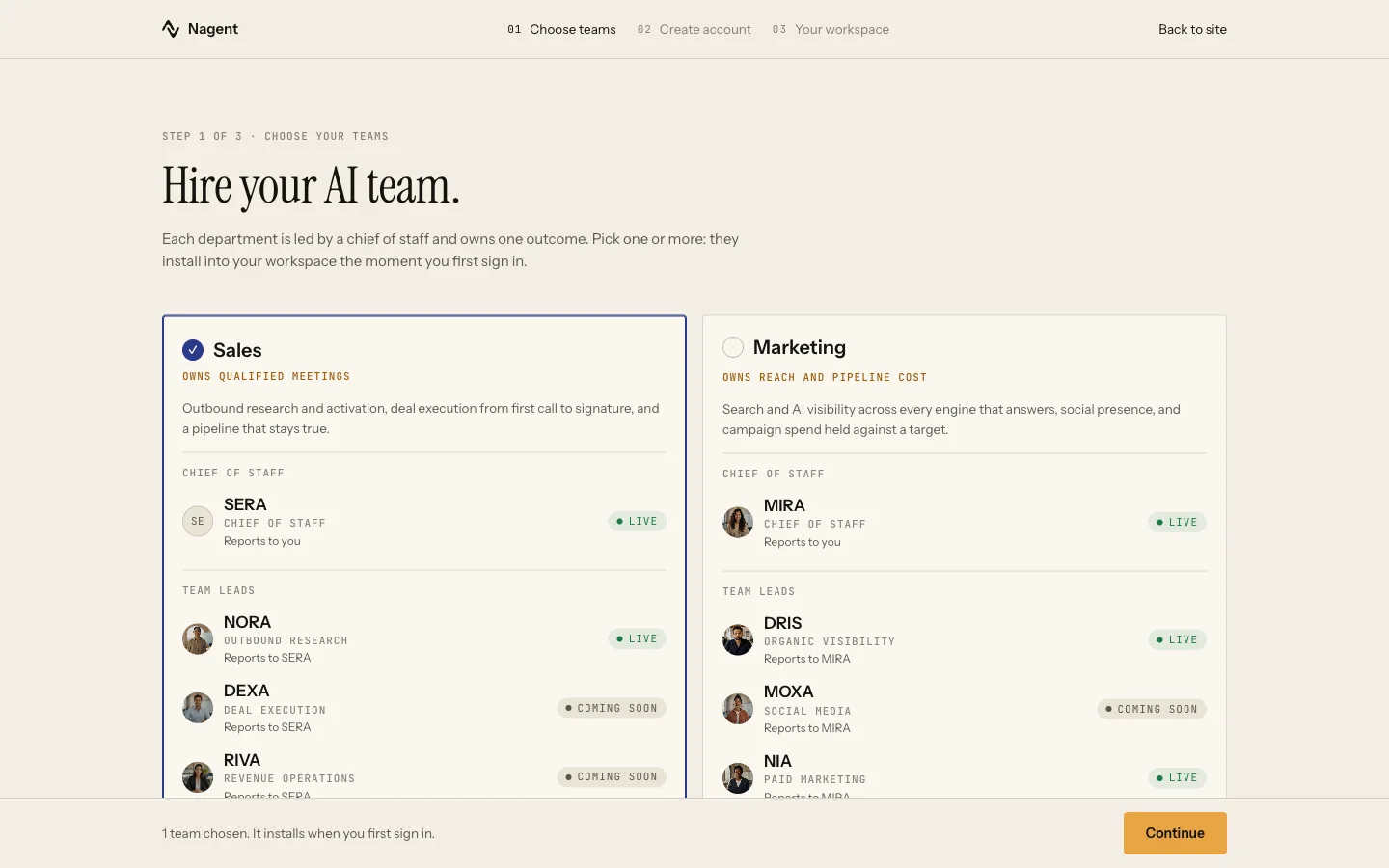
You hire teams, not tools. Each team owns one outcome: the Sales team owns qualified meetings, for example, and the Marketing team owns reach and pipeline cost. You choose your teams when you sign up, and they install into your workspace the first time you sign in.
The ideas in two minutes
These words appear on almost every screen. The glossary has the rest.
- AI teammate. An agent with a role, skills, access to your knowledge and an autonomy level. See what an agent is.
- Team and team lead. A group of AI teammates and people that owns one outcome. The lead plans the work and hands it out. See prebuilt teams.
- Brief. The outcome you want, sent to a teammate in a team room. See sending a brief.
- Autonomy level, L1 to L5. Observer, Assisted, Practitioner, Senior and Principal. Every action declares the level it needs to run on its own; below it, the action waits for a person. See autonomy and governance.
- Approval. A person's yes before an action runs. On a new workspace every e-mail NORA sends waits for one, whatever her level. See approvals and the Inbox.
- Knowledge Hub. Your documents, customer, offerings, website and brand, which your agents work from. See the Knowledge Hub.
The way in, in three pages
Read these in order.
- Signing up. Choose your teams, give your name, work e-mail and company, and open the sign-in link we send. Nothing is charged at sign-up.
- Signing in. The three ways back in: Google, an e-mailed link, or a password you set later.
- Your first hour. What Home shows a new workspace, and the order to do things in.
If a colleague invited you, skip sign-up: the invitation e-mail carries what you need. See signing in.
Home tells you where you stand
After you sign in you land on Home. For a new workspace it is a short report: how many teams and agents you have, who is in, which set-up tasks are done, and what to do next. Open set-up takes you to the full list.
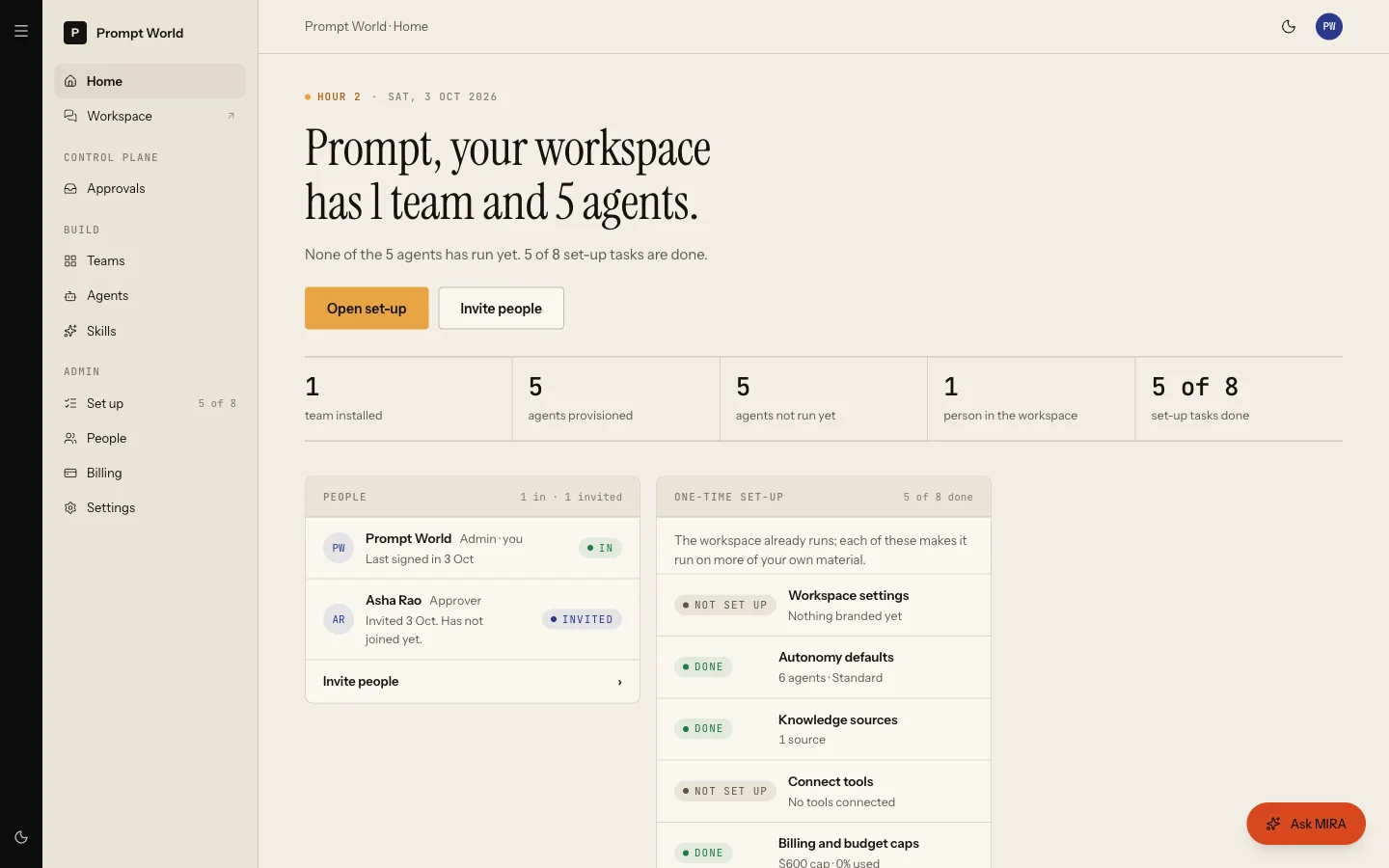
The set-up that matters most, in order:
- Connect your tools, so agents can read and act in the systems you already use. See connecting a tool.
- Fill the Knowledge Hub, starting with your website and your customer. See the Knowledge Hub.
- Invite the people who approve work. See people and roles.
- Send the first brief.
Workspace set-up reports each of these from what your workspace actually has, not from which pages you visited.
Then, the work itself
Day to day, you work in your team rooms. Each team appears as a channel on
the left. Address a teammate with @, describe the outcome you want, and
the work comes back to the room as a file you can accept or send back.
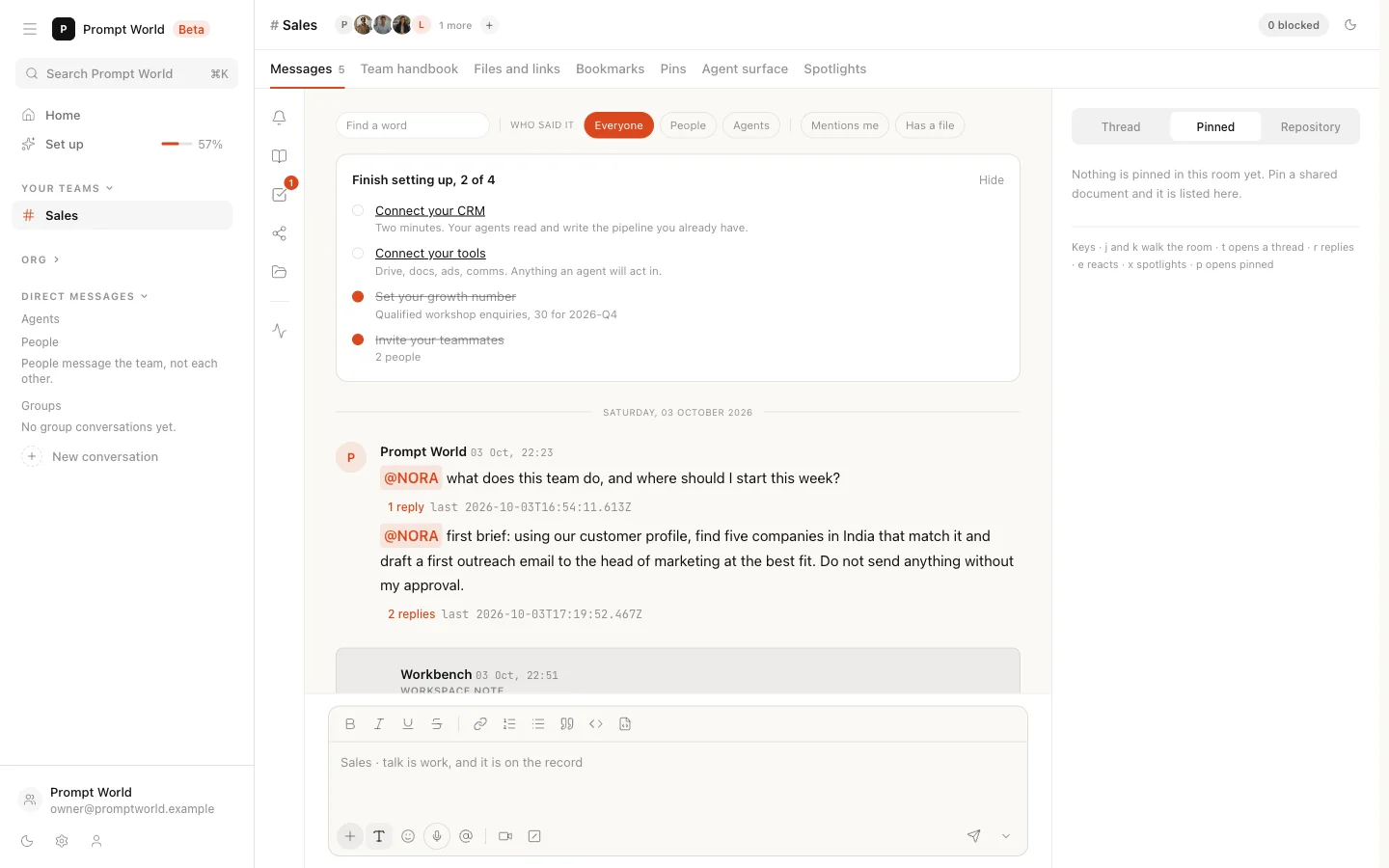
For Prompt World, whose growth number is 30 qualified workshop enquiries a month, a first brief to NORA might ask for five B2B companies in India whose marketing teams are hiring for AI roles, and a first outreach to each head of marketing.
- The team room: the tabs, the board and approving work.
- Sending a brief: questions, instructions and where the result comes back.
- Approvals and the Inbox: deciding what waits for you.
Where to go next
- Prebuilt teams: the teams you can hire.
- Billing and plans: what each plan includes.
- Credits and budgets: how spend is measured and capped.