
Browse documentation
Who you sell to
How to describe your customer in your own words, have Nagent work out the targeting your agents use, and correct what it concluded.
Your agents target the customer you describe, not one they guess
Every agent that finds prospects, scores leads or writes to a buyer needs to know who that buyer is. On Nagent you say it once, in plain sentences, on the Who you sell to screen. Nagent turns those sentences into the targeting your agents read: industries, company sizes, where buyers are, who signs, and what they are stuck with.
Open it from the Knowledge Hub's ICP tab, or go straight to nagent.ai/admin/knowledge/icp.
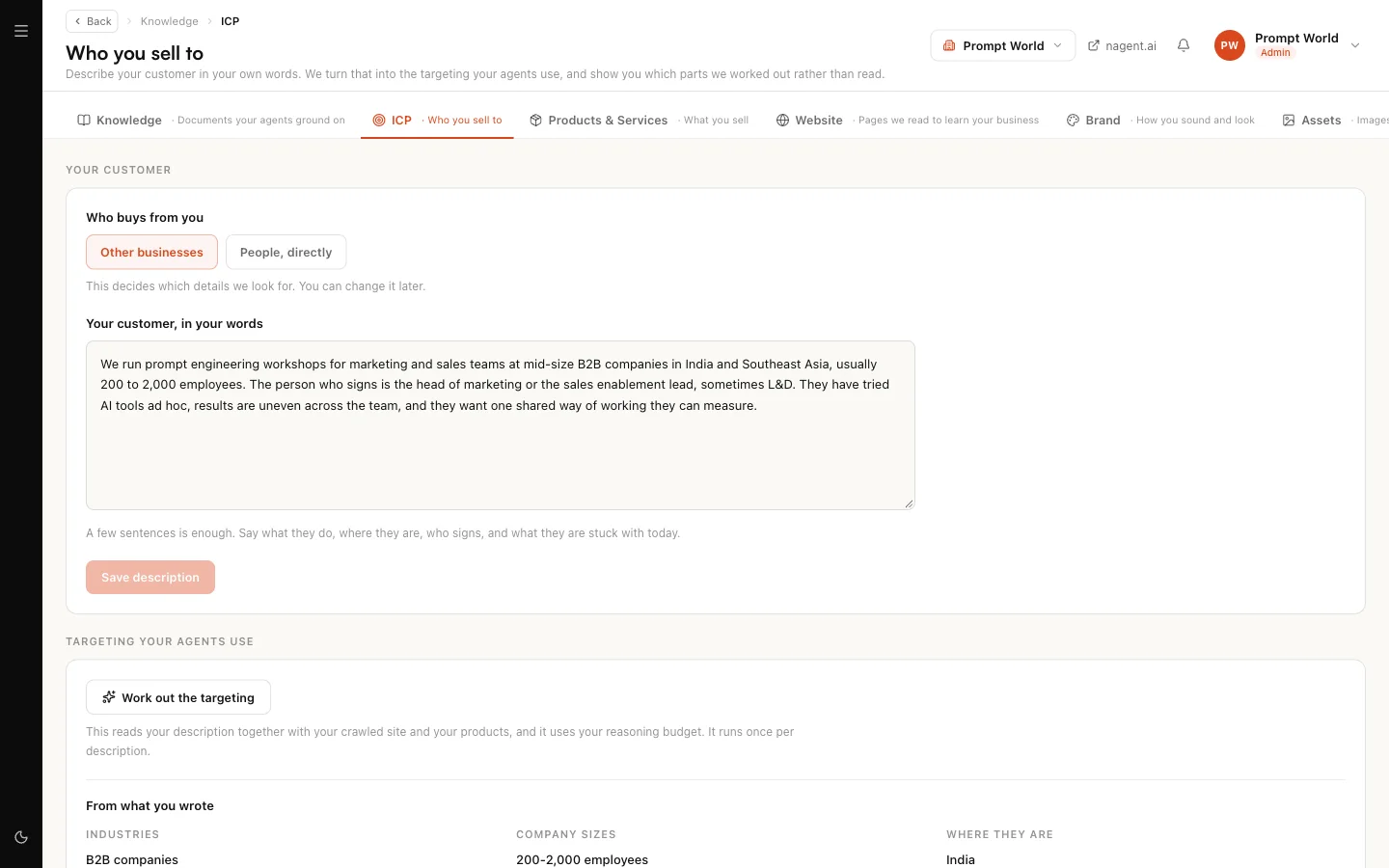
The screen has two parts. Your customer is what you write. Targeting your agents use is what Nagent concluded from it, and it is kept separate on purpose so you can always see which is which.
Step 1. Say who buys from you
Under Who buys from you, pick one:
- Other businesses. You sell to companies. Nagent looks for industries, company sizes, regions, decision makers, pain points, the tools they already run and revenue.
- People, directly. You sell to consumers. Nagent looks for interests, life stage, region, pain points and what they will pay instead.
The choice decides which details Nagent looks for, and you can change it later.
If you choose People, directly, the screen tells you that prospect discovery does not run for a consumer audience. Discovery searches companies by industry, size and job title, so it has nothing to search for. Everything else that reads this profile still reads it normally.
Step 2. Describe your customer in your own words
Write a few sentences in Your customer, in your words. Say what they do, where they are, who signs, and what they are stuck with today. You do not need a template, and you do not need to be complete. A short, honest paragraph beats a long, vague one.
For example, Prompt World, a company that runs prompt engineering workshops for marketing and sales teams, might write:
We train marketing and sales teams at B2B companies of 200 to 2,000 people in India and Southeast Asia. The person who buys is the head of marketing or the sales enablement lead. Their teams have AI tools but get generic output, and nobody has time to build a shared way of prompting.
Select Save description. The button stays disabled until you change something, and the description can be up to 8,000 characters. Saving costs nothing: it only stores your words.
Step 3. Work out the targeting
Under Targeting your agents use, select Work out the targeting. While it runs the button reads "Reading your site and your description".
What it reads:
- your saved description and the buyer choice from step 1,
- up to 20 pages of your website that Nagent has already crawled (see Bootstrapping from your website),
- your active products and services (see Products and services). Drafts waiting for review are left out, so Nagent never concludes a customer from its own unreviewed guess.
The button is disabled until there is a saved description, and while you have unsaved edits. Save first, then run it.
Our logic: it spends once per description
Working out the targeting is a reasoning call, and it uses your workspace's reasoning budget. So it runs once per description. If you select it again without changing the words, nothing is spent and the screen says "Nothing has changed since the last run, so nothing was spent." If you edit the text and then put it back exactly as it was, that also counts as unchanged.
When you do change the description, the screen tells you "Your description has changed since the targeting was worked out", and the next run reads the new version.
If the budget refuses the call or the reasoning service is unavailable, you see a plain error and nothing is written. Your description stays saved.
Step 4. Read the two result groups
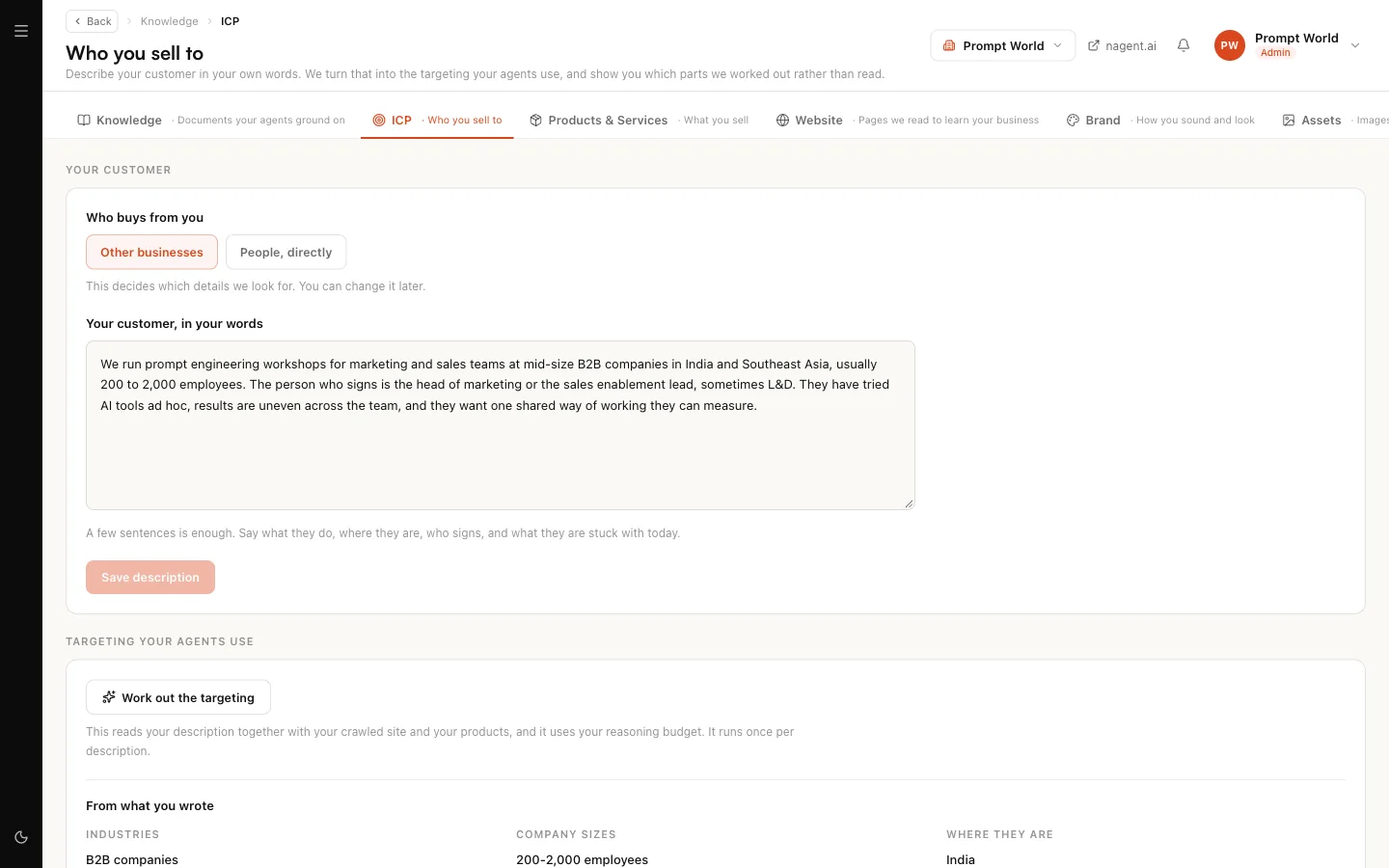
The results come back in two groups, each laid out by detail (industries, company sizes, where they are, who signs, and so on):
| Group | What it holds |
|---|---|
| From what you wrote | Values you stated. Nagent read them, it did not infer them |
| What we worked out | Values Nagent concluded from your description, your site and your products, usually with a short reason |
The second group is labelled "We concluded these rather than reading them." That is the honest part of the screen. Read those values first, because your agents target on them in exactly the same way as the ones you wrote.
If nothing could be concluded, the screen says so and asks you to add a sentence about who signs and what they are stuck with, then run it again.
Correcting what Nagent worked out
The values themselves are not edited one by one on this screen. You correct them by correcting the source:
- Change your description so it says plainly what was wrong. If a region was inferred that you do not sell into, name the regions you do sell into. If the wrong job title was picked, say who signs.
- Select Save description.
- Select Work out the targeting again. Because the description changed, this is a new run and it is charged as one.
The new result replaces the old one in full. The more you state, the less Nagent has to work out, and the more of the result lands under From what you wrote.
Scoring segments live on their own screen
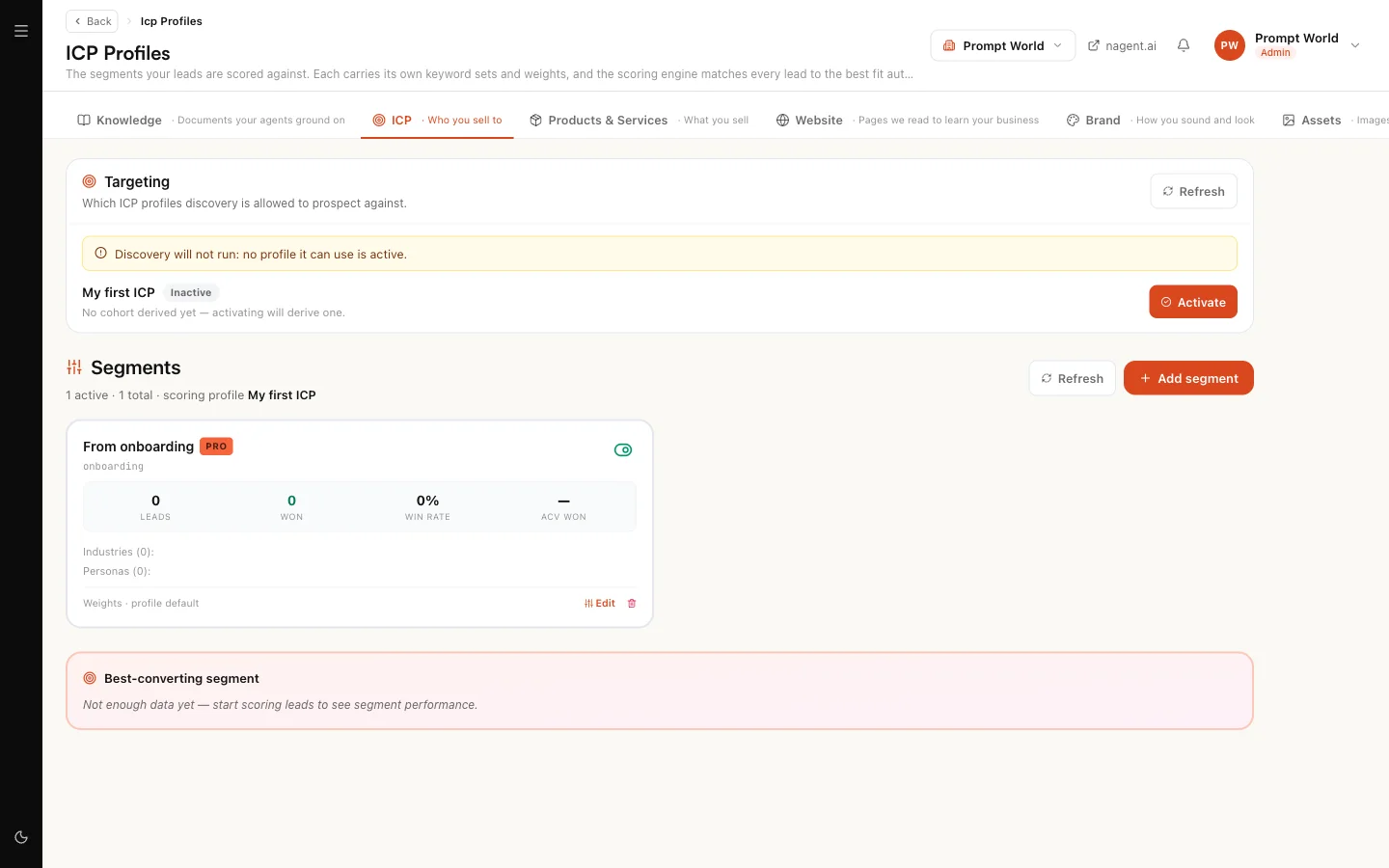
At the bottom of the page, Scoring segments and weights opens the lead scoring rules at nagent.ai/admin/icp-profiles. That screen edits how leads are scored: keywords, weights, size bands and which segments are switched on. Both screens write the same customer profile. This one is for describing your customer; that one is for whoever tunes the scoring.
Who can do this
Anyone who can read leads can open the screen. Saving the description and working out the targeting need permission to edit leads, which a workspace admin has.
Where to go next
- Bootstrapping from your website: give the targeting run something to read beyond your description.
- Products and services: activate what you sell so it counts as evidence.
- The Knowledge Hub: everything else your agents ground on.