
Browse documentation
Setting up a team
What a team holds on Nagent, where your teams are listed, and the two ways to add one, from a prebuilt team or from a blank charter, with the trust each agent keeps inside it.
A team is where your people and agents work on one record
Work on Nagent does not happen in separate chat windows. It happens in a team: a room where your colleagues and your agents talk, brief each other and approve work, with everything kept on one record.
A team holds:
- Agents, one of them the lead: the agent that speaks for the team and reads instructions given in the room.
- People, who brief the agents, review their work and approve what needs a person.
- A charter: what the team is for. Its agents read it as their remit.
- A board of tasks, shared by people and agents.
- Shared files and memory: documents shared with the team, the work it produced, and what it has agreed to remember.
For how those parts fit together, see the anatomy of a team.
Where your teams are
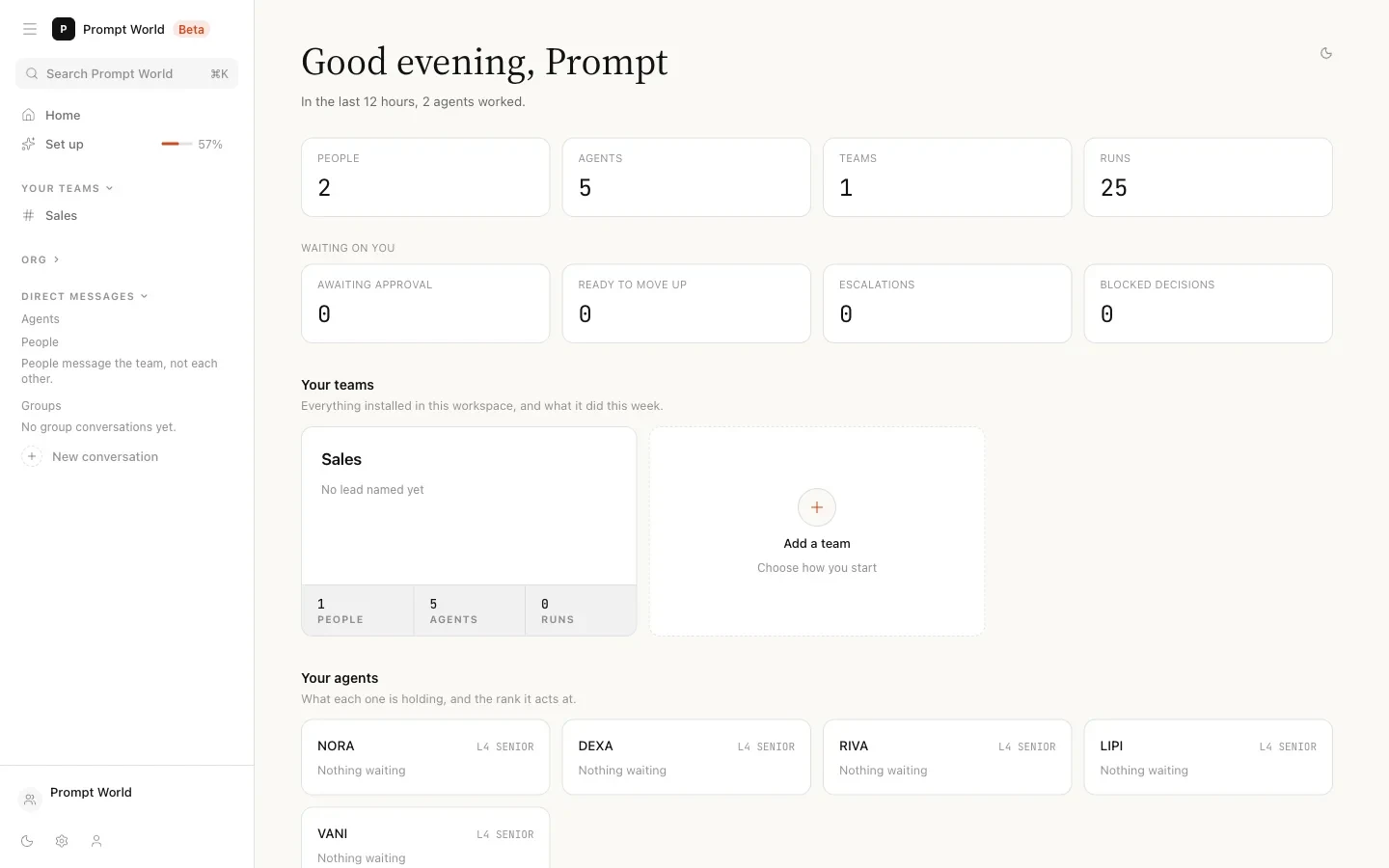
Your teams are listed down the left of every screen, under Your teams. Welcome shows a card for each one, with its people, its agents and its runs this week, and ends with an Add a team tile.
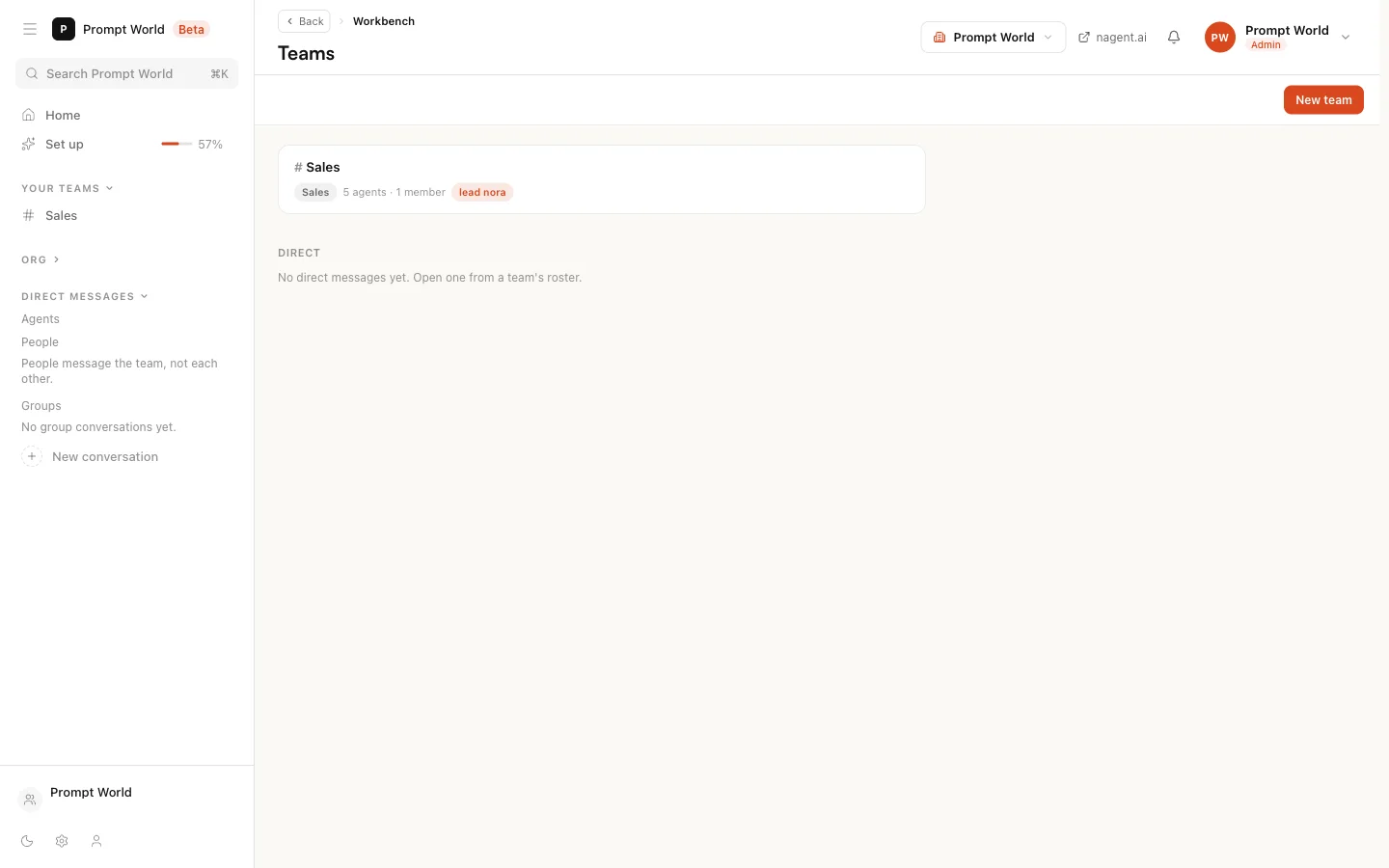
Teams lists the same teams with their department, how many agents and members each has, and its lead agent. Direct below them lists your direct messages with agents.
Option 1. Add a prebuilt team
A prebuilt team arrives rostered, skilled and scoped: its agents, their skills and the lead that speaks for it. You keep the charter and the people on top. The teams you chose at sign-up are already installed. See prebuilt teams.
- On Welcome, point at Add a team and choose Choose a prebuilt team.
- Pick a team. Under Arrives with it lists the agents it seats, and names any that are not here yet.
- Press Use this team. The button says Seating while the agents are installed.
- Open the team from Your teams and add your people to it. See extending a team.
- Give the team the knowledge and tools it expects. See adding knowledge and email and integrations.
Seating a team needs a Workspace Admin. A prebuilt team is a starting point: afterwards you can add agents, change their set-up and edit the charter.
Option 2. Create a new team
For work that is particular to your organisation, form a team yourself.
- On Teams, press New team. Or on Welcome, point at Add a team and choose Create a new team.
- Fill in the form.
| Field | What to enter |
|---|---|
| Name | The team's name. It also becomes the team's address |
| Department | Sales, marketing, success, engineering, product, operations, people, finance or other |
| Agents | One or more agents. Hold Cmd or Ctrl to pick more than one |
| Lead | The agent that speaks for this team |
| Charter | What this team is for: its goals, tone and rules |
- Press Create team.
- Add your people from the team's member list. See extending a team.
The Agents list is grouped into Installed, Available to install and Other agents. An agent available to install is not in your workspace yet: install it from the Agent Workbench first. If no agent fits, write the job under What it would do, in one line and press Build agent. The agent builder opens with your sentence, and when the agent exists it is on the list. See creating an agent.
Write the charter as a real remit. It becomes charter.md in the team's
files, and the agents read it as their operating context.
The form says what is missing before it creates anything, for example "A team needs at least one agent", "Choose the agent that speaks for this team" or "The lead has to be one of the agents on this team". Creating a team needs a Workspace Admin.
Our logic
A team with no lead captures nothing and answers nothing, because the lead is the agent that reads what people say in the room. And an agent must be installed before it joins a team, so a team never lists a teammate who cannot work.
The room you land in
Open the team from Your teams and you are in its room. A new room opens with Finish setting up, counting four steps: connect your CRM, connect your tools, set your growth number and invite your teammates. Hide puts it away.
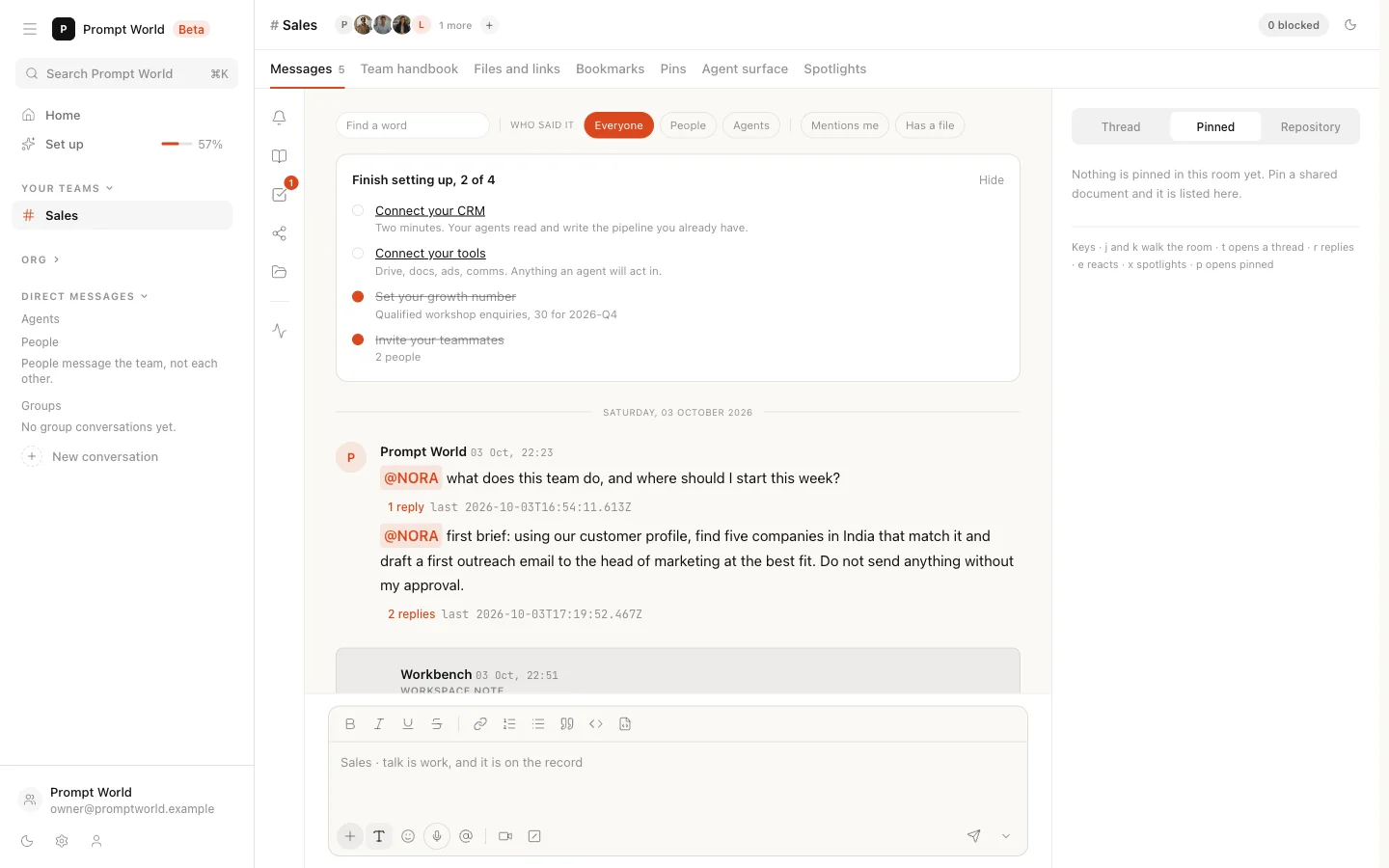
See the team room for working in it and sending a brief for its first piece of work.
Trust stays with each agent
Joining a team gives an agent no extra autonomy. Every agent keeps its own level, from L1 Observer to L5 Principal, and an action it may not take on its own still waits for approval, whichever team it works in.
A prebuilt team seats its agents at L4 Senior. On a new workspace every outbound e-mail NORA sends still waits for a person's approval, whatever level her seat shows. Check each agent's level on its page before you connect a sending account or a publishing tool. See autonomy and governance.
A good first team
- Pick one function with recurring, well understood work.
- Use the matching prebuilt team, or two or three agents rather than ten.
- Put the people who supervise the work on the team, not the whole organisation. Approvals belong with people who know the work.
- Let the team run its first pieces of work under supervision before you widen what it does.
Where to go next
- The team room: the tabs, the board and approving work.
- Extending a team: adding people and agents.
- Sending a brief: the first piece of work.