
Browse documentation
Triggers and webhooks
How outside services start work in your workspace through signed webhooks, how MCP tokens let an approved client call Nagent, and how event subscriptions decide what fires an agent.
Letting the outside world start work, without leaving the door open
Most work starts with a person in a team room. Some should start on its own: a booking made in your scheduling tool, a form filled in on your site, a message in a connected channel. Nagent lets those events in, but only when they prove where they came from, and only into your workspace.
Three things make that work:
| Piece | What it does | Where it lives |
|---|---|---|
| Inbound webhook secrets | Let a service post events to your workspace, signed | Settings, Triggers |
| MCP client tokens | Let an approved client call Nagent's tools for your workspace | Settings, Triggers |
| Triggers and event subscriptions | Decide which agent does what when an event arrives | An agent's Triggers tab, and connected tools |
Open Settings, then Triggers, or go to nagent.ai/admin/settings/triggers. The page is titled Trigger secrets + MCP tokens.
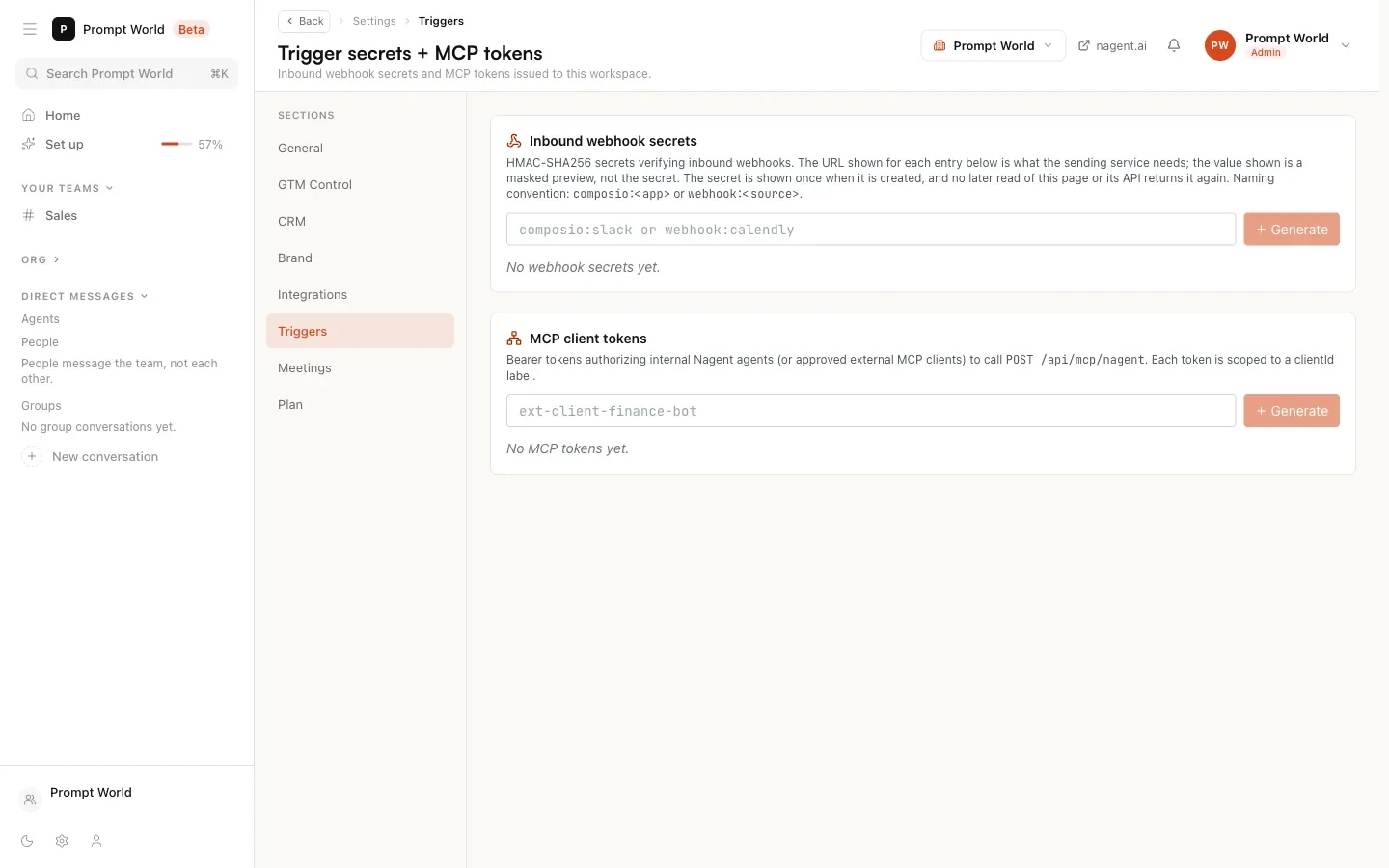
Inbound webhook secrets
Each secret verifies one sending service. A request is accepted only if it is signed with the secret using HMAC-SHA256 over the exact body sent.
Create one
- In Inbound webhook secrets, type a name. Use
webhook:<source>for a service such as a scheduling or payments tool, for examplewebhook:calendly, orcomposio:<app>for a connected tool, for examplecomposio:slack. Names use lower-case letters, numbers and dashes. - Select Generate.
- Copy the secret from the green box straight away. "Copy this now. It will not be shown again." Then select the dismiss link.
- Copy the URL shown under the new entry with Copy URL, and paste both the URL and the secret into the sending service.
The list afterwards shows only a masked preview of each secret, never the secret itself. Lose it and you generate a new one.
The URL is specific to your workspace. The first secret you generate mints your workspace's endpoint; if older secrets show no URL, generating a new one makes the URL appear for every entry.
What the sending service must do
For a webhook: source:
- Post JSON to the URL.
- Sign the raw body with HMAC-SHA256 using the secret, as a hex digest, in an
x-webhook-signatureheader. Asha256=prefix is accepted. - Put the event's name in an
eventortypefield. Nagent records it aswebhook.<source>.<event>, for examplewebhook.calendly.invitee.created.
A composio: source works the same way with an x-composio-signature
header, and its events are recorded as tool.<app>.<event>.
A request with no signature, a wrong one, or a source with no secret is refused. There is no switch to accept unsigned calls.
Revoke
Select Revoke on an entry and confirm. The service's calls fail until you issue a new secret and update it there.
Our logic
A webhook URL that accepts anything is a way for anyone to spend your budget and start your agents. So every call must be signed, secrets are shown once, and the URL names your workspace so an event can never land in another one.
MCP client tokens
An MCP token lets a client call Nagent's MCP endpoint for your workspace. The page describes them as tokens "authorizing internal Nagent agents (or approved external MCP clients)". Through it a client can fire one of your triggers, subscribe to an event, read an agent's memory, and list your pending SEO and AEO proposals.
- Type a client name, for example
ext-client-finance-bot, and select Generate. - Copy the token from the green box. It is shown once and never stored; Nagent keeps only a fingerprint of it.
- Give it to the client, which sends it as a bearer token.
Revoke stops that client at once. Every call is logged.
Triggers: what fires an agent
A secret only gets an event in. What happens next is decided by a trigger, which belongs to an agent. Open the agent in the Agent Workbench and choose its Triggers tab.
A trigger names an action key (what the agent does), a label, a rate limit per hour, and how it fires. The two kinds most useful here:
- event fires on a named event, such as
webhook.calendly.invitee.createdorlead.replied. Events are checked about once a minute. - cron fires on a schedule, with presets and a preview of the next run.
Every fire is checked against the action's rules and the agent's trust level, exactly as if a person had asked, and logged on Actions. An event can never make an agent do something it could not have done anyway.
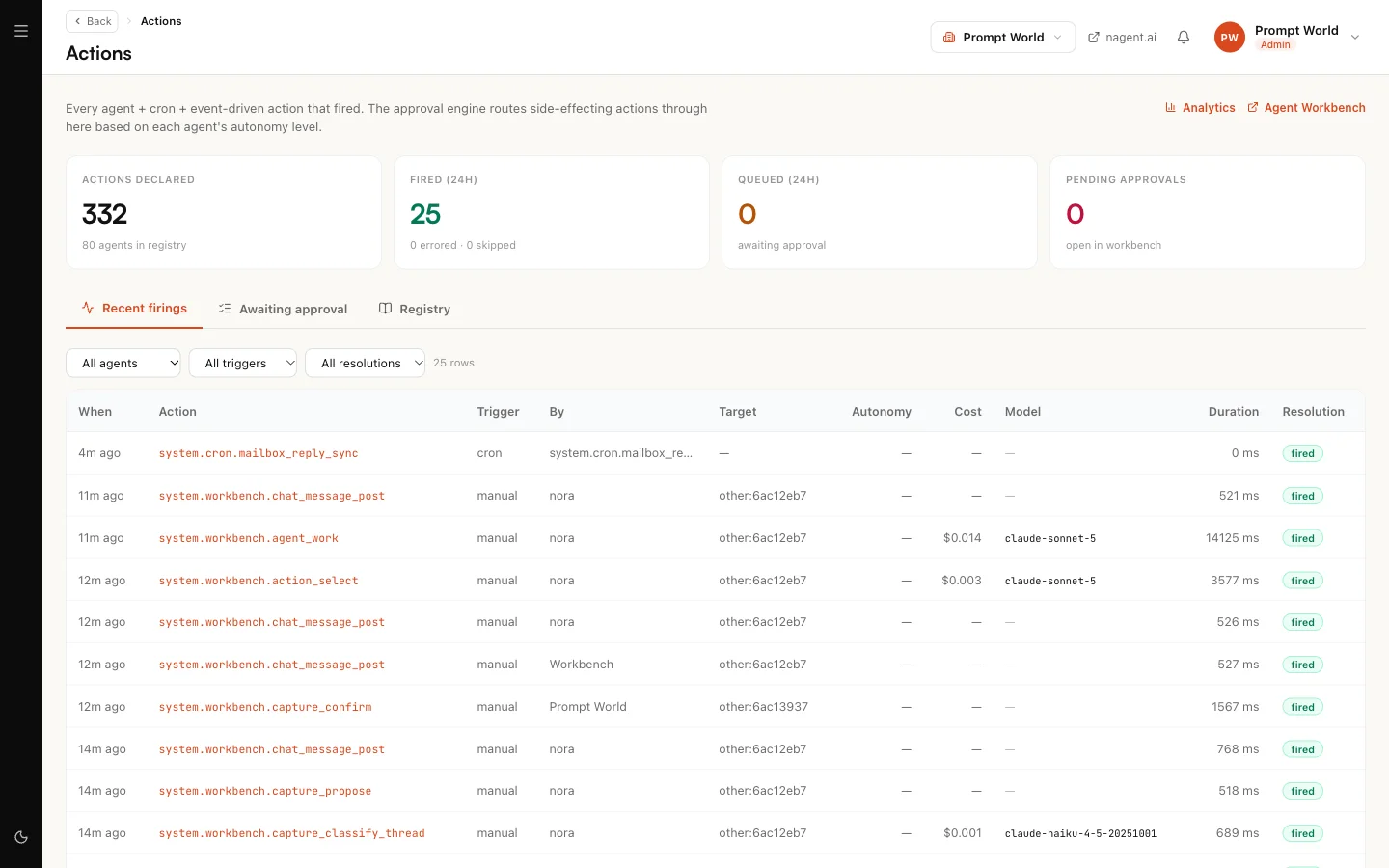
What a fire does today
The form says, beside each control, whether this deployment honours it. Run the action when it fires ("Execute, not just record") needs scheduled execution, and while that is off the form says "Scheduled execution is off on this deployment, so this records a fire and runs nothing." Report to a room says the same about room reports. Read those notes before relying on a trigger: a recorded fire is an audit entry, not work done.
Event subscriptions on connected tools
When a connected tool reports an event, such as a Slack message or a Gmail thread, an event subscription decides which agent action runs. A subscription matches an event pattern, can filter on the event's details, and fires its action through the same approval rules as everything else.
The Workspace set-up page has an Event subscriptions card: "What fires an agent when something happens in a connected tool." It counts your subscriptions and flags any that are failing, because "a failing subscription is worse than none: it is a silence somebody believes is a trigger."
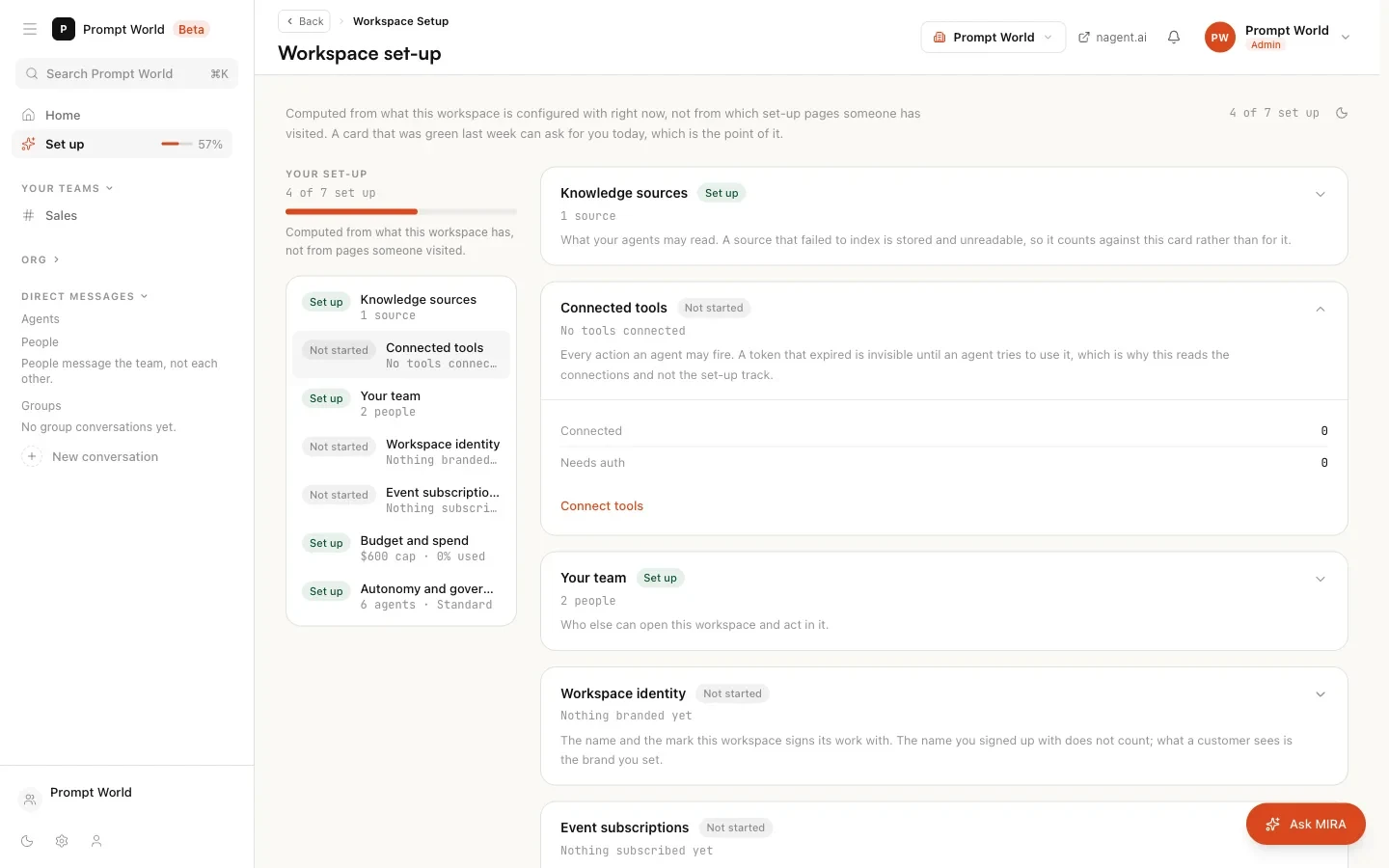
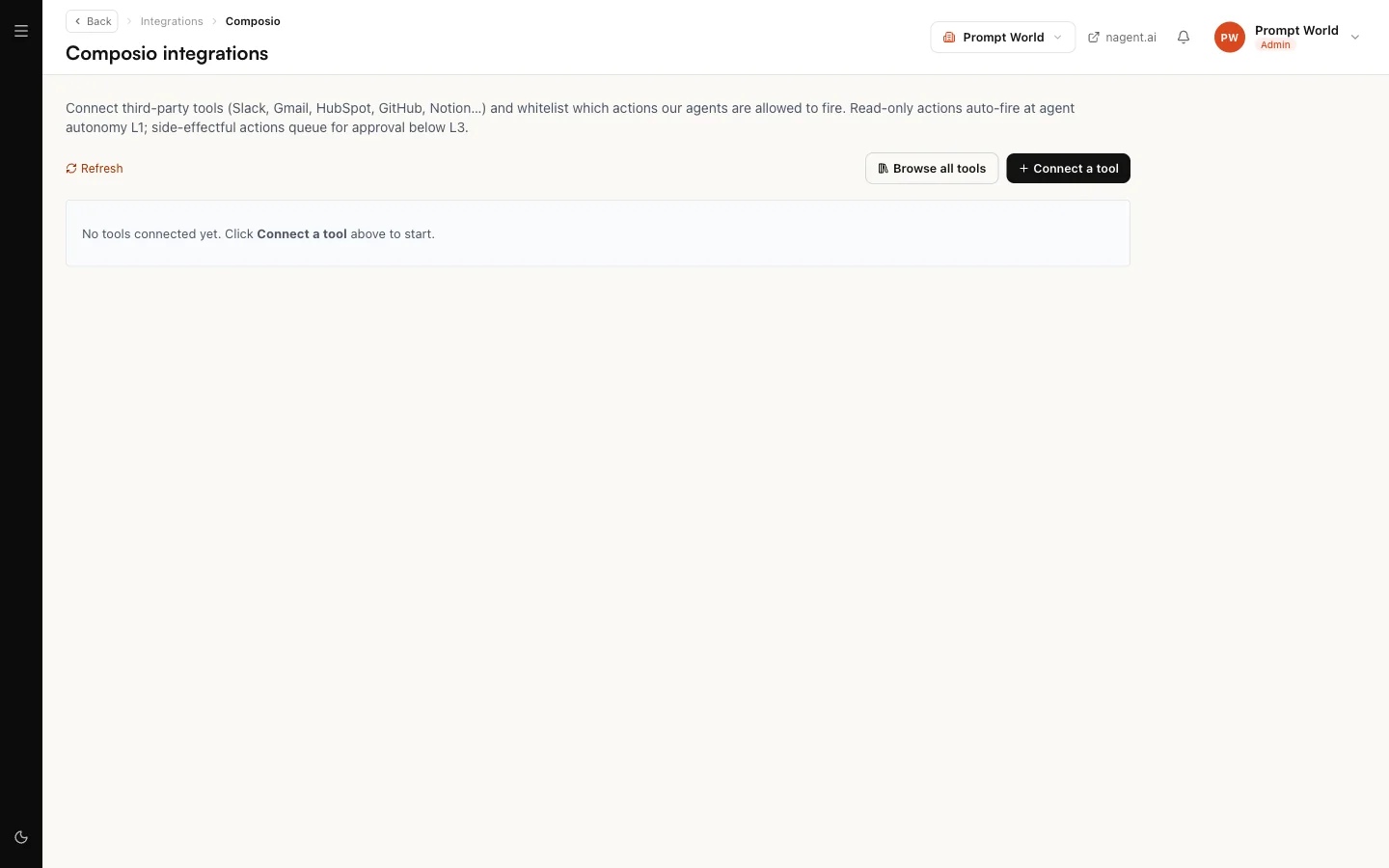
There is no screen for creating event subscriptions yet; the card's link opens the tools page, where triggers on each connected tool can be reviewed (see Third-party tools). To set a subscription up, ask the Nagent team in your team room.
Who can do this
Opening the Triggers page needs tool read permission. Generating or revoking secrets and tokens needs tool write permission, and without it the page says it is read only. Creating an agent's triggers needs permission to edit AI teams. A workspace admin holds all of these.
Where to go next
- Email and integrations: your sending domain and site key.
- Tools and integrations: how actions and triggers are whitelisted per tool.
- Workspace set-up: the Event subscriptions card and the other six.