
Browse documentation
Billing and plans
How to read the Billing and Plan page, what "no payment on file" means for a new workspace, how to upgrade monthly or annually, and how plans relate to the caps that stop agents.
Your plan, your payments and your invoices, on one page
Billing and Plan shows the plan the workspace is on, lets a Workspace Admin buy or change one, and keeps the invoices. Anyone with access to settings can read it. Buying, changing or cancelling needs the Workspace Admin role; other people see the note "Read-only".
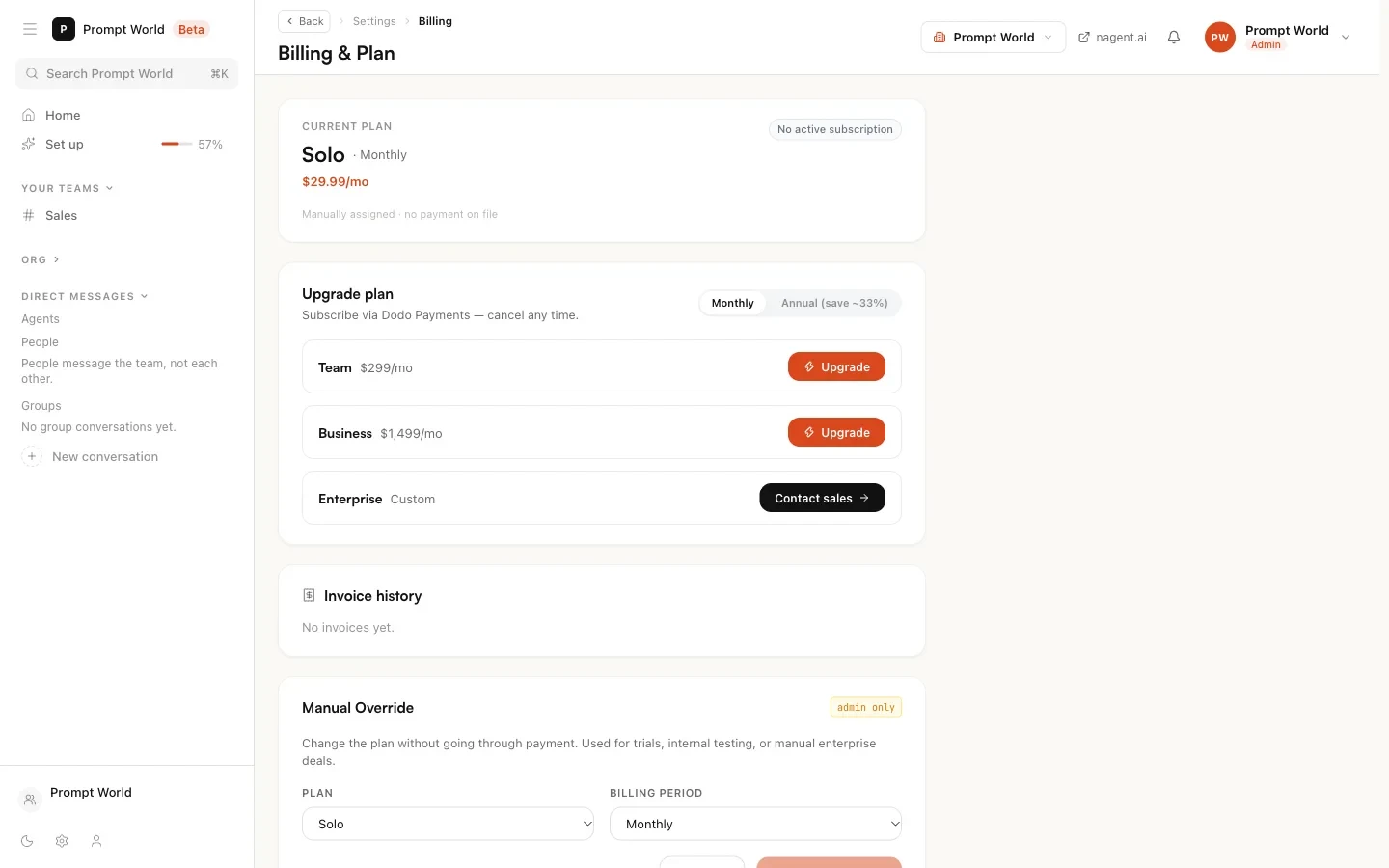
The current plan card
The card at the top shows:
- Current Plan: the plan name and whether it is billed Monthly or Annual.
- The price for that plan and period.
- A status badge: Active, Trial, Past Due, Canceled, or No active subscription.
- Renews on or Cancels on a date, when there is a paid subscription.
A new workspace: "no payment on file"
A workspace created through self-serve sign-up has not bought anything yet. Its card reads Solo, Monthly, with the badge No active subscription and the line "Manually assigned · no payment on file".
Read that as "nothing has been purchased". Solo is what the page shows when no plan has been recorded; it is not a plan you chose. The teams you picked at sign-up are installed whatever this card says, and nothing in your workspace stops because no card is on file.
What does stop an agent is its budget: every agent has a daily and a monthly cap, $5 and $100 until you change them. See autonomy and governance.
The plans
The page lists the plans with their prices for each billing period.
| Plan | Monthly billing | Annual billing |
|---|---|---|
| Solo | $29.99 a month | $19.99 a month |
| Team | $299 a month | $199 a month |
| Business | $1,499 a month | $999 a month |
| Enterprise | Custom | Custom |
The switch above the list reads Monthly and Annual (save ~33%). The annual figures are the monthly equivalent of paying for the year.
What each plan includes:
| Plan | Teams and capabilities |
|---|---|
| Solo | Agentic CRM, e-mail sending |
| Team | Solo, plus the Marketing team and the Content team |
| Business | Team, plus the Sales team and observability |
| Enterprise | Everything in Business, on terms agreed with you |
Some things come with every plan and are not listed above: the team workspace, the builders, tools and integrations, settings, the Knowledge Hub and the Agent Workbench.
Upgrading
- Open Billing and Plan.
- Under Upgrade plan, choose Monthly or Annual (save ~33%).
- Press Upgrade beside Team or Business.
- You go to the payment page. Payments are taken by Dodo Payments, and you can cancel any time.
- When you come back, a banner says "Payment successful" and your plan updates within a few seconds. If you left the payment page, it says "Checkout canceled" and nothing changed.
Enterprise has no checkout. Its button is Contact sales, because it is quoted rather than bought. If online payment is not available, every plan shows Contact sales instead of Upgrade.
A plan below your current one shows Downgrade and goes through the same payment page.
After a purchase, the teams and capabilities your plan includes are applied to your workspace by a Nagent operator. If something your plan includes is missing a day after you pay, tell us.
If you came from the pricing page
If you picked a plan on the public pricing page before signing up, Billing opens with a banner, "Complete your purchase to get started", naming the plan and period you chose, with that plan selected below.
Cancelling
When a paid subscription is active, the card shows Cancel subscription. Press it and confirm. The confirmation says your subscription is cancelled at the end of the current billing period, and you keep access until then. The card then reads "Subscription will not renew at period end."
A cancelled workspace shows Reactivate plan in place of Upgrade plan, with "Purchase a new plan to restore access."
Invoice history
Every payment is listed with its amount and date and a Download link to the invoice. A new workspace shows "No invoices yet."
Manual override
Below the invoices, a Workspace Admin also sees a section headed Manual Override, marked admin only. It is for Nagent staff, who use it for trials, internal testing and enterprise deals. Saving it from a customer account is refused. To change your plan, use Upgrade or contact us.
Plans, credits and caps
Three different numbers are easy to confuse.
| Number | What it is | Where you see it |
|---|---|---|
| Plan price | What the subscription costs | This page |
| Per-agent caps | What each agent may spend a day and a month before it stops | The agent's Budget pane in the Agent Workbench |
| Workspace cap total | The sum of the agents' monthly caps | Home, and the Budget and spend card in Workspace set-up |
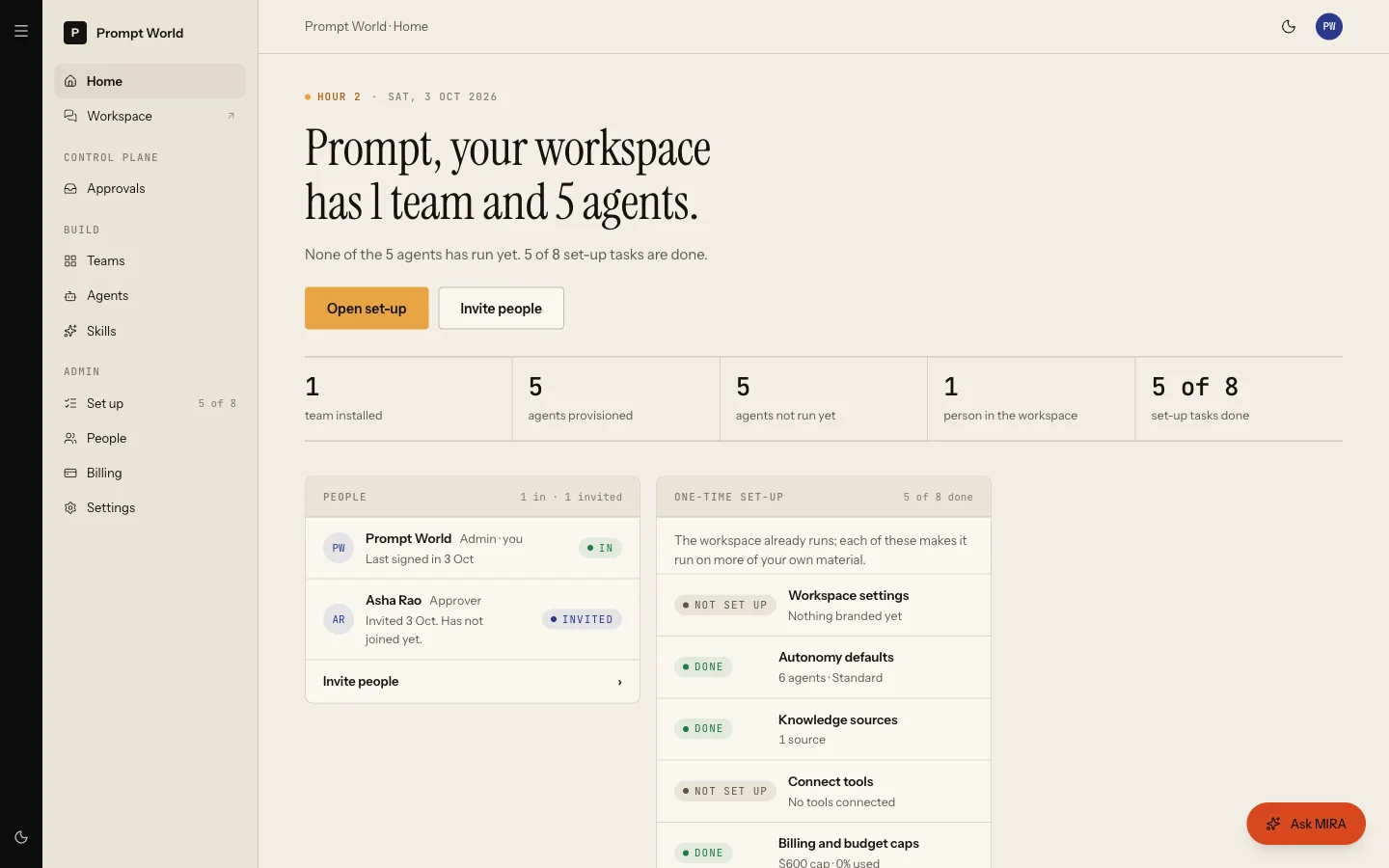
The caps are the control that stops spending today. Raise or lower them per agent. See autonomy and governance.
Our logic
You should never find out what an agent cost from an invoice. The plan is what you pay for the product; the caps are what you allow the agents to spend, set per agent and checked before every paid call.
Where to go next
- Autonomy and governance: setting budget caps.
- Workspace set-up: the Budget and spend card.